Navigation Menu > Tasks > Single task update option
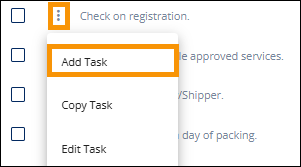
Adding a task can be accomplished by clicking the menu icon
 from any task.
Selecting the Add Task option opens the Add Task screen; however, it does not
populate the screen with any details from the task from which the screen was
opened. To have details auto-populate the screen, use the Copy Task option (see
MSWeb Copy Task).
from any task.
Selecting the Add Task option opens the Add Task screen; however, it does not
populate the screen with any details from the task from which the screen was
opened. To have details auto-populate the screen, use the Copy Task option (see
MSWeb Copy Task).
1.
To add a new task, click the menu icon  next to any task.
2.
This opens the Add Task screen. Choose an Identifier. Of note, what qualifies as
an “Identifier” is detailed within Add
Task.
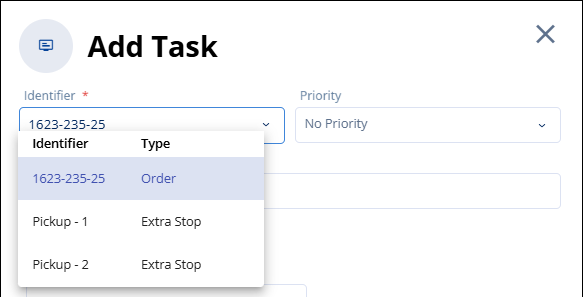
Figure 182: Identifier may be just
the Order Number or there may be other options depending on the order.
3.
Optionally, set a Priority.
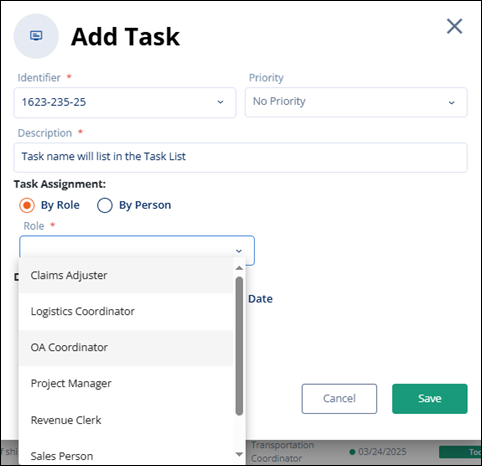
Figure
183: Add Task
4.
Enter a Description (see Figure 183). The description will be
what is listed within the Task List.
5.
For Task Assignment, decide whether to assign the task based on a role or assign
it directly to a specific person. Choose the option and the dropdown will
reflect the option chosen.
6.
Set the Due Date. The Due Date can be set using “By Specific Date” or “By
Dependency Date.” Choosing “By Specific Date” opens a Task Date field and
calendar to set the date. Choosing “By Dependency Date” has the option to set
the number of days the task is be completed either before or after the
Dependency Date. The Dependency Date field is a dropdown of options. In the
example in Figure
184, the task will have a Due Date of 1 day before the Load Date.
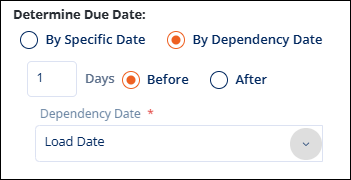
Figure
184: By Dependency Date option
7.
Click Save.
The task will be listed
within MSWeb Tasks > Task List
and the MSWeb Order
Timeline. The date the task was created and the person who created the task
will list within the View Details menu option (within the menu for that
task.)