for the task to be copied.
 Navigation Menu > Tasks > Single task update option
To copy a task, click the menu
icon for the task to be copied.
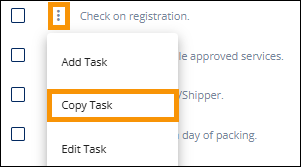
Figure 185: Copy Task
All the data set for the task being copied will auto-populate the Add Task screen. All fields are editable. The task does not have to remain an exact copy of the task copied. Edit the fields as needed and click Save.
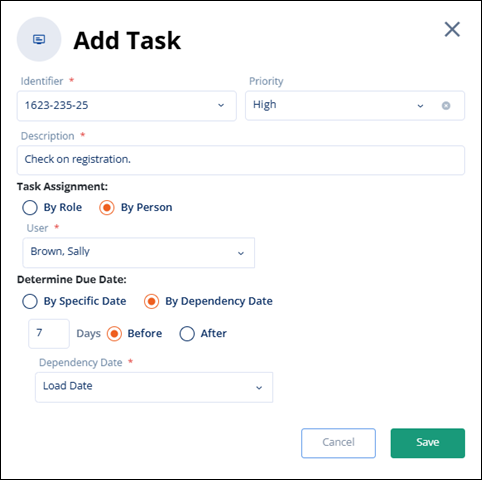
Figure 186: Task details from the task copied.
In the example below, the Description was changed.
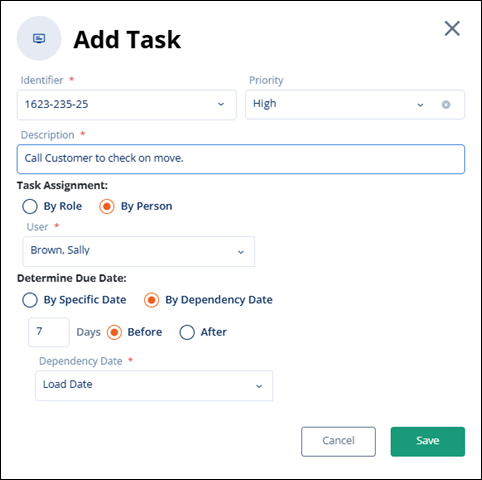
Figure 187: Description was changed.
This new task lists in the Tasks list and also on the MSWeb Order Timeline.

Figure 188: New task on Order Timeline.
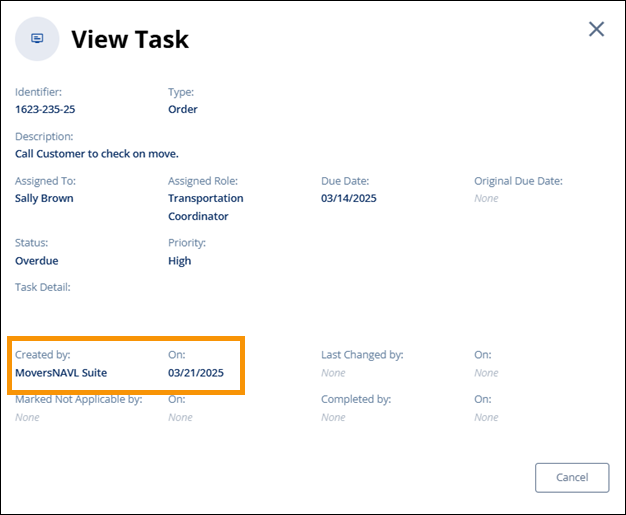
Clicking the View Details option on the menu for this task will open the View Task screen. The person who created the task and the date the task was created is reflected on this screen. See MSWeb Tasks for details.