
The video MSWeb Task Filters details the use of task filters.
This video, along with other MSWeb videos, are located within the Training Center > MSWeb section.
|
|
The video MSWeb Task Filters details the use of task filters.
This video, along with other MSWeb videos, are located within the Training Center > MSWeb section. |
Use Task Filters to narrow the list of tasks within the Task Grid. Though the functions for the filters are the same within both MSWeb Tasks and MSWeb Global Tasks, there are a few difference in use, which are:
Tasks that are on the order level (MSWeb Tasks):
•Tasks that list in this area include all tasks for the order, including tasks set within Task Definition and manually created tasks.
•To populate the Task List with all tasks related to the order, check every option within Task Status. Do not use the other filters or search.
•For broad searches, use all status options and then add another filter.
•Searches only look to the list created by the filters set to look for matches. This search is detailed in the video at the top of this topic.
Tasks within MSWeb Global Tasks:
•Tasks that can list in this area include all tasks for all order that have the both the Assigned To and Due Date set, including tasks set within Task Definition and manually created tasks.
1. It is important to always use at least one status filter in use within MSWeb Global Tasks. If there isn’t a Status option set, the list will be empty.
•Use one or more of any of the following filters to narrow results within the Task List. Filters will be applied as they are entered.
•When using the Search, the search looks within the results created from the filter(s) for matches. This search is detailed in the video at the top of this topic.
For either task location, the filters and their details are:
•Date Range: Entering a date in the first and second field will filter tasks that are due on or after the first date and up to the second date. Entering a date in only the first field will filter tasks due on the date entered and after that date. Entering a date in only the second field will filter tasks due on the date entered and before that date.
•Status: Choose one or more status. Uncheck “Not Applicable” to keep the task list from throwing an error when 1000+ tasks are listed with it checked.
•User: Select one or more users.
•Search: Enter any text to search. The search applies to the Description on the task only. The search will look to the list created from any applied filters for a match.
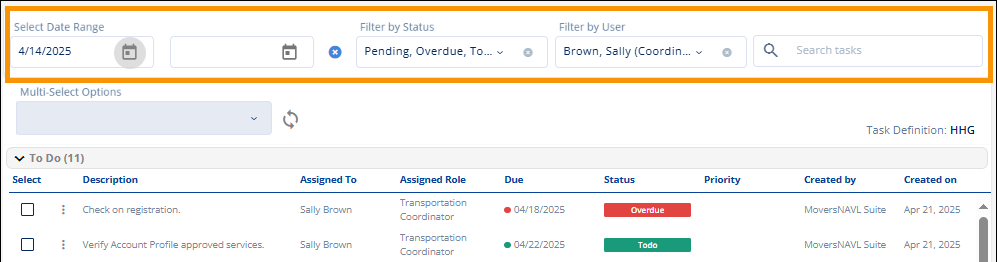
Figure 179:Filters used are Date, Filter by Status, and Filter by User.
In the example shown in Figure 179, only tasks that meet all three filters set will be listed. The filters used are:
•Date Range – only one date was entered; therefore, all tasks that have a due date on and after 4/14/2025 will list
•Filter by Status – only tasks that are Pending, Overdue, or To do
•Filter by User – only tasks that are assigned to Sally Brown
The following table describes each of these filter settings.
|
Filter |
Description |
|
Select Date Range |
Enter one or both dates to filter the order tasks by due date. If you enter only a date on the left, the application includes only tasks with a due date that is on or after the selected date. Conversely, if you only enter a date on the right, the application includes all tasks before and up to the selected date. Enter both dates to narrow the results to due dates that fall in between the two selected dates. |
|
Filter by Status |
By default, all status options are checked so that all tasks are shown in the Task Grid. It is important to always use at least one Status filter. If no Status Filter is used, there will not be any tasks in the list. Then, if using other Task Filters, it will be attempting to filter a task list that is already empty.
Set one or more of the following options:
•Pending: Pending tasks are any task that is active but does not have a due date and/or user assigned to it. This are indicated on the order level.
•Overdue: Tasks that were not completed by their due date.
•Todo: Tasks that have a due date and user assigned to them.
•Completed: Tasks that have been marked “Completed.” Tasks marked Completed will show who marked it Completed and the date it was marked Completed within the MSWeb Order Timeline.
•Not Applicable: Tasks that have been marked “Not Applicable.” |
|
Filter by User |
You can filter the tasks on the order by selecting on or more user from the list of available personnel. This option filters the list by matching selected users to those people assigned to the task. Only active personnel show in this list. |
|
Search Task |
Use the search to match entered text to most components of a task, which include Description, Assigned To, Assigned Role, and Created By. |