Claims > Add or Edit buttons under Claims grid
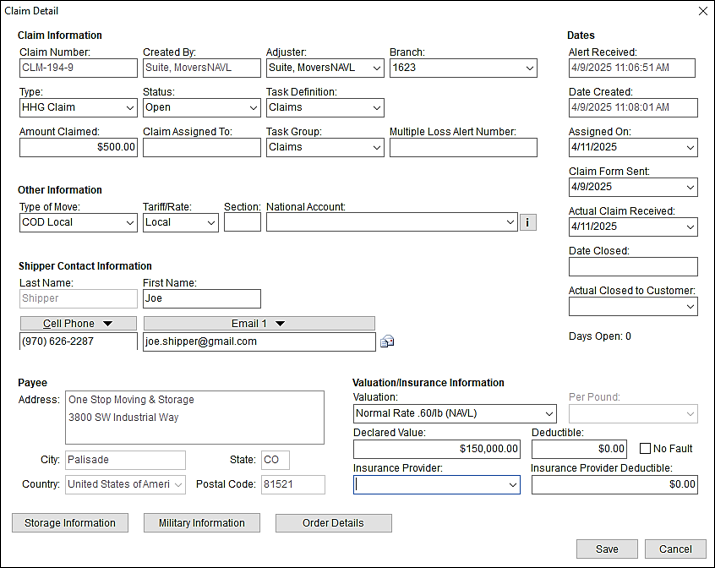
Use the Claim Detail screen to enter and manage general data of a claim record.
There are several fields within the Claim Detail that are updated when the Save button is clicked within the Claim Detail. These fields include Claim Number, Created By, and Date Created. Before the Save button is clicked, the fields will remain empty.
The application shares Claim Detail data with several Order Information fields, such as Type of Move and Tariff/Rate. It may be necessary to update the rating fields since it affects the GL accounts available for expenses when charging warehouses and agents.
View information within Storage Information, Military Information, and Order Details by clicking on the respective button at the bottom of the screen. Information is found only if entered on the order.
Figure 13: Claim Detail screen
To edit the Claim Detail of an existing claim:
1. From the Claims grid, click on a claim to highlight the claim.
2. Click the Edit button. This will open the Claim Detail screen with the details already entered for that claim. Use the Edit button within Claims to add or update information on this screen.
To add a new Claim Detail:
1. Click the Add button indicated in the image below.
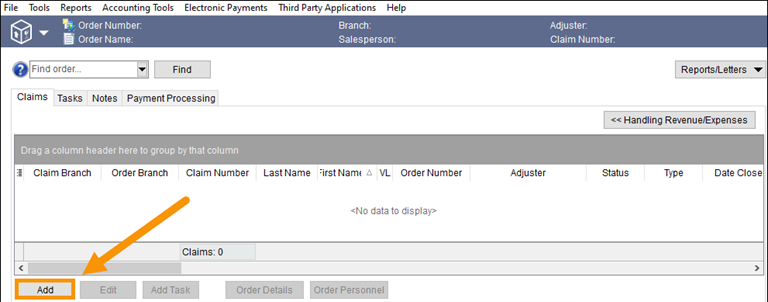
Figure 14: Click Add to start a new claim.
2. This prompts the Find Order(s) by screen. Enter search within any of the tabs to locate the order for the claim. (The Find Order(s) by screen is very similar to the Find Order screen.)
3. One or more orders that match the search criteria will list within the Find Order(s) By screen. Click the order for the claim.
4. Click Select. This will open the Claim Detail screen for a new claim (Figure 13).
The following steps are for field in the Claim Information section of the Claim Detail.
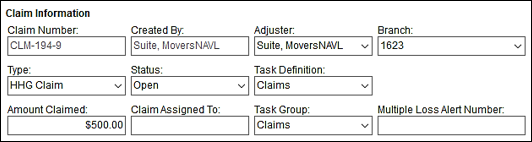
Figure 15: Claim Detail > Order Information section
5. The Claim Number and Created By fields will auto-populate when the screen is saved.
6. Select an Adjuster.
7. Set the Branch that the claim will be processed through. This may not be the same branch as on the order. Your company may have a designated branch for their claims.
8. Choose the Type (which is the Claim Type.)
9. Set the Status, which typically is set to Open when the claim is created.
10. Optional: Set the Task Definition. When selected, the tasks in the Task Definition will list within Claims > Tasks tab and the Tasks module.
11. Enter the Amount of the Claim.
12. Optionally: Enter the Task Group.
The following steps are for field in the Claim Information section of the Claim Detail.
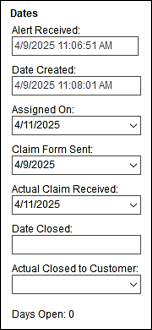
Figure 16: Claim Detail > Dates section
13. Alert Received and Date Created are fields that are populated by the system.
14. If the Assigned To field is set (within Claim Information section), set the Assigned Date to the date that assignment was made.
15. Enter the date that the Claims Form was sent to the Customer.
16. When the Claim Form is received back from the Customer, enter the date it is received within the Actual Claim Received field.
17. Fields within the Other Information section are populated from the order.
18. Fields within the Shipper Contact Information section are populated from the order.
19. Fields within the Payee section are populated from the order. Verify that the Shipper (or Payee), in the case there is a claim payment, wants the check mailed to the Address within Payee. Sometimes the Payee would like it to be mailed to another address.
20. Fields within the Valuation/Insurance Information section are populated from the order, if they have been entered. Update this information in this section, as needed.
21. Click Save.
22. The claim will be listed in the Claims Grid of the Claims Adjuster listed on the claim. If not listed on your Claims Grid, use the Find at the top of Claims to locate the claim.
The following table describes the fields available in this screen.
|
Field/Function |
Description |
|
Claim Information |
|
|
Claim Number |
The application automatically computes the Claim Number based on Claim Type entered. This field is populated when the Claim Detail is saved. The field remains empty until it is saved. |
|
Created By |
The name of the user that added the record displays in this field. This field is populated when the Claim Detail is saved. The field remains empty until it is saved. |
|
Adjuster |
Assign an adjuster to the claim from the list of available employees. Claim adjusters are those employees with the Status of “ACTIVE” a Labor Type of “Adjuster” and Assigned to the branch of the order in Personnel Setup. The application will assign tasks to this person through the Responsible Person field in Tasks Setup and depending on the selected Task Definition. |
|
Branch |
Assign the claim to a particular branch by selecting a value from the list of defined in Branch Setup. The application references this branch for reporting and transaction generation. This branch setting differs from the branch of the order, allowing for centralized settlement and payments. |
|
Type |
Assign a classification to the claim by selecting a value from the list of those defined in Claim Type Setup.
Note: Type determines which Damage Type and Denial Code options are available with Add Claim Item. See Claim Type to Claim Damage Type Map Setup and Claim Type to Claim Denial Code Map Setup for specifics.
|
|
Status |
Select the state that the claim is in from the list defined within Claim Status Setup. Setting the Status to “Closed” will set the Date Closed field, effectively closing the claim.
Note: MoversSuite recommends verifying the Summary (Claims) data with the Claims Out of Balance Report prior to closing the claim.
|
|
Task Definition |
Generate tasks for the claim based on a selected value from those defined within Tasks Setup. The application will generate claim-specific tasks and display them within the Tasks tab. The Tasks set will be listed within the Claims > Tasks tab and within the Tasks module. |
|
Division |
Select the appropriate division to report the claim under, if applicable. See Divisions for more information. |
|
Amount Claimed |
Enter the initial or estimated total amount of the claim. This can be the amount the customer claimed or the amount settled. It depends on your company policy. |
|
Claim Assigned To |
Enter the name of outside party, e.g. van line or insurance company, assigned to process the claim (up 128 characters).
This field is information only and is sometimes used to record other information as determined by your company. In the Claims Grid, this field is referred to as “Claim Reassigned To.” |
|
Task Group |
Select a value to categorize the claim record. Options available are set within Tasks Setup. See Tasks Setup for further information on Task Group functionality. |
|
Multiple Loss Alert Number |
If this claim record is part of a larger claim, then enter the number assigned to that grouping of multiple loss claims (up to 64 characters). This field is information only and is sometimes used to record other information as determined by your company. |
|
Other Information |
|
|
The data set within this section auto-populates from the order, if set within the order. | |
|
Type of Move |
Select a type from the list of those defined in Move Type Setup. This field affects claim transaction generation.
Note: Changing this field affects the order by updating the Type of Move field in Move Information.
|
|
Tariff/Rate |
Select a rate type from the list of those defined within Rate Plan Setup to be used transactions generated.
Note: Changing this field affects the order by updating the Tariff/Rate field in Billing Information.
|
|
Section |
Enter the van line supplied section number associated to the order (up to 4 characters).
Note: Changing this field affects the order by updating the Section field in Billing Information.
|
|
National Account |
Select an account from the list of those defined in Account Setup.
Note: Changing this field affects the order by updating the National Account field in Billing Information.
|
|
|
This function opens National Account Information where a user can view detailed information of the record. |
|
Shipper Contact Information |
|
|
Last Name |
Enter the claim Payee name (up to 26 characters). Initially, the application populates this field with Last Name/Company Name set for the order in Name, Address, Phone. Refer to the Payee section below for the address to this party. |
|
First Name |
Enter the first name of the claim Payee (up to 16 characters). Initially, the application populates this field with First Name/MI set for the order in Name, Address, Phone. Refer to the Payee section below for the address to this party. |
|
|
Phone Number Entry Select a phone type from the drop-down menu from this list of those defined in Claim Phone Type Setup, then use the field below to enter the necessary phone data (see Phone Number Entry for options.
Pulling Phone Numbers in from the Order MoversSuite automatically pulls in phone numbers for the order for the phone types that match those defined within the Claims module when a new claim is created. For example, if a phone type of “Cell Phone” is defined within Claims and also within the Order Information module and has a number set for it (through the Name, Address, Phone tab), then this number is automatically available here.
TECHNICAL NOTE: The phone type must match in both the Claim Phone Type Setup and Shipper Phone Type Setup and cannot be either “Home Phone” or “Work Phone,” since the application already pulls in data for the claim for these two types through the Shipper Phone Types of “Moving To Home” and “Moving To Work” already. Refer to Claim Phone Type Setup for more information.
TECHNICAL NOTE: The email field in Claim Detail pulls values from the EmailAddress table. No setup exists for this table.
|
|
|
Email Address Entry Select an email type from the drop-down menu from this list of those available then use the field below to enter the email address. Multiple email addresses may be entered in this field. Separate email addresses with a comma or semicolon. Field accepts up to 50 characters. Press the email icon (
Technical Note: There is no administrative setup for the email address types. Administrators will need to update this data through direct database access to the EmailAddressType table. |
|
Dates |
|
|
Alert Received |
This is the date when the Claim Alert is sent. |
|
Date Created |
This field displays the date and time the user created the claim record in MoversSuite. The application sets this date automatically when new Claim Detail record is added to the system. This field is populated when the Claim Detail is saved. The field remains empty until it is saved. |
|
Assigned On |
This is the date when data is entered into the Claim Assigned To field and the Claim Detail screen is saved with that setting. See Date Fields for entry options. |
|
Claim Form Sent |
Enter the date that the claim form was sent. |
|
Actual Claim Received |
Use this field to capture the date the claim was actually received. Setting this date triggers the calculation of the Days Open value. |
|
Date Closed |
The date a user set the status to “Closed” through the Change Status function.
Note: The Date Closed will remain set to the date of the first status change to “Closed,” i.e. the application maintains the original closed date regardless of status.
|
|
Actual Closed to Customer |
Provide the date that the claim was closed for the customer affected. |
|
Days Open |
Displayed in this field is the number of days the claim has been opened. Computed as the number of days between the Actual Claim Received date and either the Actual Closed to Customer or the current date, if Actual Closed to Customer is not set. |
|
Payee |
|
|
This is the address where the claim payment is mailed. The application initially sets the Payee address to the Moving To – Primary data in Move Information; however, it could be a different address. Verify the address where the payment is to be sent with the Payee. If needed, update the information. | |
|
Address |
Enter the address of the payee (3 lines up to 256 characters each). |
|
City |
Enter the city of the payee (up to 26 characters). |
|
State |
Enter the state of the payee (2 characters). |
|
Country |
Select the payee country from the available list. |
|
Postal Code |
Enter the zip code of the payee (up to 10 characters). |
|
Valuation/Insurance Information |
|
|
Valuation |
Select a type to assign to the order from the list of those defined in Valuation Setup to determine the valuation. The values available in this selection menu are those associated to the Van Line of the branch of the order. For example, if the Van Line set for the order branch in Branch Setup is "UniGroup", then only Valuation Setup records with a matching Van Line Item mapped to it, will show in the option on the claim record.
Note: Changing this field affects the order by updating the Valuation field in Move Information.
|
|
Per Pound |
Enter the per pound dollar amount when basing valuation on the weight of the shipment.
Note: Changing this field affects the order by updating the Per Pound field in Move Information.
|
|
Declared Value |
Enter the dollar valuation placed on the shipment if valuation is on a weight. This informational data provides the adjuster with the declared value of the shipment as determined by the shipper on the original, signed Bill of Lading.
Note: Changing this field affects the order by updating the Amount field in Move Information.
|
|
Deductible |
Enter a dollar amount deductible for valuation. |
|
No Fault |
Check this flag to indicate a No Fault policy is in effect. Insurance companies determine whether van line points are affected or not by this flag. A No Fault indication may not adversely affect a van line. |
|
Insurance Provider |
Select the company holding the policy from the list of those defined in Claim Insurance Provider Setup. |
|
Insurance Provider Deductible |
Enter a dollar amount deductible of the insurance company. |
|
|
Storage Information This function opens the Storage Information screen allowing the user to view SIT/Recurring Billing data for the order. |
|
|
Military Information View base data and GBL Number using the Military Information screen. |
|
|
Order Details See key order data through the Order Details screen using this function. |
|
|
Save This function updates the record with changes made to the screen.
Note: Users will be unable to delete a claim from the system.
|
|
|
Cancel This function discards changes made. |








