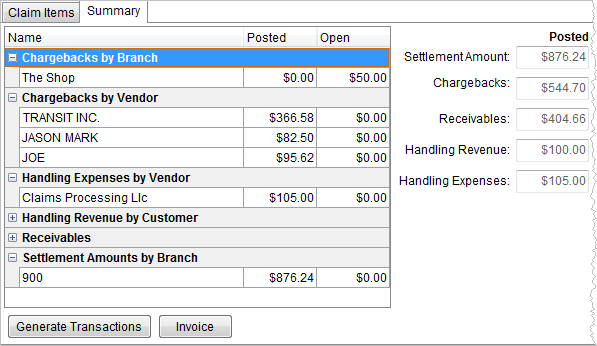
This topic refers to the Summary tab in Claims, which is used to view posted and open amounts for all Claim Items, generate transactions for open items, and produce invoices for Handling Revenue and Receivables.
Figure 39: Summary tab
The summary data grid provides posted and open amounts broken down by the following categories.
Chargebacks by Branch
Chargebacks by Vendor
Handling Expenses by Vendor
Handling Revenue by Customer
Receivables
Settlement Amounts by Branch
The application summarizes the posted and open dollar amounts of claims in the following groups:
Settlement Amount
Chargebacks
Receivables
Handling Revenue
Handling Expenses
MoversSuite recommends verifying the Summary data with the Claims Out of Balance Report prior to closing the claim.
Remember: Receivables + Chargebacks = Settlement Amount
If Chargebacks and receivables are more than the Settlement Amount, you need to pay someone.
One solutions might be to use the Settlements tab and balance the settlement.
Another solution might be to zero out the Settlements and then reenter a new Settlement:
1. From the Settlement tab > click Manage Settlements.
2. Click Add
3. Choose Settlement Type. It may be the same as what was used in the previously entered Settlement.
4. Enter PO Number, which can be the Order Number if that is your company’s process.
5. Enter an Invoice Number, which cannot be the Order Number is used on another settlement. It is recommended to use Order NumberA or Order Number – 1. Using the exact same number on two settlements will result in an error.
6. Enter an Invoice Date. It is not necessary to enter the Assign to Vendor Date, in this instance.
7. Click the Claim Item and the double right arrow to move that item to the right section.
8. Enter a negative number in the amount of the original settlement amount to zero out that number. If the original settlement was 125, use -125.00.
9. Click Save. If an error is thrown because of the Description, alter the description so it is not exactly the same as the one before.
10. Click Save again.
11. Click Close.
Then, add a new Settlement in the correct amount.
12. Click Add
13. Enter Settlement Type
14. Enter another Description (make it unique such as Inspected – Corrected Amount)
15. Choose a vendor
16. Enter the PO Number, which can be the Order Number.
17. Enter a unique Invoice Number.
18. Enter an Invoice Date.
19. No Assign to Vendor Date needed here.
20. Choose the Claim Item and click the double right arrow to move it to the right section.
21. Enter the correct amount within Amount.
22. Click Save.
23. Click Close.
The Settlement will now show within Summary in the Open column.
24. Verify the numbers within the Summary. If incorrect, go back to the Claims Items tab and review the line items. Determine the incorrect amount that is making the settlement out of balance. When determined, click Manage Settlement to open the Settlement Entry screen.
25. Click the Edit button at the top of the screen.
26. Update the Amount where necessary.
27. Click Save.
28. Click close.
29. Review the summary. (Receivables + Chargebacks) – Posted Settlement Amount – Open Settlement should equal zero.
30. Only once the equation is equal to zero, click Generate Transaction.
31. Enter Journal Date.
32. Enter Document Date.
33. Click Generate Transaction.
34. Click OK.
The following table describes the functions available within this tab.
|
Function |
Description |
|
|
Generate Transactions (Alt+T) This function will post open transactions related to claim items after prompting users for key dates within Transaction Dates. |
|
|
Invoice (Alt+I) This function opens the Invoice Management screen allowing the user to invoice for claim related items. The application will import Handling Revenue and Receivables into the invoice (see New Complete Invoice for more information). |

