MoversSuite > Tools Menu > Claim Alert
MSWeb > Menu icon (three dots) > Issue Claim Alert
The Claim Alert is a notification that alerts key personnel of an upcoming claim action on an order. When a Claim Alert is entered and saved, the application:
•Sends an email based on Email Options Setup.
•Attaches a Note to the order on the Notes tab.
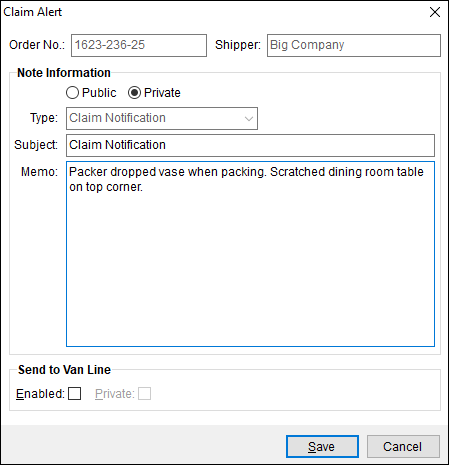
Figure 4: Claim Alert screen
Users can add subsequent Claim Alerts on an order and/or append the alert. When these happen, the email notification set in Email Template Setup will be sent for each occurrence. This image below is an example of the email notification:
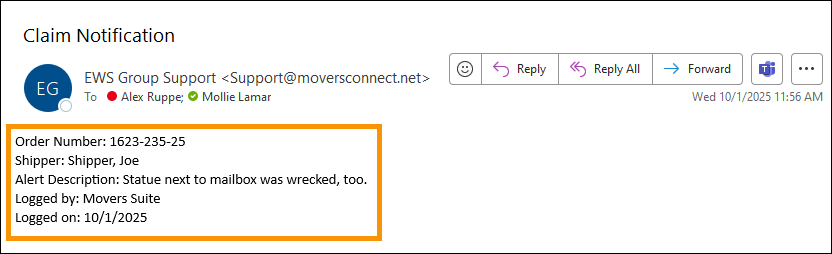
Figure 5: The outlined area shows the information included in the email notification for Claim Alerts.
To issue a Claim Alert:
1. Access the Claim Alert through the Tools Menu (Figure 6). Make sure the order for the claim is opened on the screen when the Claim Alert tool is selected.
2. Choose Claim Alert from the Tools Menu.
3. The Claim Alert screen is prompted and the Order Number and Shipper will auto-populate the Claim Alert screen (Figure 4). See Add Note for field descriptions.
4. Enter data within the Claim Alert screen.
5. Click Save.
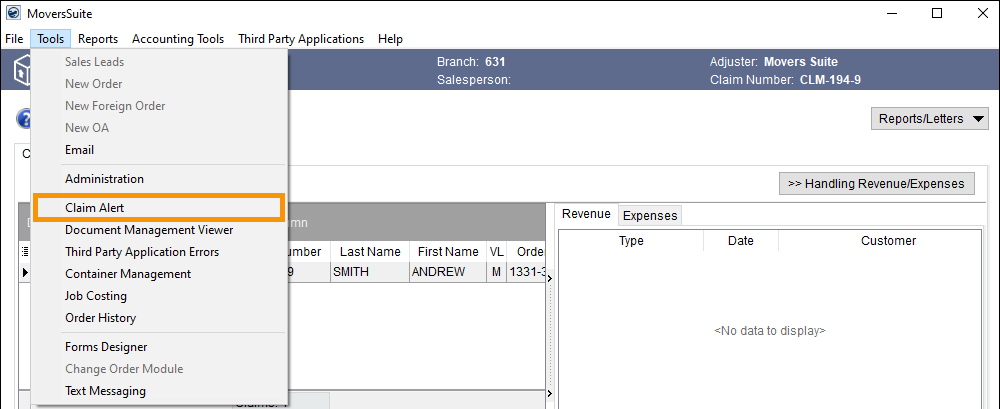
Figure 6: Tools Menu > Claim Alert
The Claim Alert note type will default to “Claim Notification.” The Claim Notification lists within the Notes tab.

For details on the fields found within Claim Alert, see Add Note.