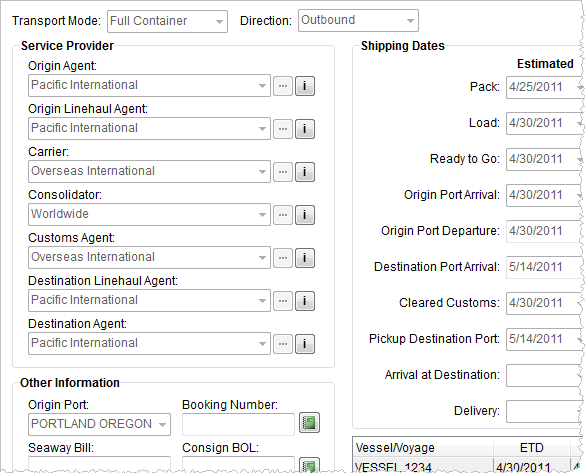
Shipping Information provides a means of documenting all the details of an international shipment including transportation sources, service providers, port data, shipping dates, etc. This tab is available through the International Orders module.
Figure 2: Shipping Information tab
Described in the following table are the fields and functions available within the Shipping Information.
|
Field/Function |
Description |
|
Transport Mode |
Select the mode that will carry the shipment from those defined within Transportation Mode Setup.
Note: The mode selected will affect the Carrier, Consolidator, Origin Port, and Booking Number/HAWB settings.
Setting the Type of Transportation Mode to “Sea” or “Air” affects other fields within Shipping Information. A warning confirmation will appear when the Type value is changed. Choosing “Yes” confirms the requested change and deletes any data based on the former type, such as that which is set within the Other Information and Vessel/Voyage and Flight Information sections. |
|
Direction |
Select the direction in which the shipment is heading as defined within the Direction Setup. |
|
|
Forms (Alt+O) Opens a drop-down menu allowing a user to select and display specific international documents and forms. Refer to International Orders Forms and Quotes for more information. |
|
Service Provider |
|
|
Origin Agent |
Select the agent at shipment origination from the list of records defined within Agent Setup using the drop-down menu or Agent Find. This setting defaults to the Origin Agent set within Agents. Users can view more information pertaining to the selected agent through the Agent Information screen. |
|
Origin Linehaul Agent |
Select the agent at shipment origination that is providing the linehaul from the list of records defined in Agent Setup using the drop-down menu or Agent Find. This agent is responsible for taking the shipment from the Origin Agent to the port. Users can view more information pertaining to the selected agent through the Agent Information screen. |
|
Carrier |
Select the company providing transportation services from the list of those defined within Carrier Setup (International Orders) using the drop-down menu or Carrier Find based on the selected Transport Mode. Users can view more information pertaining to the selected agent through the Carrier Information screen. |
|
Consolidator |
Select the company that is responsible for combining shipments from the list of those defined within Consolidator Setup using the drop-down menu or Consolidator Find based on the selected Transport Mode. |
|
Customs Agent |
Select the government agent responsible for enforcing customs regulations from those defined within Customs Agent Setup using the drop-down menu or Customs Agent Find based on the selected Transport Mode. |
|
Destination Linehaul Agent |
Select the agent providing transportation services at the destination of the order from the list of those defined in Agent Setup using the drop-down menu or Agent Find. This agent is responsible for taking the shipment from the port to the Destination Agent. Users can view more information pertaining to the selected agent through the Agent Information screen. |
|
Destination Agent |
Select the agent responsible for receiving the shipment from the list of records defined in Agent Setup using the drop-down menu or Agent Find. Users can view more information pertaining to the selected agent through the Agent Information screen. |
|
Other Information |
|
|
Origin Port |
Select the port at which the shipment is received by the carrier from the shipper of the order. Define the records available to this field within Port Setup and depend on the Transport Mode. |
|
Seaway/Airway Bill |
Enter the number for the document indicating that the goods were loaded (on-board) (up to 32 characters). The label affixed to this field is dependent upon what is set for the Transport Mode as either Seaway (Sea) or Airway Bill (Air). |
|
Booking Number/HAWB |
If Transport Mode is a type defined as
Sea, enter contact information for the person or company
responsible for pickup and return of the shipment through the Booking Number screen ( If Transport Mode is a type defined as Air, enter the House Airway Bill (up to 32 chars.). |
|
Consign BOL |
Use the Bill of Lading Consignee screen ( |
|
Shipping Dates |
Use the Shipping Dates section to enter estimated and actual dates for the different phases of an international shipment. Most of these dates are Task Dependency Dates fields. See Date Fields for entry information for the following date fields. |
|
Pack |
Enter the estimated and actual dates that packing occurred in these fields. The application retrieves the Estimated and Actual dates from the Pack Dates set within Move Information. |
|
Load |
Enter the estimated and actual dates that the shipment was loaded. The application retrieves the Estimated and Actual dates from the Load Dates set within Move Information. |
|
Ready to Go |
Enter the estimated and actual dates the goods were available for shipping. |
|
Origin Port Arrival |
Enter the estimated and actual dates that the shipment arrives at the origin port. |
|
Origin Port Departure |
These fields display the ETD and Departure dates set for the first Vessel/Voyage and Flight Information record, denoting the estimated and actual departure date of the shipment. |
|
Destination Port Arrival |
These fields display the ETA and Arrival dates set for the first Vessel/Voyage and Flight Information record, denoting the estimated and actual arrival date of the shipment. |
|
Cleared Customs |
Enter the estimated and actual dates that the shipment clears customs. |
|
Pickup Destination Port |
Enter or select the estimated and actual dates that the shipment is picked up at the destination port. |
|
Arrival at Destination |
Enter the estimated and actual dates that the shipment arrives at the destination port. |
|
Delivery |
Enter the estimated and actual dates that the shipment is delivered. The application retrieves the Estimated and Actual dates from the Delivery Dates set within Move Information. |
|
Status Dates |
See Date Fields for entry information for the following date fields. |
|
O/A Papers Received |
Enter the date the origin agent papers were received in this field. |
|
O/A Papers Sent |
Enter the sending date of the origin agent papers were sent. |
|
Pre-Alert Sent |
Enter the sending date of the pre-alert. |
|
Shipping Detail Sent |
Enter the date the shipping details were sent. |
|
Waybill Sent |
Enter or select the date the shipping details were sent. |
|
Documents Printed |
Enter or select the date the documents were printed on. |
|
Delivery Status Sent |
Enter or select the date the delivery status was sent. |
|
Brokerage Collected |
Enter or select the date the brokerage was collected on. |
|
Vessel/Voyage and Flight Information See Vessel/Voyage and Flight Information for more information. | |

 ).
).