 ) next to the Consign BOL
label, which will be available when the selected Transport Mode has a
type of Air.
) next to the Consign BOL
label, which will be available when the selected Transport Mode has a
type of Air.
Establish reference data for the consignee associated to the Bill of
Lading (BOL) for the shipment within the Bill of Lading Consignee
screen. Access to this dialog is available from Shipping Information by pressing the notebook
button ( ) next to the Consign BOL
label, which will be available when the selected Transport Mode has a
type of Air.
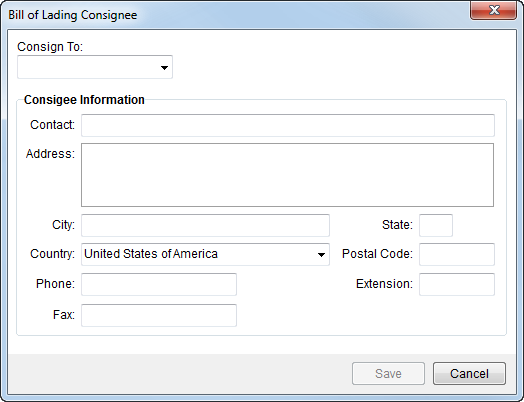
Figure 9: Bill of Lading Consignee screen
Described in the table below are the fields and functions available within the Bill of Lading Consignee dialog.
|
Field/Function |
Description |
|
Consign To |
Select a party responsible for the Bill of Lading as one of the following. Upon selection, data in the Consignee Information section will populate based on existing records; which can be subsequently updated by the user. Agent When the Consign To is Agent, a drop-down menu will appear from which the user can select the appropriate agent defined within Agent Setup or use the Agent Find. Likewise, when a user selects Vendor, a list of vendors will appear and a user can choose a vendor from the list of records defined in Microsoft Dynamics GP or use the Vendor Find. Shipper Data will fill in from the Name, Address, Phone record of the order when a user selects Shipper. |
|
Consignee Information |
Data in this section will automatically populate with data received from the selected agent, shipper, or vender. Users can manually update this data and changes made will only affect this Bill of Lading Consignee record. Notes: Changes to Consign To may wipe out changes made to this field. Agent data is retrieved from Agent Setup. Vendor data is maintained in Microsoft Dynamics GP. Shipper data is pulled from the Name, Address, Phone tab. |
|
Contact |
Enter name of the contact person responsible for the BOL for consignee (up to 128 characters). |
|
Address |
Enter up to three lines (256 characters each) for the location of the contact. |
|
City |
Enter the city of the contact (up to 26 characters). |
|
State |
Enter the state of the contact location (2 characters). |
|
Country |
Select the country of the contact location from the available list. |
|
Postal Code |
Enter the zip code of the contact location (up to 10 characters). |
|
Phone |
Enter the phone number for the contact (see Phone Number Entry). |
|
Extension |
Enter the zip code of the contact location (up to 10 characters). |
|
Fax |
Enter the fax number for the contact (see Phone Number Entry). |
|
|
Save (Alt+S) Press this button to save the consignee contact to the order and close the screen. |
|
|
Cancel (Alt+C) Discards any changes made to the consignee and closes the screen. |

