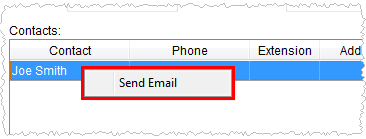
The Send Email option allows a user to open a mail window for the corresponding email address.
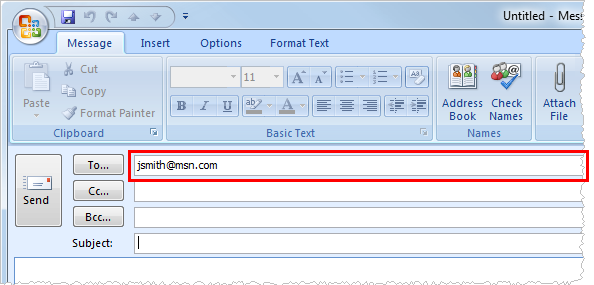
When Send Mail is pressed, the application will launch a new mail window setting the email address of the corresponding field as the recipient.
Figure 1: Microsoft Outlook mail window
The applications uses the email address set for the user within the Email field in Personnel Setup.
The following table lists and describes the Send Email options available within MoversSuite.
|
Location |
Description |
|
The right-click option of Send Email is available on listed contacts. Establish an email address for Account Profile contacts and sign them up to receive emails through the Monitor Orders Service within Account Profile Setup. | |
|
Right-click options are available in this module allowing a user to send invoices attached to an email message through the Report Viewer. | |
|
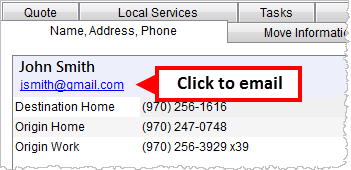
Click on the email address set for the shipper to evoke the mail function.
Figure 2: Shipper Contact email in Name, Address, Phone tab
| |
|
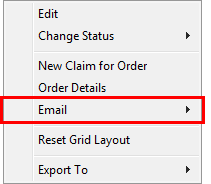
From the main data grid within Claims, users can choose “Email” using right-click options and reference email address records sets for the claim. Available email address records display in a submenu when the user hovers the mouse over this option.
Figure 3: Email option in Claims
Define email address records for a claim within the Claim Detail screen.
| |
|
Users can press the mail button (
Figure 4: Email option in Claim Detail
| |
|
Users can right-click on Contacts within Carrier Information and select the “Send Email” option to open a new mail message window with the contact email as the recipient.
Figure 5: Email option in Base Information
|
 ) to access a new mail window for the
corresponding email.
) to access a new mail window for the
corresponding email.