Military and government moves generally require special documentation and report processing. The MoversSuite Military/Government module offers the ability to book these orders along with providing tools to process most of the required documents.
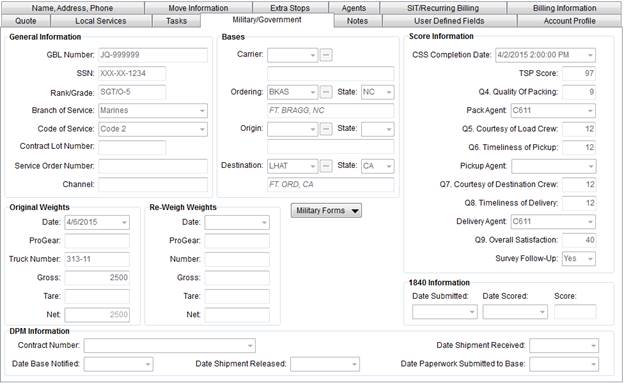
The Military/Government tab provides data entry for key military information including the GBL Number, Branch of Service, and offers quick access to common forms such as the Form 1840.
Figure 1: Military/Government tab
The following table describes the fields and functions available within the Military/Government tab.
|
Field |
Description |
|
General Information |
|
|
GBL Number |
Enter the Government Bill of Lading (GBL) number assigned by the government to track the shipment. Note: GBL Number is included as part of the Order Information search criteria. |
|
SSN |
Enter the shipper Social Security Number (SSN) in NNN-NN-NNNN format. The SSN can be concealed by specifying the letter X for digits up until the last four digits, e.g. XXX-XX-3913. Note: SSN is included as part of the Order Information search criteria. |
|
Rank/Grade |
Enter the rank (E-6, O-3, etc.) or pay grade (G10) of the government personnel (up to 10 characters). |
|
Branch of Service |
Select the military service of the shipper from the list of values defined for the Branch of Service Setup. |
|
Code of Service |
Select the military Code of Service of the shipper from the list of values defined for the Code of Service Setup. |
|
Contract Lot Number |
Enter the number issued for military storage (up to 11 characters.). |
|
Service Order Number |
Enter the number issued by some military bases to track a shipment (in addition to the GBL number) (up to 16 characters). |
|
Channel |
Store the particular military channel set for this order (up to 32 characters). A military channel is a commonly used traffic lane or pattern between transportation hubs. |
|
Bases |
|
|
Carrier |
Select a company responsible for the order and providing carrier service from the list of values defined within the Carrier Setup (Military/Government). Press the ellipsis button ( |
|
Ordering |
Select a military Traffic Management Office (TMO) that assigned the order to the carrier from the list of values defined within the Base Setup and select the state of the TMO (see State Setup). Press the ellipsis button ( |
|
Origin |
Select a base installation that the military member is transferring from (values defined within the Base Setup) and select a state associated to the origin base (see State Setup). Press the ellipsis button ( |
|
Destination |
Select a base installation that the military member is transferring to (values defined within the Base Setup) and select a state associated to the destination base (see State Setup). Press the ellipsis button ( |
|
|
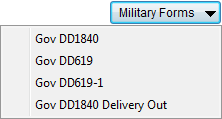
Military Forms Opens a drop-down menu allowing a user to select and display specific military documents and forms. Current standard forms include Gov DD1840, Gov DD1840 Delivery Out, Gov DD619, and Gov DD619-1. Refer to Military Forms and Reports for more information. Hotkey: ALT + O |
|
Original Weights |
|
|
Date |
Enter the date in which the loaded order is first weighed. Note: This field is a Task Dependency Dates. |
|
ProGear |
Enter the shipping weight (in pounds) for items that do not count against what is allotted by the military for the shipper. ProGear is considered required, military-assets that are not considered part of the military member’s household shipment. |
|
Truck Number |
Enter the identification number of the truck assigned to the military order (up to 32 characters). |
|
Gross |
Enter the gross weight of the truck and shipment (in pounds). |
|
Tare |
Enter the actual tare weight of the truck before the shipment is loaded (in pounds). |
|
Net |
The computed difference in gross weight less tare weight is displayed here. |
|
Re-Weigh Weights |
|
|
Date |
Enter or select the date of the reweigh. Note: This field is a Task Dependency Dates. |
|
ProGear |
Enter the re-weigh weight (in pounds) for items that do not count against what is allotted by the military for the shipper. ProGear is considered required, military-assets that are not considered part of the military member’s household shipment. |
|
Truck Number |
Enter the identification number associated to the reweigh (up to 8 characters). |
|
Gross |
Enter the gross weight of the shipment (in pounds) at the re-weigh. |
|
Tare |
Enter the actual tare weight of the shipment (in pounds) at the re-weigh. |
|
Net |
The computed difference in gross weight less tare weight is displayed here. |
|
Military Forms |
|
|
|
Military Forms Reports assigned to this button are visible when clicked.
Reports available through the Military Forms button are those defined in Report Setup with a System Report ID setting of “MILT” and assigned to the user through Report Profile Setup. |
|
Score Information |
|
|
Data in this section is retrieved through the EasyDPS Integration. It can also be entered manually. | |
|
CSS Completion Date |
The date and time of completion of the Customer Satisfaction Survey (CSS). |
|
TSP Score |
Thrift Savings Plan (TSP) score assigned to the order. |
|
Q4. Quality of Packing |
This is the score set for the performance on packing. |
|
Pack Agent |
Agent evaluated based on the packing performance displays. The agents available are those set within the Agents tab. |
|
Q5. Courtesy of Load Crew |
Score set for courtesy level of the crew responsible for loading. |
|
Q6. Timeliness of Pickup |
Score set for the timeliness of the pickup crew. |
|
Pickup Agent |
Agent evaluated based on the pickup performance displays. The agents available are those set within the Agents tab. |
|
Q7. Courtesy of Destination Crew |
Score set for courtesy level of the crew responsible for delivering. |
|
Q8. Timeliness of Delivery |
Score set for the timeliness of the delivery crew. |
|
Delivery Agent |
Agent evaluated based on the delivery performance displays. The agents available are those set within the Agents tab. |
|
Q9. Overall Satisfaction |
Score set for the overall satisfaction for the move. |
|
Survey Follow-Up |
If a follow-up survey is requested then “Yes” displays, otherwise “No” displays or the field is left blank. |
|
1840 Information |
|
|
Date Submitted |
Enter a date on which the 1840 form paperwork was submitted for scoring. Note: This field is a Task Dependency Dates. |
|
Date Scored |
Enter a date on which the 1840 form paperwork was scored. Note: This field is a Task Dependency Dates. |
|
Score |
Enter the 1840 score (up to 6 characters). |
|
DPM Information |
|
|
Contract Number |
Select the government supplied contract number assigned to the move from those defined within DPM Contract Setup. |
|
Date Shipment Received |
Enter the date the shipment was received at the van line agency. Note: This field is a Task Dependency Dates. |
|
Date Base Notified |
For outbound shipments: Enter the date on which the carrier can pick up the shipment from the agent. For inbound shipments: Enter the date that the carrier delivered the shipment to the agent (date TMO is notified that a DPM shipment is ready to be sent out and that the order has been received by the carrier). (up to 8 chars.) |
|
Date Shipment Released |
For outbound shipments: Enter the date that the shipment was picked up by the carrier. For inbound shipments: Enter the date that the shipment was delivered up by the carrier. Note: This field is a Task Dependency Dates. |
|
Date Paperwork Submitted to Base |
Enter or select the date that necessary paperwork was submitted to the base from the procuring entity. |
 ) to access the