
A video on this topic is located within Administration Videos. Click the link below to view the video that relates to this topic.
Administration > Warehouses
|
|
A video on this topic is located within Administration Videos. Click the link below to view the video that relates to this topic.
|
Click to a warehouse “card” for each warehouse facility within your company. In the image below, there are three warehouse cards with the details of the warehouses associated to your company: Creedmore Moving System & Storage, Creedmore Moving System – Boulder, and Creedmore Moving – Denver.
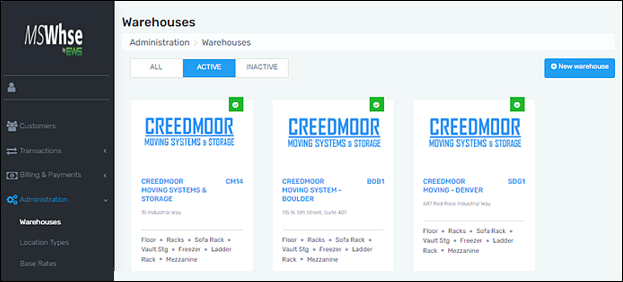
Figure 1: Three warehouse cards are shown within Warehouses.
When a card is clicked, the details of each warehouse are organized within tabs. The tab that is open on the screen is the one with the blue underline. Edit or update details any time by clicking on the green Edit button.
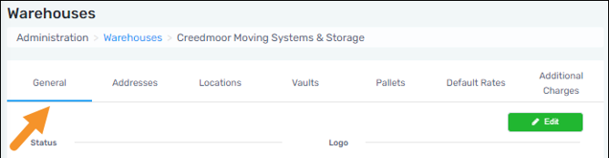
Figure 2: Blue underline indicates the tab information on the screen.
To add a new warehouse:
The process to add a new warehouse into MSWhse is password protected. Only those with an appropriate password can add a warehouse. To add a new warehouse, click +New warehouse button. The Warehouse Authorization screen appears and this is where a password is entered. Then, continue on to add details for the warehouse.