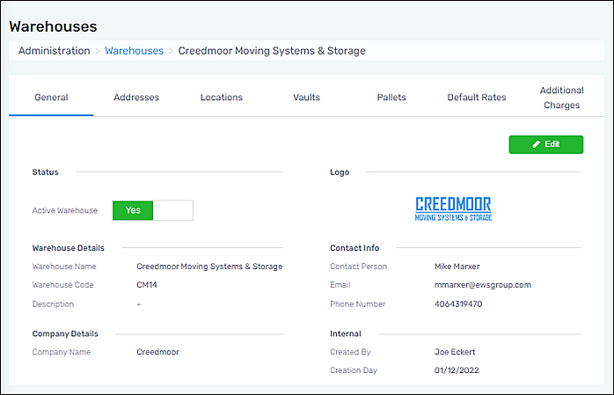
Administration > Warehouses > General tab
The General tab contains the most basic information for the warehouse: the status, details, logo, and contact information. Use the green Edit button to edit or update information on this tab.
Figure 3: The General tab in underlined and is the “active” tab within MSWhse.
Technical Field and Function Information
The following table contains the fields and functions available within the General tab:
|
Field/Function |
Description |
|
Status | |
|
Active Warehouse |
Defaults to Yes. For No, use the Edit button to open the Edit warehouse screen and click No. Note the warning when set to No. |
|
Warehouse Details | |
|
Warehouse Name |
Enter as needed. |
|
Warehouse Code |
Enter as needed. |
|
Description |
Enter as needed. |
|
Company Details | |
|
Company Name |
Enter as needed. |
|
Logo | |
|
When a logo is in use, the logo will appear on that warehouses’ card within Administration. To add a logo for a new warehouse, click the “Upload logo here” icon. Then, choose the image from your file directory. To edit an existing logo, use the Edit button to open the Edit warehouse screen and delete the current image by clicking the “x” icon. Then add a new image by clicking the “Upload logo here” icon. | |
|
Contact Info | |
|
Enter the name, email, and phone number for the main contact at the warehouse. | |
|
Internal | |
|
Created By |
The person’s name for the login that created the warehouse. |
|
Creation Day |
The date of the day the warehouse card was created. |