
There are numerous videos found within Administration Videos. Click the link below to view a video that relates to this topic.
Administration > Warehouses > Default Rates tab
|
|
There are numerous videos found within Administration Videos. Click the link below to view a video that relates to this topic.
|
This can list the warehouse’s default Standard Storage, Handling In, and Handling Out rates by each base rate. Default Rates are the rates that are applied to all Customers, unless otherwise set for a specific Customer or Customers by editing rates within Customers > choose a Customer > Custom Rates Tab. Use the “Display Expired Rates” to include expired rates in the listing.
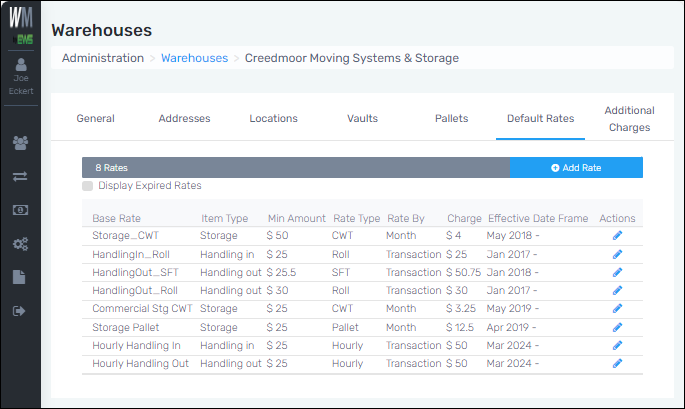
Figure 9: Default Rates tab
To edit an existing rate:
Administration > Warehouses > Default Rates tab
Click the blue pen icon under the “Actions” column to open the Edit Rate screen. Edit as needed and save. Manage rates by using the Effective Date Frame to start and stop a rate. Additional rates can be set using the Effective Date Frame fields to begin after another rate is set to end.
To add a rate:
Administration > Warehouses > Default Rates tab
To add a Default Rate:
1. Click the blue “Add Rate” button.
2. Enter the Base Rate, Rate By, Min Amount, and Charge.
3. Enter a starting Effective Date Frame, which is required.
4. Optionally, enter the ending Effective Date Frame.
NOTE: Some field options open other fields that correspond to the option chosen. For example, setting the Base Rate to “Flat Rate by SF” will activate the “Min Amount/Monthly High-watermark” and the “Charge/Monthly High-watermark” fields.
5. Be sure to save the settings.