
Videos on this topic are located within Administration Videos. Click on a link below to view a video that relates to this topic.
Administration > Warehouses > Pallets tab
|
|
Videos on this topic are located within Administration Videos. Click on a link below to view a video that relates to this topic.
|
This tab displays the Pallet IDs, which are used for pallet quantity calculations for billing purposes, and the Status of the Pallet number (In Use or Empty). If the Pallet is in use, the Location and the Customer will also display. Use the All, Used, or Empty buttons to filter the list.
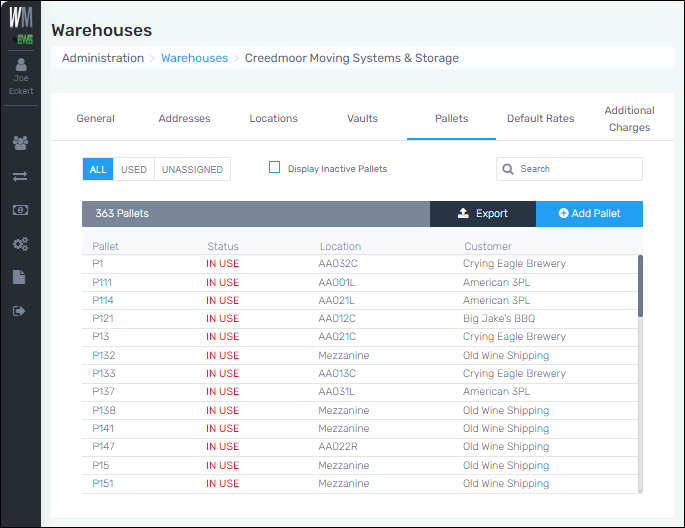
Figure 8: Pallets tab
To export a spreadsheet of the pallets:
To export a current spreadsheet of the listing, click the black Export button. It may take a few moments for the Excel spreadsheet to be created. The spreadsheet can be opened from Downloads.
To add a Pallet:
Administration > Warehouses > Pallets tab
|
|
A video on this topic is located within Administration Videos. Click the link below to view the video that relates to this topic.
|
1. To create a new pallet, click the blue “Add Pallet” button.
2. From the New Pallet screen, enter Pallet Code, which is typically the beginning characters of the pallet IDs being added, for example “P” for P1000. “From Pallet” and “To Pallet” enables the ability to create multiple pallets at one time. For example, entering 1 and 10 respectively will autoload the following information in the image.
3. Enter the Location for each vault.
4. Save.
Administration > Warehouses > Pallets tab
Use the  icon to delete the line item.
|
|
A video on this topic is located within Administration Videos. Click the link below to view the video that relates to this topic.
|