The Update Crew and the Update Equipment screens available through Release Work Ticket allow a user to set actual times worked for a particular service. Entries made to the crew and equipment for actual times in use can be included in revenue generated for the order.
The Update Crew and Update Equipment dialogs are identical except for the Crew Member/Equipment label.
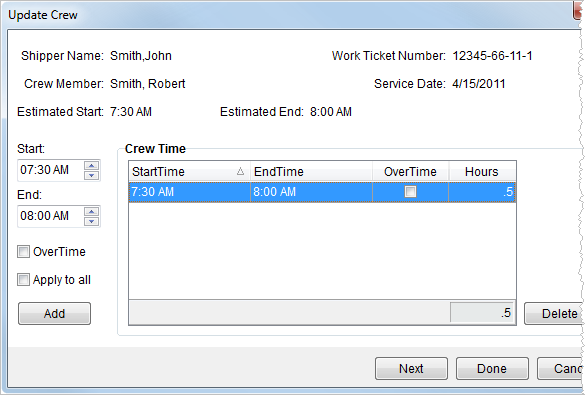
Figure 20: Update Crew screen
Use these screens by updating the Start and End time, placing checks next to the Over Time and Apply to all fields, and pressing Add. Once Add is pressed, an actual time will be added to the data grid. Continue to the next record by pressing Next. Multiple, separate time blocks can be set for each crew member/equipment resource.
Users can add or delete time records with the Update Crew dialog. To edit a time record, delete and re-add with the correct information.
When actual time records exits for crew and equipment entries will reflect these records within the Crew and Equipment listings on the Release Work Ticket screen.
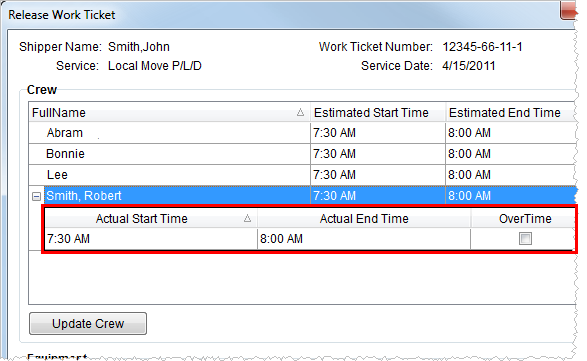
Figure 21: Actual time entry information
Described below are the fields and functions of the Update Crew and Update Equipment screens:
|
Note |
|
Update Crew and Update Equipment functions work independently of one another. Changes made to crew will not affect equipment and vice versa. |
|
Field/Function |
Description |
|
Shipper Name |
Displays the formatted shipper name combined from the Last Name/Company Name and First Name fields from the Name, Address, Phone tab. |
|
Work Ticket # |
This field displays the work ticket number generated for the service. |
|
Crew Member/Equipment |
Displays the name of the crew member or the equipment resource identification associated to the service. For Crew Member: Define crew through Personnel Setup and attach them to equipment through the Dispatch tab. For Equipment: Manage equipment records through the Equipment Setup. Equipment type and equipment ID display within Dispatch Center. |
|
Service Date |
This field displays the date of the service. |
|
Estimated Start Estimated End |
Displays the computed or entered start and stop times expected for the service. Estimated times are based on the calculated hours when the service was added or when they are manually entered through the Set Service Time function. |
|
Start End |
Enter the actual starting and ending times of the
service. Users can set time values by clicking on either the hour,
minute, or time of day components and entering a new value or by moving
the arrows ( Separate time blocks can be added. For example, if a crew member worked 3 hours on regular time and 2 on overtime, then two separate entries can be added to reflect this.
Note: The number of hours for the actual time will be visible within the Hours column along with a total number of hours for all time blocks added for the crew member/equipment resource.
|
|
Over Time |
Check this box to indicate that excess time will accrue at an overtime rate. The application retrieves the overtime rate from the OT Rate set within Rate Plan Setup. |
|
Apply to all |
Check this box to create the same entry for all crew members/equipment resources on the service when the record is added. This option works for the Delete as well as the Add. |
|
|
Add Add will create actual time block entries for the crew member(s)/equipment resource(s) using the specified Start and End Time. Multiple, separate time blocks can be added for each crew member/equipment resource. Set the Overtime flag prior to adding the record, if needed. The Add will also create entries for all crew members/equipment assigned to the service when Apply to all option is checked. Users will receive an error when the specified time conflicts with an existing time block. Users cannot edit an actual time value. They can delete and re-add them. |
|
|
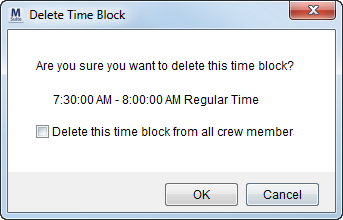
Delete Delete will remove the actual time record selected in the data grid after prompting the user for confirmation.
Figure 22: Delete Time Block confirmation dialog
The Delete Time Block screen also offers the option of removing the time block from other crew members/equipment assigned the same block of time.
Note: Deleting a time block does not remove crew and equipment assignments. Deleting crew and equipment assignment is separate procedure.
|
|
|
Next This button opens the next crew or equipment record in the order presented within the Release Work Ticket Crew or Equipment data grid. |
|
|
Cancel This function closes the screen without saving any changes made to the current record. Changes to the current record prior to pressing Next will be lost when Cancel is pressed. |
|
|
Done This function closes the screen after saving all changes made. |
 ) up or down.
See
) up or down.
See