The Safety System provides a visual means of notifying users of the safety status of personnel and equipment. Users can also log safety events that provide a historical record for each employee and piece of equipment. Additionally, the system can prevent unsafe crew and equipment assignments by placing administrative holds.
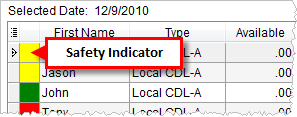
Figure 1: Safety indicators in Local Dispatch
Available through Local Dispatch and Long Distance Dispatch, the safety indicator provides quick identification of the safety of personnel and equipment based on the following classifications. The application bases indicators status on dates set within Personnel Safety Setup and Equipment Safety Setup.
|
Indicator |
Description |
|
|
Black Administrative hold is in effect. Users will not be able to assign these personnel and equipment. |
|
|
Red A safety violation is in effect. One or more safety date has expired. |
|
|
Yellow A warning that one or more safety date is nearing expiration (within 30 days of current date). |
|
|
Green Safety data is set for the employee and all safety dates are beyond 30 days from expiring. |
|
|
Clear No safety data exists. |
The dates evaluated for safety alerts (see Safety System for description) include the following (all visible through the Safety Information screen):
Dates evaluated for personnel:
•Next Physical Date
•License Expires Date
•Next Background Check Date
•Next MVR Date
Dates evaluated for equipment:
•Next Sanitized Date
•Next Inspection Date
•Next Service Date
•License Due Date
•ICC Due Date
Accessing the Safety System
The following table lists the functional areas of the Safety System.
|
Area |
Description |
|
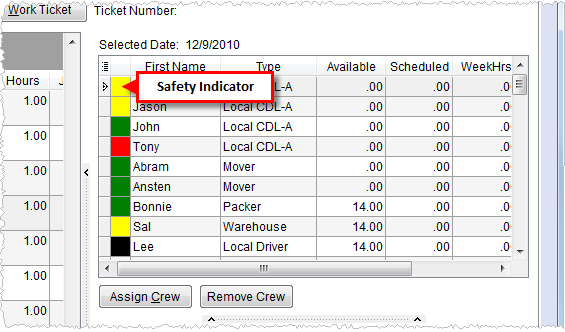
Users will view safety indicators for personnel and equipment resources, view safety information, and log safety events within Assign and Remove Crew and Assign and Remove Equipment sections.
Figure 2: Local Dispatch safety indicators Users will access safety functionality through the right-click options available in each assignment grid.
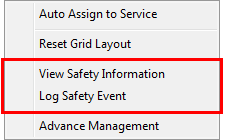
Figure 3: Right-click options in Local Dispatch
View Safety Information Opens the Safety Information screen allowing a user to view key safety data and log an event for the selected crew or resource. Log Safety Event This function opens the Log Safety Event screen allowing the user to enter safety-related data for a particular date.
| |
|
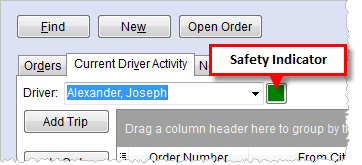
Users will view safety indicators for personnel and equipment resources, view safety information, and log safety events within Current Driver Activity.
Figure 4: Long Distance Dispatch safety indicators
| |
|
Manage safety data within Safety tabs in Personnel Setup and Equipment Setup. Users can place holds on equipment and personal through administration. |