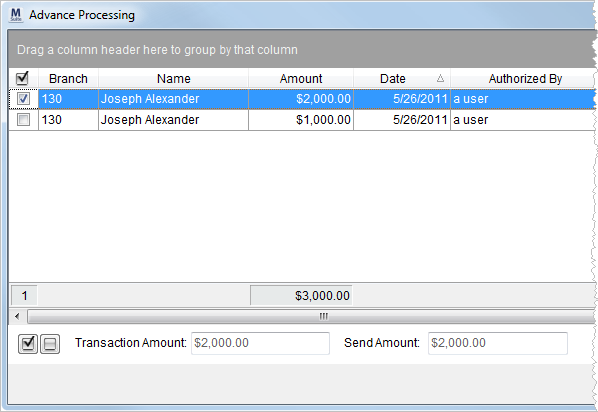
Use the Advance Processing screen to view pending advance transactions generated through Advance Management from both Local Dispatch and Long Distance Dispatch. Use the Generate function to create accounting transactions for the advances and/or send the transactions to a third party banking service provider. Access to this screen is through the Advance Processing option within the Accounting Tools Menu.
Figure 3: Advance Processing screen
Run the Driver Advances Report to view advance requests generated through Advance Management.
The following table describes the fields and functions available within the Advance Processing screen. See Add/Edit Advance for more information on field settings.
Note:
Users will need to Void incorrect advance records through Advance Management.
|
Field/Function |
Description |
|
|
Use this column to select/deselect records included in transactions created when Generate is pressed. A total count of all selected records displays at the bottom of the column. |
|
Branch |
The branch associated to the advance displays. |
|
Name |
The name of the vendor for the advance displays. |
|
Amount |
The dollar amount of the advance displays. |
|
Date |
The creation date of the advance displays. |
|
Authorized By |
The name of the user that created the advance displays. |
|
Reason |
The explanation provided for the need of the advance displays. |
|
Order Number |
The Order Number of advances linked to an order displays. |
|
Trip Number |
The Long Distance Dispatch trip linked to an advance displays. |
|
Manual Banking Service Send |
When set, this flag indicates that the upload file to a banking service provider will not include transactions associated to this advance. This setting corresponds to the Do Not Send to Banking Service option in Add/Edit Advance. |
|
|
Select All/Unselect All Use these two functions to select or unselect all records in the data grid. |
|
Transaction Amount |
The total dollar amount of all selected transactions displays. |
|
Send Amount |
This field displays the total dollar amount of all selected transactions that the application will include in an upload file to a third party banking service provider. |
|
|
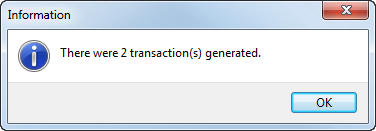
Generate This function generates transactions for the selected advance records after prompting the user to enter a Journal Date and Document Date within the Transaction Dates screen. This function will generate an AP Credit Memo transaction and, If the Generate Transaction flag is set in Advance Setup, an AP Invoice transaction for each selected record. Errors encountered during the generation process will display within the Error Log screen, otherwise a dialog will appear displaying the total number of transactions generated.
Figure 4: Information dialog
Upload File to Banking Service Provider The application will upload transactions for advances to a banking service provider manually or automatically. If the Generate Upload File is set within Advance Setup, the application will create a file containing transaction data after prompting the user for the name of the file through the Save Reports screen. The application generates a default file named of “PC” followed by the Company Number set in Branch Setup for the user performing the Generate. The application will automatically send transaction data to an established banking service provider if the Auto Upload to Provider option is set within Advance Setup. Currently, MoversSuite supports only T-Chek for file uploading of advance transactions. See T-Chek Upload File Format for layout. Technical Note: The application stores the contents of the upload file in the AdvanceBatch table. |
|
|
Close This function closes the screen. |