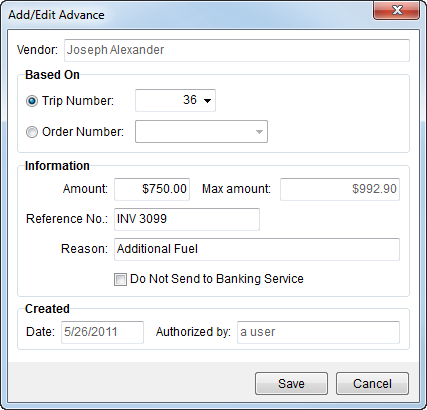
Use the Add/Edit Advance screen to create a new advance record for the specified vendor. Access this screen through Advance Management.
Figure 2: Add/Edit Advance screen
The following table describes the fields and functions available within this screen.
|
Field/Function |
Description |
|
Vendor |
The vendor-assigned employee displays in this field. The application will generate transactions based on Vendor assigned to the employee through their Personnel Setup. |
|
Based On |
|
|
In Local Dispatch, the orders that list are for services assigned to the Vendor that have a service date within 14 days of the current date. In Long Distance Dispatch, the orders and trips assigned to the Vendor will list. | |
|
Trip Number |
In Long Distance Dispatch only, select a trip from the list of driver assigned trips. |
|
Order Number |
In Local Dispatch, select an order from the list of all orders associated to services assigned to the selected person (Vendor). In Long Distance Dispatch, select an order from the list of all orders associated to trips assigned to the selected driver (Vendor). |
|
Information |
|
|
Amount |
Enter the requested dollar amount of the advance. |
|
Max amount |
This field displays the computed dollar amount available for the advance to the Vendor based on the Advance Limit less the amount of advances existing for the Vendor for the same order or trip. |
|
Reference Number |
Enter any identification needed to document items related to the advance (up to 32 characters). |
|
Reason |
Include a text explanation for the use of the advance (up to 60 characters). |
|
Do Not Send to Banking Service |
Selecting this option will instruct the application not to include transactions associated to the advance in an upload file to a banking service provider. Leaving this option blank will include advance transaction in the upload file for processing by a third party banking service provider. The application ignores this setting when Generate Upload File is not set within Advance Setup. |
|
Created |
|
|
Date |
The creation date of the advance displays. |
|
Authorized By |
The name of the user creating the advance displays. |
|
|
Save Pressing Save will add the advance transaction for the vendor and establish transactions in Advance Processing. |
|
|
Cancel This function closes the screen without creating a new advance record. |

