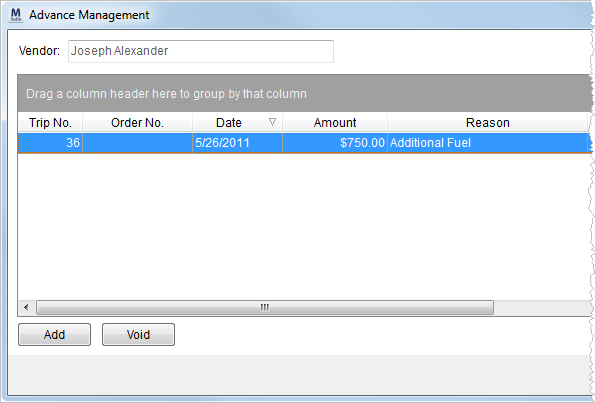
Use the Advance Management screen to generate advances for personnel in Local Dispatch and Long Distance Dispatch.
Figure 1: Advance Management screen
Access this screen through the following:
•Advances button in Current Driver Activity
•Right-click option of Advance Management in Local Dispatch (see Right-Click Options (Local Dispatch))
•Right-click option of Advances in Long Distance Dispatch (see Right-Click Options (Long Distance Dispatch))
Entering advances within Advance Management does not create any accounting transactions. It only establishes a pending advance within the system and allows it to be available to the Advance Processing, where a user can generate the actual accounting transactions.
The following table describes the fields and functions within this screen.
|
Field/Function |
Description |
|
Vendor |
The vendor-assigned employee displays in this field. The application will generate transactions based on Vendor assigned to the employee through their Personnel Setup. |
|
|
Refresh This function updates the data behind the grid and vendor with the latest information from the database. |
|
Trip Number |
The trip the advance is associated with displays. |
|
Order Number |
The Order Number the advance is associated with displays. |
|
Date |
The created date of the advance displays. |
|
Amount |
The dollar amount of the advance displays. |
|
Reason |
Description provided for the need of the advance displays. |
|
Authorized By |
This field displays the user that created the advance. |
|
Reference Number |
Any provided reference information will display. |
|
Manual Banking Service Send |
Displays the option set indicating whether to include advance transactions in an upload to a banking service provider (this flag not set) or not (flag is set). |
|
Posted Date |
This field displays the date transaction generated for the record through Advance Processing. |
|
Posted By |
The user that generated the transactions for this record through Advance Processing displays. |
|
Voided Date |
The date the advance was voided displays. |
|
Voided By |
The user that voided the advance displays. |
|
|
Add Open the Add/Edit Advance screen allowing a user to create a new advance for the specified Vendor. |
|
|
Void This function voids the selected record without prompting the user to confirm the request. The application will set the Voided Date and Voided By values. |
|
|
Close This function closes the screen. |
Run the Driver Advances Report to view advance requests generated through Advance Management.


