This section lists the features, enhancements, and/or fixes made to MSWeb.
General Functionality
|
|
Issue a Claim Alert within MSWeb |
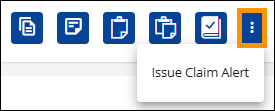
The ability to issue a Claim Alert is now available within MSWeb. Click the new Option button (outlined in orange) and choose “Issue Claim Alert.” This opens the Claim Alert screen.
Figure 8: Click the Option Menu for the Issue Claim Alert.
A new feature added to Claim Alert is the notice at the top of dialog that indicates if an alert has already been issued on the order.
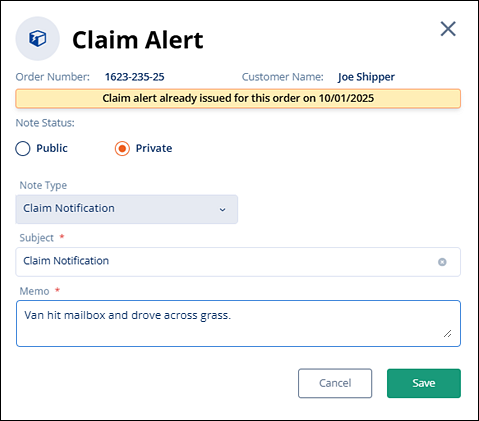
Figure 9: Claim Alert with new Memo added in Memo box.
If another Memo is added to the Claim Alert screen when the new warning is present (such as in Figure 9,) the Memo will be added as an appended note to the existing Claim Notification within the MSWeb Order Timeline. Notice the new Memo is added in Figure 10. An automatic email notification will go out, as well.
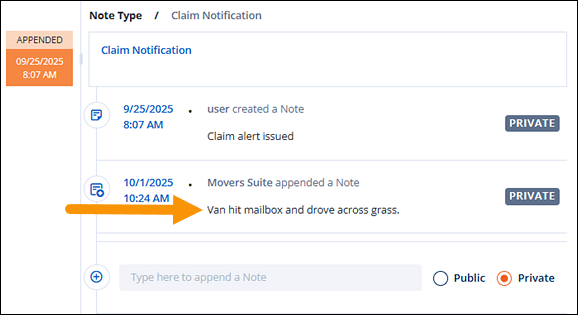
Figure 10: This is the Memo added to Claim Alert within Figure 9.
Issue Claim Alert is available throughout the application, such as below within the MSWeb Order Story.

Figure 11: Options menu is outlined in orange.
RELATED TOPICS:
INTERNAL REFERENCE:
MOV-7521
|
|
Improved filtering within Find Agent and Find Vendor |
The find dialogs have been improved for both the Find Agent and Find Vendor. Each now features the ability to filter on name and/or Agent ID. Partial filters are allowed within Find Agent, as shown in Figure 12. Searches within Find Agent will look to anywhere within the Agent Name for a match. In Figure 12, “way” is found within “A Better Way Tfr & Stg, Inc.” See MSWeb Find Agent for more details.
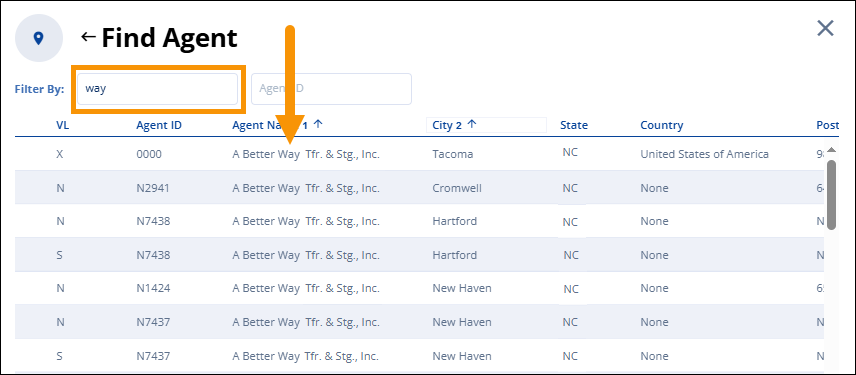
Figure 12: Find Agent looks for the filter anywhere within the Agent Name.
Additionally, Find Vendor initially hides vendors that are Inactive or On Hold within the accounting system. Tick the “Include Inactive and On Hold Vendors” flag to show this in the search results. Searches in Find Vendor search using the values entered in the field and then looks to the beginning of the Name or Vendor Id field for matches. It does not search anywhere within the Vendor Name or Vendor Id field for a match. See MSWeb Find Vendor for more details.
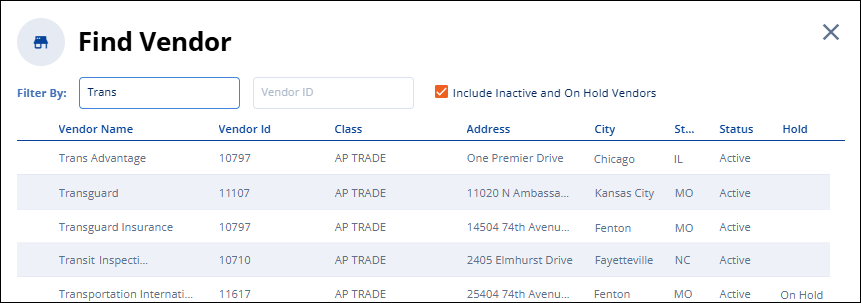
Figure 13: Find Vendor has a new format.
RELATED TOPICS:
INTERNAL REFERENCE:
MOV-7168
|
|
Cancelling a new order keeps you on the same order you were viewing |
When starting a new order in MSWeb Create Order and then cancelling it, the app now returns back to the previously viewed order (the image with the smiley face.) The earlier behavior redirected the user to the MSWeb Orders List (the background image.)
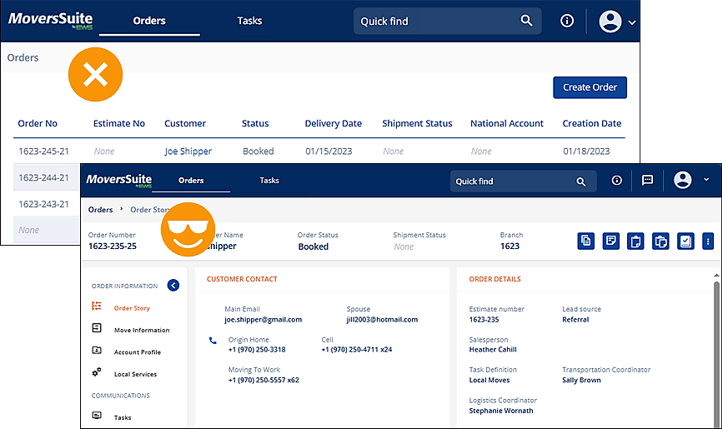
Figure 14: The Orders List shows in the background. Order Story shows in the front.
RELATED TOPICS:
INTERNAL REFERENCE:
MOV-7154