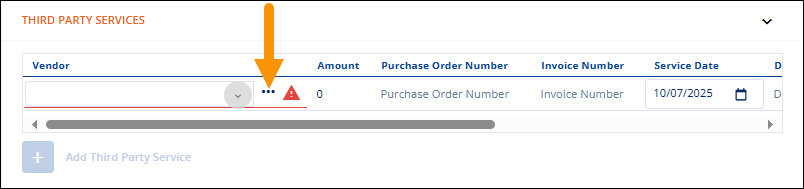
Move Information > New Section > Third Party Services tile
If section has been added: Move Information > Third Party Services section
To use this screen, click the three blue dots to open the Find Vendor screen.
Figure 85: Click the three dots to open the advance vendor search option named Find Vendor.
Enter values within the Vendor Name and/or Vendor ID search fields. The system will only look to the beginning of the name or ID for matches. The filter does not look within a name or number for matches. As an example, in Figure 86, “Trans” in entered within the Vendor Name search field. All results start with “Trans.” A name like “Intransigent” would not be returned as the search value is within the name, not at the beginning.
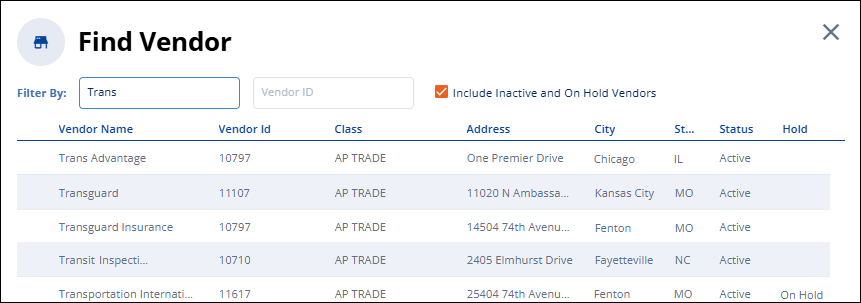
Figure 86: Find Vendor screen
Additionally, Find Vendor initially hides vendors that are Inactive or On Hold within the accounting system. Tick the “Include Inactive and On Hold Vendors” flag to shows this in the search results. Vendors that are On Hold will be indicated within the Hold column with the status “On Hold,” such as shown for the last vendor listed within Figure 86.