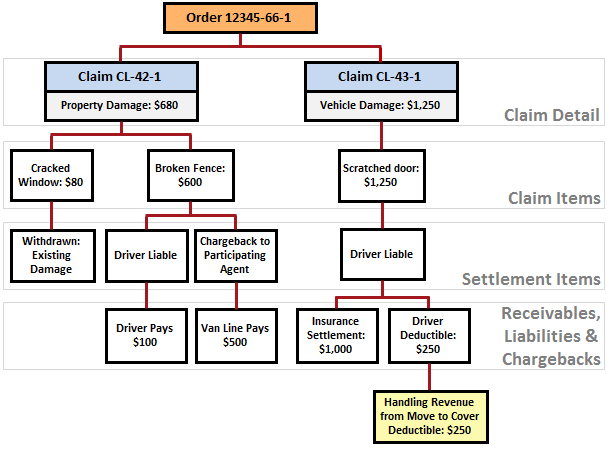
The following diagram illustrates the general claim process flow within the Claims System.
Figure 76: Claims Process Overview diagram
Depending on your company’s setup and their process, the instructions listed may not follow your company’s exact process. These instructions are a general overview.
1. An order exists in MoversSuite. A Claim cannot be processed without an order number.
2. Customer calls up the Coordinator and states there is problem, or the crew may report something Dispatch.
3. The claim is now entered as a Claim Alert (Tools Menu > Claim Alert.) When saved, the Claim Alert becomes a note on the order within Order Information > Notes tab and within Claims > Notes tab. It also sends an email to the Claims Adjuster.
4. Once the Claims Adjuster receives the Claim Alert, they go to Claims > Reports/Letters and sends the Customer the Claim Letter, which includes the Claims Form. The Claims Letters has a form to report and detail the damage, which is the Claims Form.
5. The Claims Adjuster may enter claim within the Claim module > Claim Detail when sending the Claim Letter and Claims Form. It depends on your company’s process.
6. The Customer fills out the Claims Forms and returns the form to the Claims Adjuster.
7. If not already entered, add the claim to the Claim module by entering the Claim Detail.
8. Meanwhile, if the crew has noted any exceptions on their form (the Bingo sheet), they are entered on the order as a Note.
9. Enter the Claim Items from the Claims Form.
10. Claim Items are processed and Settlement Items are entered.
11. Receivables, Liabilities, and Chargebacks are entered as needed.
12. The Claims Out of Balance report is run if the Claim is not balanced.
13. Adjustments or other entries are made to balance the Claim.
The following table describes the components of the Claims System.
|
Component |
Description |
|
Order Number |
Claim Systems requires an Order Number set through Claim Detail. |
|
Claim Records |
Multiple claim records can exist for an order for the primary purpose of distinguishing between multiple payees per order and/or multiple claim types processed; the Type set within Claim Detail determines which Damage Type and Denial Code values are available for the claim items. In the above example, there are two claims, CL-41-1 and CL-43-1, against Order Number 12345-66-1. Users can manage claim records through the Claim Detail screen. |
|
Claim Items |
Users can set up multiple claim items for each claim. Claim items detail the specifics of the claim that a company must settle to satisfy the claim record. Description examples of claim items include “Cracked Window,” “Broken Fence,” and “Scratched door.” Users can manage these records through Claim Items. |
|
Settlement Items |
These items represent the actual cost of the claim, such as paying a vendor to fix a couch or cashing the item out. Description examples of claim items include “Cracked Window,” “Broken Fence,” and “Scratched door.” Settlement types assigned to such records may include “Closed,” “Withdrawn,” “Cashed Out.” Users can manage these records through Settlements. |
|
Receivables |
These items represent amounts received by the company from a particular customer to satisfy part or all of a claim item. They typically are in the form insurance payments or van line reimbursements applied to company expense. Users can manage these records through Receivables. |
|
Liabilities |
These items represent the amount assessed to others for their responsibility on the claim, such as defining an employee as the Liable Person. Users can manage these records through Liabilities/Chargebacks. |
|
Chargeback |
Chargeback occurs for liabilities charged back to a participating agent or warehouse agent. Assigning responsibility to a Participating Agent for transportation damage is such an example. Users can manage these records through Liabilities/Chargebacks. |
|
Handling Revenue |
This is an amount received by the company for handling the claim from one of its affiliates. Users can manage these records through Handling Revenue/Expenses. |
|
Handling Expense |
If the company is paying an affiliate to handling the claim, or part of the claim, for them, then enter it as a Handling Expense. Users can manage these records through Handling Revenue/Expenses. |
Users will use Payment Management and Revenue Entry to process any monetary transactions that occur for claim items.