You can process Electronic Payments automatically through Recurring Billing and Storage.
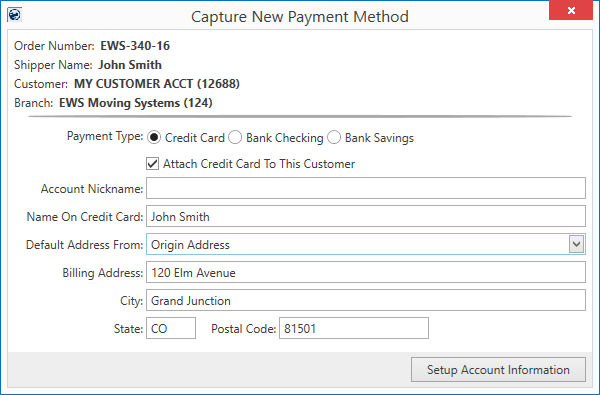
The Payment Setup tab within Recurring Billing allows you to capture the payment type, either credit card or bank account, and store that information through the Capture New Payment Method screen.
Figure 23: Capture New Payment Method dialog
When an order is setup with credit card or bank account information, payments included in the billing are automatically sent to the merchant service provider after a successful billing run. These payments show within the Recurring Payment Processing screen, which automatically appears after a newly generated billing run.
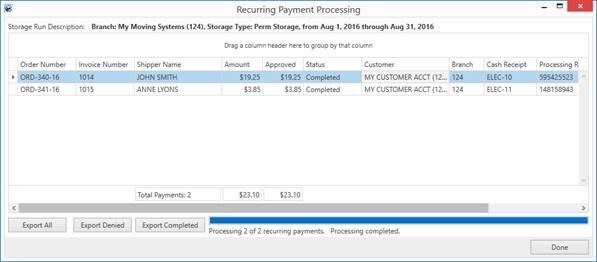
Figure 24: Recurring Payment Processing screen
You can also access the screen after the billing run through the View Payments option within the Recurring Billing Generation screen. An Auto-Payments column within this grid allows you to see a count of records with Electronic Payments for the billing run.
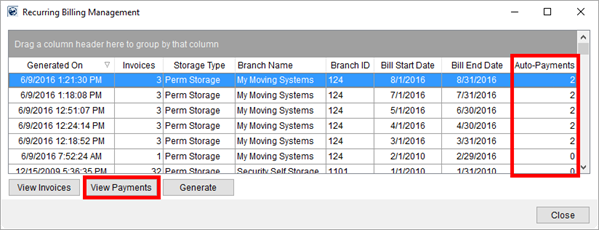
Figure 25: Recurring Billing Management
The Recurring Payment Processing screen allows you to view the progress and status of payments being processed by the merchant service provider. You also have options to reprocess one or all payments that produced an error. The reprocess attempts to resubmit the request to the merchant service provider. Typically, a reprocess is useful in the case where a connections issue occurred between MoversSuite and the provider. Use the Status and Processing Result data to determine the source of the error.
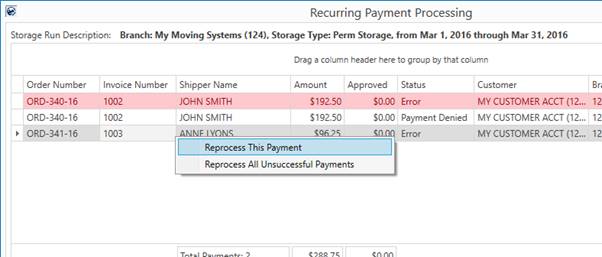
Figure 26: Recurring Payment Processing
Additionally, export options at the bottom of the screen allow you to save the grid data to a comma-separated values (CSV) file. This information is useful as a reference list to work from when reprocessing payments individually through the Credit Card/Bank Payment screen.
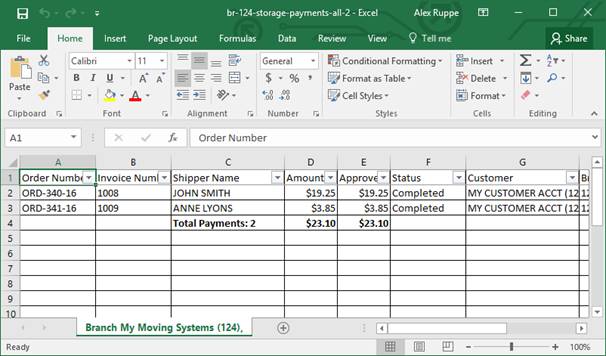
Figure 27: Sample of data exported from Recurring Payment Processing
If the billing run halts in error, then the application does not attempt to process any Electronic Payments. Refer to Recurring Billing and Storage for more information.
If a billing run completes and one or more payments are in error, then you have the option of using the Recurring Payment Processing screen to attempt to reprocess the payments. You also have the ability to correct the issue and process the payments on an order-by-order basis through the Credit Card/Bank Payment screen., which is available through the Tools Menu.
Setting Up Recurring Electronic Payments
For each record you wish to process Electronic Payments for:
1. Access the Order Information module
2. Locate the order you wish to update
3. Open the SIT/Recurring Billing tab
4. Open the Payment Setup tab within the Recurring Billing section
5. Select a Payment Method for the order, if already established, otherwise press Capture New Payment Method to enter new information for the order. The Payment Method contains a list of all saved payment options for the order, so in addition to using the Capture New Payment Method, you can also use the Credit Card/Bank Payment screen to capture the payment data. Note: Users with security access to the Electronic Payment Management module can utilize the Payment Method Management screen to update the status of the payment method along with the nickname.
6. If you wish to automatically email recipients cash receipts generated for Recurring Electronic Payments, then enter one or more email address within the Email Recurring Billing Invoice and AutoPay Cash Receipts option within Payment Setup.
If you are unable to access the screen, then contact your system administrator to determine whether the MoversConnect API service is running and verified, which may include, but is not limited to, variables and functions available through MoversConnect, MoversConnect Setup and Administration, and Electronic Merchant Setup.
Refer to the Electronic Payments Setup and Administration topic to enable Recurring Electronic Payments functionality.
Processing Recurring Electronic Payments
If a billing record is setup to process Electronic Payments, the Recurring Billing Generation function automatically attempts to process that payment with the merchant service provider (defined within Electronic Merchant Setup). The following is a basic flow of operations that you can use to assist you in processing Recurring Electronic Payments.
Recurring Payment Processing Overview
Generate Billing
Manage payment information for orders associated to a billing run through the Payment Setup tab within the SIT/Recurring Billing tab for each order.
Generate storage billing through Recurring Billing Management.
Monitor the Processing
Once the billing run completes, the Recurring Electronic Payments screen appears and the application processes each payment request individually. A progress indicator and bar display at the bottom of the screen. While the screen is processing payments, avoid opening more than one payment screen for the same billing run. The Status for records within the Recurring Electronic Payments screen also updates to reflect the status of completion of the records.
The Status also indicates errors and payment denials that may occur. Reference the Processing Request column for the specific cause of the error.
Handle Errors and Denials
You can process errors based upon their nature. For example, if the Status is “Payment Denied,” the Processing Request may indicate the reason, such as declaring an, “Invalid Card.” For most errors similar to this example, we suggest that you open the order record in Order Information and contact the account holder to clear up the error. Reprocess these payments through the Credit Card/Bank Payment screen.
If the record contains an “Error” for the Status and the information within the Processing Request column indicates a connection or setup error condition, then we recommend that you contact your system administrator to verify that the connections are established and the necessary setup is in place. Once this type of error is corrected, you can use the right-click option of Reprocess This Payment or Reprocess All Unsuccessful Payments to re-submit the payment request to the service provider.
|
WARNING |
|
Avoid using multiple windows to process or reprocess payments simultaneously for the same billing run. This results in duplicate payments for the same invoice. |
Payment Out of Balance
If the Approved amount differs from the Amount of the payment sent to the service provider, refer to the Processing Request data for the nature of the out of balance condition. If follow-up with the account holder is necessary, access the Recurring Billing section within Order Information to update payment information as needed and to process any additional payment requests through the Credit Card/Bank Payment screen.
Follow-Up Payment Processing
Utilize the View Payments feature from with the Recurring Billing Management screen to view information on payments processed on completed billing runs. You also have the ability to reprocess unsuccessful payments for prior billing runs. MoversSuite suggests using one or more of the export options within the Recurring Electronic Payments screen and work through payment issues individually through the Credit Card/Bank Payment screen.
Manage voids and payment refunds through Cash Receipts module. A cash receipt generates for each payment. A cash receipt batch generates as well. This information is available within the Recurring Electronic Payments screen, refer to the Cash Receipt and Cash Receipts Batch data presented within this screen.
Apply payments, credits, journal entries, etc. for payments through the Payment Management module.