MoversSuite allows you to process electronic payments in a safe, secure, and efficient manner. The Electronic Payments system allows your company to process payments from credit cards or directly from a bank account while utilizing a cost-effective merchant provider (currently Constellation Payments CSI Pay).
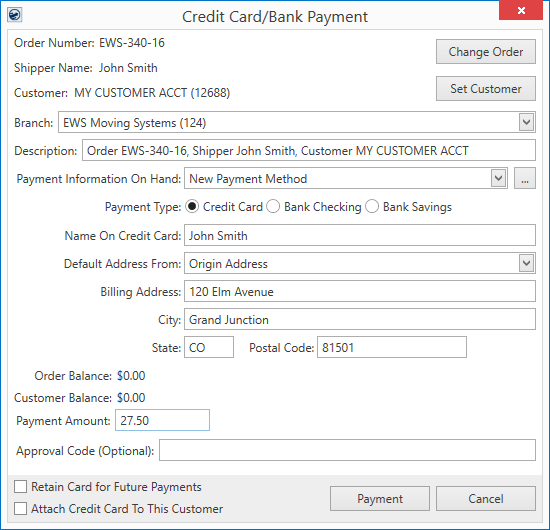
Users with appropriate security can access the Credit Card/Bank Payment screen. This screen opens from the Credit Card/Bank Payment option found within the Accounting Tools Menu.
Figure 1: Credit Card/Bank Payment
From Credit Card/Bank Payment screen, you enter payment information, including the payment amount, and press Payment. The Secure Payment Form appears allowing you to capture the credit card or bank account information and to send the request to your merchant service provider for further processing.
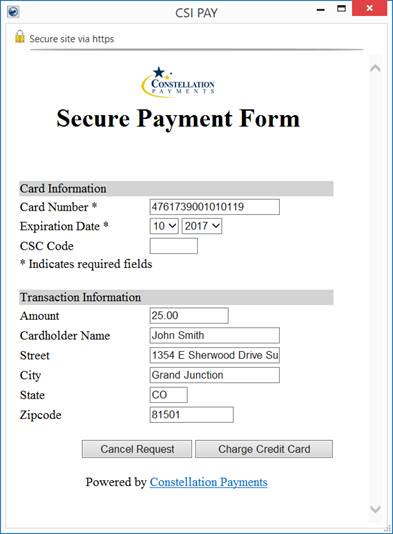
Figure 2: Secure Payment Form
The payment can generate for an order and/or for a customer. However, you can generate a payment without an order or customer.
When the payment processes, the application adds the payment to a Cash Receipts batch. The application creates a batch for each day under each branch that processed Electronic Payments. Additional batches are also created if Electronic Payments come in after someone starts processing the batch through Payment Management.
The application produces a confirmation similar to the Electronic Payment Success dialog below. This information provides you with the cash receipt number, authorization number, etc. A similar dialog appears upon a failed payment attempt.
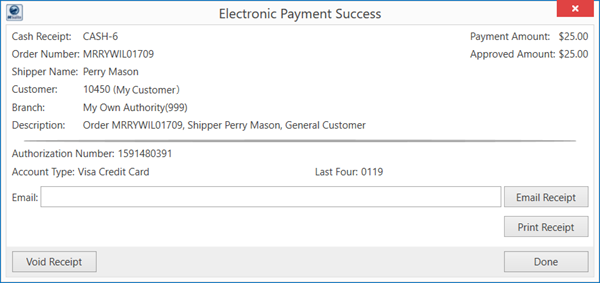
Figure 3: Electronic Payment Success dialog
You can email or print the receipt. The Email field captures the email set for the order. Additionally, you can include one or more email addresses separated by a semi-colon and press the Email Receipt button. This opens up a new email message that you can review prior to sending out. This message includes recipients, subject, and body filled-in automatically along with the receipt attached as a PDF document.
You also have the option to void a receipt from the Electronic Payments screens. The Void Receipt option is available through various places including through Cash Receipts and through the Electronic Payment Success dialog.
The receipt generated by the payment is available to email and print. Note: This is the same receipt report that generates through Cash Receipts.
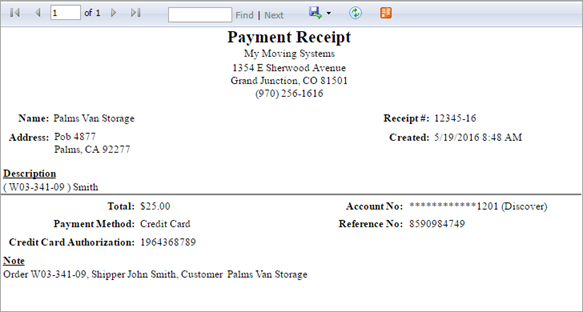
Figure 4: Electronic Payment Receipt
The following table lists and describes the processes available for Electronic Payments. Click on the link associated to the process to learn more.
|
Process |
Description |
|
Processing a Payment Process an electronic payment through MoversSuite. Access the Credit Card/Bank Payment screen by selecting the Credit Card/Bank Payment option from the Accounting Tools Menu or through right-click option available from the AR Detail grid within AR Credit & Collections. | |
|
Reprocessing a Payment (Voice Authorization) If you are unable to process a payment and the person that you are working with is able to contact the merchant service provider and obtain an approval code (Voice Authorization), then you can re-open the Credit Card/Bank Payment screen, enter the Approval Code, and re-submit the payment. | |
|
Void Receipt You have the ability to void a receipt through the Electronic Payment Success dialog and from Cash Receipts. Voiding the receipt either causes the merchant service provider to void the payment or to issue a refund. | |
|
Refund Issue a refund for the full or partial amount of the original receipt amount. You can only issue a refund for an Electronic Payment through Cash Receipts. |
View Electronic Payments Errors to see a list of common errors that you may experience while working with Electronic Payments.
RELATED TOPIC: