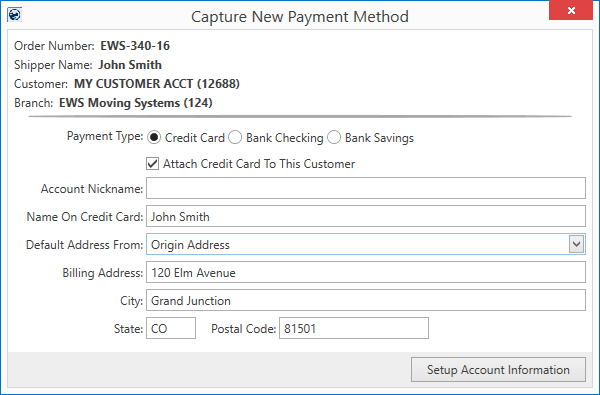
Pressing the Capture New Payment Method button from within the Payment Setup tab or through the Tools Menu allows you to capture credit card or bank account information for the order. The payment information is available to assign as the Payment Method for the autopay as part of Recurring Electronic Payments.
Figure 11: Capture New Payment Method screen
Refer to Recurring Electronic Payments for usage information.
The following table describes the fields and functions available within this screen.
|
Field/Function |
Description |
|
Order Number |
Order Number of the order associated to this billing record displays. |
|
Shipper Name |
The name on the order associated to this storage billing record displays. The Shipper Name pulls from the name set on the Name, Address, Phone tab. |
|
Customer |
The customer name followed by their customer identifier assigned to the Billing Record display. This is the customer billed for Recurring Electronic Payments. If you wish the payment information be retained for future payments associated to this customer, then check the Attach Credit Card to this Customer flag (below). |
|
Branch |
This is the branch of the order that is referenced to determine which merchant service provider processes Recurring Electronic Payments. |
|
Payment Type |
The application sets up the Secure Payment Form (when Setup Account Information is pressed) based on the type selected here. Select the payment type as one of the following:
Credit Card Process a credit card for the payment. The Secure Payment Form prompts for the Card Number, Expiration Date, and CSC Code (security code).
Bank Checking Process a bank checking account for the payment. The Secure Payment Form prompts for the Account Number and Routing Number of this checking account.
Bank Savings Process a bank savings account for the payment. The Secure Payment Form prompts for the Account Number and Routing Number of this savings account.
The Payment Type options available are dependent on what is selected for the service provider within the Electronic Merchant Setup. |
|
|
Attach Credit Card to this Customer Check this flag if you wish to associate the payment information referenced for this transaction with the customer for future payments. If checked, the payment information is available for payments associated to the customer (above). |
|
Account Nickname |
Enter an alternate description for the payment method (up to 40 characters). This name can assist those when identifying which payment type to use for particular billing, such as storage billing, move billing, etc. |
|
Name On Credit Card Name On Bank Account |
Provide the name on credit card or the name on the bank account that the payment processes under. |
|
Default Address From |
Select the address type you wish to reference to populate the billing address. Options from this menu include “New Address,” which you specify if you wish to enter the billing address manually, and from a list of addresses populated for the order and customer records. For example, if you wish to populate the billing address from the Moving From address on the order (from Name, Address, Phone), then choose the “Origin Address” option and the billing address updates accordingly. Address types only list in this menu if there is an actual address assigned to the particular entry. For example, “Destination Address” only appears if the order has the Moving To address set (Name, Address, Phone). Customer address types pull from Microsoft Dynamics GP. The list under their billing source, e.g. PRIMARY, SECONDARY, etc. |
|
Billing Address |
Use the Default Address From setting to fill-in data for the billing address automatically from the order or customer associated to the payment. Alternately, choose “New Address” to enter the billing address by hand. The Billing Address populates the corresponding address referenced within the Secure Payment Form. Note: You are able to update the billing address through the Secure Payment Form, as well. |
|
|
Setup Account Information Press this button to continue to add the payment information to the order through the Secure Payment Form, which connects MoversSuite to the merchant service provider. |

