 from within the Payment Setup tab or by pressing the
  button next to the Payment
Information On Hand field within Credit Card/Bank Payment.
button next to the Payment
Information On Hand field within Credit Card/Bank Payment.
The Payment Method Management screen allows you to view payment methods saved for the order, set them as active (available) or inactivate them, set and modify the nickname, and attach/remove a customer from the payment.
The Payment Method Management screen is available by pressing
from within the Payment Setup tab or by pressing the button next to the Payment
Information On Hand field within Credit Card/Bank Payment.
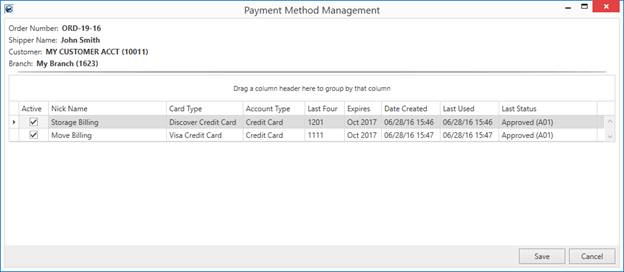
Figure 12: Payment Method Management screen
An Active payment method is available to select for an electronic payment through the Credit Card/Bank Payment screen. Additionally, you can assign active payment methods for automatic payment processing through the Payment Method selector within the Payment Setup tab.
If a payment is changed to an inactive state and was previously set as the method for a Recurring Electronic Payments, then it is removed from billing record for all orders associated to that payment method. The application links the same payment information, i.e. same credit card, to multiple orders if they are assigned to the billing through the customer. If the same payment is assigned individually to each order, then it is treated individually, i.e. you must access each order and mark it as active/inactive.
Click in the Nick Name of the payment and set/modify it. The nickname displays within the Payment Method selector on the tab, allowing you to readily distinguish its appropriate usage, e.g. “Storage Billing Card.”
You can attach or a remove a customer from a payment. To do this, right-click on the item and select the appropriate choice. Choose Attach Card To Customer to link the payment to the customer, in addition to its availability to the order. Payments linked to the customer are available anytime the customer is selected for Electronic Payments or Recurring Electronic Payments.
Choose Remove Customer From Card to not associate the payment to the customer. This payment method will not be available for the customers on Electronic Payments or Recurring Electronic Payments.

Figure 13: Right-click options from within Payment Method Management
When updating the information of a payment, MoversSuite tracks these changes through the Activity (Recurring Billing) tab. This is true if you access the Payment Method Management screen from the Payment Setup tab. However, this information is not recorded when accessing the Payment Method Management screen through Credit Card/Bank Payment.
Refer to Electronic Payment Processing and Recurring Electronic Payments for usage information.
The following table describes the fields and functions available within this screen.
|
Field/Function |
Description |
|
Order Number |
Order Number of the order associated to this billing record displays. |
|
Shipper Name |
The name on the order associated to this storage billing record displays. The Shipper Name pulls from the name set on the Name, Address, Phone tab. |
|
Customer |
The customer name followed by their customer identifier assigned to the Billing Record display. This is the customer billed for Recurring Electronic Payments. |
|
Branch |
This is the branch of the order that is referenced to determine which merchant service provider processes Recurring Electronic Payments. |
|
Notes: Options available to you through this data grid include two right-click menu options and the ability to set the Active status of the item and update the Nick Name. Changes made through this screen when opened from the Payment Setup tab are recorded within Activity (Recurring Billing). | |
|
Right-Click Menu The following options are available through a right-click on a payment item.
Attach Card To Customer Choose Attach Card To Customer to link the payment to the customer, in addition to its availability to the order. Payments linked to the customer are available anytime the customer is selected for Electronic Payments or Recurring Electronic Payments.
Remove Customer From Card Choose Remove Customer From Card to not associate the payment to the customer. This payment method will not be available for the customers on Electronic Payments or Recurring Electronic Payments.
| |
|
Active |
Placing a checkmark ( Clearing this box ( |
|
Nick Name |
Enter an alternate description for the payment method (up to 40 characters). This name can assist those when identifying which payment type to use for particular billing, such as storage billing, move billing, etc. |
|
Card Type |
The payment type associated to the method displays. This value links to the type of record captured or processed by the service provider. Values here include Visa Credit Card, Checking Account, MasterCard Prepaid Card, etc. |
|
Account Type |
MoversSuite provides a general category assigned to the payment method. The type that displays here is either Credit Card, Bank Checking, or Bank Saving. Refer to the Payment Type within for more information. |
|
Last Four |
The last four digits of the account or card on file display. |
|
Expires |
The expiration date of the credit card displays (month
and year). |
|
Date Created |
Date and time that the payment method was captured displays. |
|
Last Used |
Date and time that the payment method was last used for a payment displays. |
|
Last Status |
The last status returned for the payment method from the merchant service provider displays. |
|
|
Save Press this button to keep any changes made to the Active or Nick Name data. |
|
|
Cancel Close the screen without saving any changes that may have been made. |
 ) in this column marks the payment
method as active. Active methods are available within the Payment
Method field in
) in this column marks the payment
method as active. Active methods are available within the Payment
Method field in  ) for the selected record disables the
method. Disabled methods do not appear as options elsewhere in the
application for
) for the selected record disables the
method. Disabled methods do not appear as options elsewhere in the
application for 
