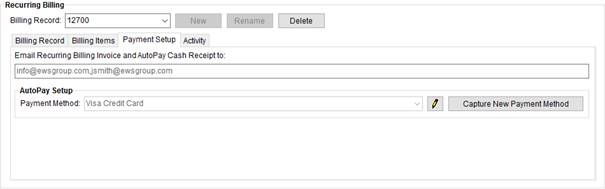
The Payment Setup tab allows you establish payment information for billing items on an order as part of Recurring Electronic Payments.
Figure 8: Payment Setup tab
AutoPay Setup
Use this tab to select an autopay Payment Method from those established for the order through the Capture New Payment Method screen and through the Credit Card/Bank Payment screen and to enable automatic email messaging for invoices and cash receipts generated as part of a billing run.
An additional option is available to those of you with
security access to the “Electronic Payment Management” module. The  button is available (within the
Autopay Setup section) allowing you to access the Payment Method Management screen. This
screen allows you to set the Nick Name for the account. This is helpful to match
to the payment information to the appropriate billing. You also have the ability
to mark payments as active or inactive from the screen.
button is available (within the
Autopay Setup section) allowing you to access the Payment Method Management screen. This
screen allows you to set the Nick Name for the account. This is helpful to match
to the payment information to the appropriate billing. You also have the ability
to mark payments as active or inactive from the screen.
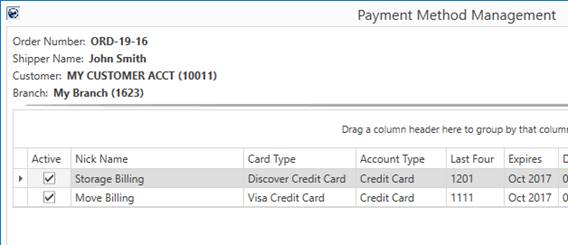
Figure 9: Payment Method Management screen
The application references the selected method when generating electronic payments as part of a Recurring Billing and Storage run.
Refer to Recurring Electronic Payments for more information on usage and features available to you.
Automatic Recurring Billing Emails
To enable automatic email messages when a billing run generates, set the Email Recurring Billing Invoice to one or more recipients. Separate multiple email address with a comma or semicolon. When the system generates a billing run that includes this record, an email generates automatically. This email includes the text defined within System Email Setup the and has the invoice attached.
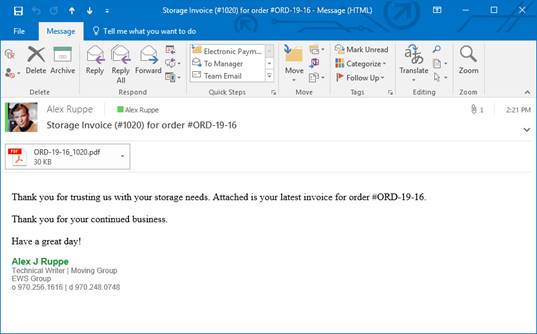
If the record is setup to autopay Recurring Electronic Payments, an additional email message generates that includes the information on the cash receipt generated for the Electronic Payments item. Setting the Payment Method enables the autopay features on the billing run; the label of the email recipients changes to reflect this status by displaying as, “Email Recurring Billing Invoice and AutoPay Cash Receipt to:”
The system also updates Document Management with a copy of the invoice and cash receipt generated.
The Report Viewer provides options for the invoices and cash receipts. Two separate Report Viewer windows open for each type of report generated for the billing run (one for invoices and one for cash receipts, if processing Electronic Payments).
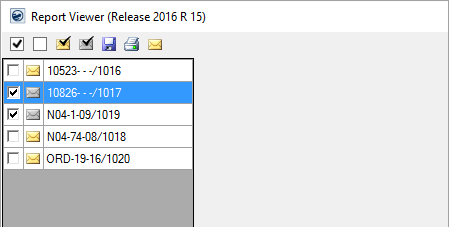
Figure 10: Report Viewer options
Additional information and options are available through the
Report Viewer. They include the
ability to see which records associate to the auto electronic payment ( ) and those that do not (
 ). You can also select all electronic payments
(
). You can also select all electronic payments
( ) or all non-electronic payments (
 ). The application combines all selected
records into a single email, complete with all invoices (or cash receipts)
attached.
). The application combines all selected
records into a single email, complete with all invoices (or cash receipts)
attached.
Further options for emailing multiple selected records including the following.

Send all selected reports as a single email
This option creates one email message that includes all selected reports as an attachment to the message.
Send each selected report out as a separate email (review each email)
Choosing this option produces separate emails for each selected report. It opens a window for you to review the message and the attached report before sending it out. Once you press Send, the next email window opens. This continues until emails are sent for all selected reports. Note: With this option a blind copy (BCC) of the email is sent to the person sending the email (you).
Send each selected report out as a separate email in silent mode (no review)
This option instructs the viewer to send out separate emails for each selected report. It runs this operation in the background and updates the progress bar to provide you an indication of when all emails are sent. You will not be able to review the email message with the report attached prior to it being sent out. Note: With this option, no blind copy (BCC) of the email is sent.
The following table describes the fields and functions available within this tab.
|
Field/Function |
Description |
|
Email Recurring Billing Invoice to: Email Recurring Billing Invoice and AutoPay Cash Receipt to: |
Provide one or more email addresses to evoke automatic email functionality. An email is sent out automatically when a billing run generates. The email includes the invoice generated during the billing run for the order. Separate multiple email addresses using a comma or semi-colon. In addition to the invoice email, if the account is setup for Recurring Electronic Payments, then a second email is sent out to these recipients that includes the cash receipt generated from the billing run for the electronic payment. If the billing record is setup for Recurring Electronic Payments, then the field label includes “and AutoPay Cash Receipt” in the title. Otherwise, if “none” is selected for the Payment Method, then the field label reads, “Email Recurring Billing Invoice to:” only. |
|
Autopay Setup |
|
|
Use this section to establish Recurring Electronic Payments for the billing items generated for this order record. When billing is run, the application automatically attempts to process payments for the amount of the open billing items. | |
|
Payment Method |
Specify which payment method established for this order is referenced for Recurring Electronic Payments. Setting this field instructs the application to automatically attempt to process Electronic Payments for the specified method. Methods available are those defined for the order through Capture New Payment Method and through Credit Card/Bank Payment. |
|
|
Payment Method Management Pressing this button opens the Payment Method Management screen allowing you to view all payment methods captured for the order. You also have the ability to mark a payment method as active or inactive, set the nickname for each payment method, and attach/remove a customer from the payment. Changes to the payment information through this Payment Method Management screen are logged as activity for a Recurring Electronic Payments within the Activity (Recurring Billing) tab. You must have appropriate access to the “Electronic Payment Management” module to access this functionality. Refer to Electronic Payments Setup and Administration for details. |
|
|
Capture New Payment Method Pressing this button opens the Capture New Payment Method screen, allowing you to enter a new payment method for this order, which ties the account to a particular credit card or bank account for processing of payments through Recurring Electronic Payments as part of a Recurring Billing and Storage run. |
RELATED TOPIC:
Electronic Payments Setup and Administration
