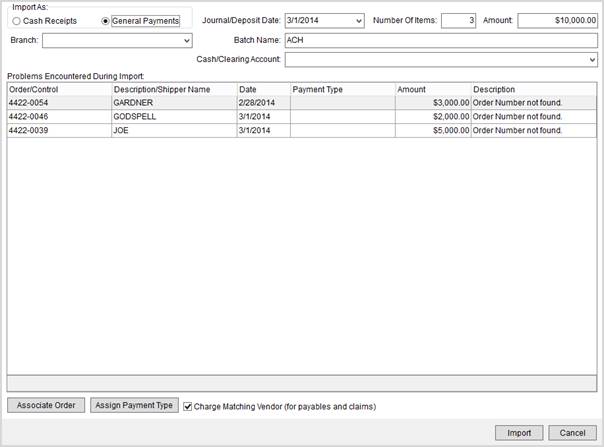
This screen appears upon a successful import for either in the Generic Import or Atlas Settlement Statement Import through the Import function in Payment Management. Users can choose to import the file as either a cash receipt or payments batch.
Figure 6: Statement Import Summary (Generic Import)
The following table lists the fields and functions available through this screen.
|
Field/Function |
Description |
|
Import As |
Choose how to have this statement import applied as in MoversSuite as either a “Cash Receipt” or as “General Payments.” |
|
Branch |
Select the branch associated to the batch generated for this import file. |
|
Division |
Select the appropriate division for the batch, if Divisions is on. |
|
Journal/Deposit Date |
The deposit or transmittal date of the imported statement displays. This date can be updated. |
|
Number of Items |
The count of all detail records imported from the statement file displays. |
|
Amount |
The total dollar amount of the statement displays. This is the sum of all the detail records included in the batch. |
|
Batch Name |
Batch description displays. This description can be updated and is the key descriptor for the imported record (up to 128 characters). |
|
Cash/Clearing Account |
Select a master general ledger account for statement import and is used to generate accounting entries for the batch applies. Users can update this value through Statement Detail. Values available in this menu are managed through the Payment Management Posting Account Setup. |
|
Problems Encountered During Import | |
|
Order/Control |
The Order Number or GL control number of a vendor displays in this column. |
|
Description/Shipper |
The text description of the transaction or the shipper name appears in this column. |
|
Date |
Payment or deposit date associated to the transaction displays. |
|
Payment Type |
The Payment Type determines how the selected item is applied within the Payment Application screen. Payment Code is set to a value (defined within in Statement Payment Code Setup). You can update this value through the Select Payment Code screen. |
|
Amount |
The dollar amount associated to the selected transaction. |
|
Problem |
Displays the text of the error encountered during the import process. |
|
|
Associate Order Opens the Find and allows the user to select an order using order, customer, and/or store information. Use this function to correct an invalid Order Number item. The Order/Control and Description/Shipper fields will update to reflect the selected order. |
|
|
Set Payment Type This function opens the Select Payment Code screen allowing a user to modify the payment code for the selected transaction. The Payment Code determines how the item is applied within the Payment Application screen. |
|
|
Charge Matching Vendor This option, when set, instructs the application to verify transactions associated to the vendor linked to the driver as well as the driver included with the import. When this option is not set, transactions associated to the driver only are verified.
Note: Vendor is set for the driver through their Personnel Setup record.
|
|
|
Auto Apply Options If the Auto Apply option is set within the import file (see Generic Import File Format) or if the Import Auto Apply Options are in effect, this option is available allowing you to modify the Import Auto Apply Options for this particular import. |
|
|
Done Instructs the application to verify and save changes made to the statement import. |
|
|
Cancel This functions halts the import process and discards all changes made to the statement. |
RELEATED TOPIC: