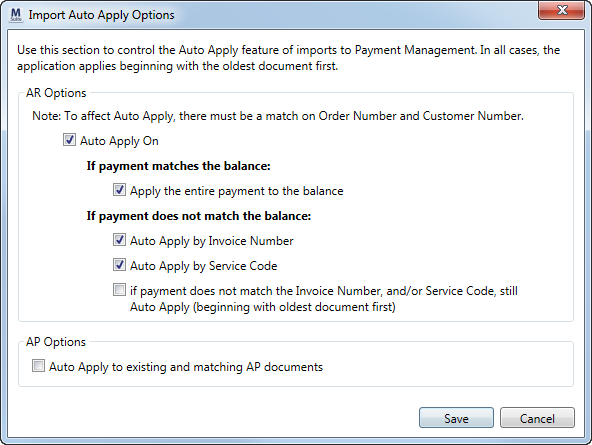
Use the Import Auto Apply Options dialog to turn on and control the behavior of auto applying items imported into Payment Application. Once set, these options become the default settings for imported items for the user.
Access to this dialog is through the Auto Apply Option available from the Options menu in Payment Application and Statement Import Summary windows. An Auto Apply option is also available on a CSV Import that enables the options to be available through Statement Import Summary (Generic Import) (refer Generic Import File Format to for more information).
Figure 25: Import Auto Apply Options dialog
The table below describes the options available through this dialog.
|
Field/Functions |
Description |
|
AR Options |
|
|
Auto Apply On |
Check this option to auto apply revenue (AR) items imported into Payment Application. When checked, all other AR options listed underneath it are in effect. When this option is unchecked, the application does not auto apply the import. All items will need to be manually applied.
If payment matches the balance: Select the following option in the cases where the payment amount matches the balance for the customer.
Apply the entire payment to the balance When this option is checked and when the incoming payment matches the balance of the item, the application automatically applies the entire payment amount to the balance for the customer.
If payment does not matches the balance: Select one or more of the following auto apply options to be in effect when the payment amount is not equal to the balance for the customer on the particular order.
Auto Apply by Invoice Number This option instructs the application to begin auto applying revenue for the customer and order beginning at the Invoice Level. Refer to the Apply at the Invoice Level topic within Payment Application for more information.
Auto Apply by Service Code This option instructs the application to begin auto applying revenue for the customer and order beginning at the Service Code Level. Refer to the Apply at the Service Code Level topic within Payment Application for more information.
If payment does not match the Invoice Number and/or Service Code, still auto apply beginning with the oldest document first Select this option to continue auto applying to revenue documents even if there is no match on invoice and/or service, i.e. if either or both of the Auto Apply by Invoice Number and/or Auto Apply by Service Code options are checked.
|
|
AP Options |
|
|
Auto Apply to existing and matching AP documents
|
Check this option to instruct the application to auto apply payables (AP) based on vendor associated to the payable, if the invoice amount matches the amount provided by the vendor. If the amounts do not match, then the application auto applies beginning with the oldest documents first. Uncheck this option to turn off auto applying on imported AP documents. |
RELATED
TOPICS:
Payment Application
Statement Import Summary (Generic Import)