Field
Description
Search Parameters
Use these parameters to build a list of orders to compare costing information. The application starts out will all orders and these parameters allow you to refine the results to just what you need.
All parameters are used in unison to filter search results.
Branch
This is the branch associated to the order. By default, the application includes “All” branches and you can optionally select one or more branches to filter results on.
Date Type
This is the type of date to be searched on. The type selected here is the date associated to the order or service that is compared with the Date Range. For example, if you want only want to includes orders that loaded within the current month: Enter “Load Date” for the Date Type and “BOM” and “EOM” for the two date fields.
The Date Type options available include:
Created On Date (default)
Includes orders with a Created On date that falls within the specified Date Range. The date compared to is stored in the Created On field within Move Information.
Load Date
Includes orders with a load date that falls within the specified Date Range. The application checks the actual load date first and, if not set, then checks the first date in the load spread. Refer to the Load Date fields within the Actual and Range tabs in Move Information.
Service Date
Includes orders with any service date that falls within the specified Date Range. The application checks the date of the Local Services for inclusion. Of note, any service on the order, dispatched or not, is included in the search.
Date Range
Provide a date range to filter the search results. This range works in conjunction with Date Type field, which provides the type of date to be searched.
Billed or Unbilled
Refine the search to filter on the billed status of the order. By default the application includes in the search all orders based on billed status. Optionally, select one of the following to filter the results:
Only Billed Orders
The search results include only those orders with the Bill Date set (within Order Information (Revenue Entry)). These orders are considered “finalized” within Job Costing.
Only Unbilled Orders
The search results include only those orders with the Bill Date not set (within Order Information (Revenue Entry)). These orders can still have their costing items adjusted.

Search
Pressing Search refreshes the data grid with the latest results based on the entered parameters.
Data Grid
Right-Click Options
The following options are available through a right-click menu in this grid.
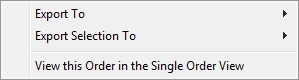
Export To
Send the data in the grid to either a new spreadsheet workbook through the Excel option or to a browser window through the HTML option. The application sends the entire contents of the grid exactly as it displays within grid, including totals, to the designated output. Refer to the Export To topic for more information.
Export Selection To
This option performs the same function as the Export To option but includes only those records selected within the data grid. Select multiple records using the Shift and/or Ctrl keys.
View this Order in the Single Order View
Opens the selected order within the Single Order tab, where you can view the details comprising the job costing data.
Branch ID
The identifier for the branch of the order is available within this column.
Order Number
Order Number of the record being viewed displays.
Shipper
Name on the order being viewed, pulled from the Last Name/Company Name and First Name/MI fields on the Name, Address, Phone tab.
Revenue
The total revenue of move displays. This number is based on the total of all revenue received for the order, as managed through the Transactions tab.
Cost
Cost is comprised of all expense amounts associated to costing.
Profit/Loss
This is the amount difference between original revenue amount and the costs associated to the order. The application uses the following formula to determine profit or loss:
Profit / Loss = [ Revenue ] - [ Cost ]
Gross Margin
Percentage difference between the original revenue amount and costs of the move. The following calculation is used to determine the margin:
Gross Margin = [ Cost ] / [ Revenue ]
Billed
This column displays a checkmark ( ) to indicate whether the order has
been billed, as determined by having the Bill Date set (through Order Information
(Revenue Entry)).
) to indicate whether the order has
been billed, as determined by having the Bill Date set (through Order Information
(Revenue Entry)).

Close (Alt+C)
Press this button to close the Job Costing window.