Claims > Liabilities/Chargebacks tab > Manage Liabilities and Chargebacks button
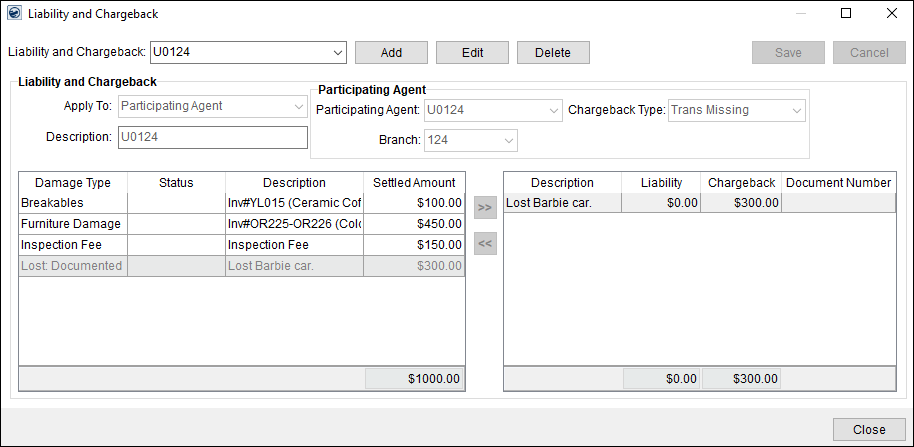
The Liabilities and Chargeback screen allows a user to record liabilities and chargeback items to selected participants. Access this screen through Liabilities/Chargebacks > “Manage Liabilities and Chargebacks” button. The claim items that list on this screen, such as “Breakables” and “Furniture Damage” in the image below, were entered within Claim Items.
Liabilities and Chargebacks affect Payables. Entering a positive number will debit the vendor and AP. Think of it as “They are taking the dollar amount away from the vendor.” The money “charged back” goes into the Claims Clearing Account.
Figure 35: Liability and Chargeback screen with “Participating Agent” select for Apply To; therefore, the “Participating Agent” agent section is opened.
These are general instructions for how to enter a Liability and Chargeback:
|
|
Applying an interagency charge to a driver or participating agent, apply the fee to the driver or agent using the same Item Code set for the chargeback. |
1. From the Liability and Chargeback screen (Figure 35), click the Add button.
2. Apply To: Select who the responsible party from the dropdown. It can be Liable Person, Participating Agent, Third Party, or Warehouse. (See the technical table at the bottom of this topic for more details on those options.) Once the Apply To field is set, the section to the right will reflect that setting. For example, choosing Participating Agent will prompt the Participating Agent section.
3. Enter a Description.
4. Enter the fields in the section to the right, Participating Agent section, Third Party section, etc.
•If the Apply To selected is Participating Agent or Warehouse, their section will require a Chargeback Type. The Chargeback Type must be the same as the Liability so they go to the same account number. (It may be necessary to exit out of this screen to determine the Liability Type and then return to this screen and re-enter previous steps.)
•If the Apply To selected is Liable Person and Third Party, make sure to choose a Liable Person or Third Party that has a Vendor Number within the dropdown. A Vendor Number is needed to go to AP; therefore, if there isn’t a vendor number, it doesn’t go to AP. For these two “Apply To” options, the amount entered will be a positive number as detailed in the technical table at the bottom of this topic.
5. Enter a Description. The Description will be what lists within the Liabilities and Chargebacks field dropdown once it is saved.
6. Click the item that was just entered, which is listed in the left section of the screen, and then click the double right arrows to move that Claim Item into the Description/Liability/Chargeback section.
7. Enter the Liability Amount and then the amount the responsible party (set in Apply To:) is responsible for under Chargeback Amount.
8. Review.
9. Click Save. Once a Liability or Chargeback is saved, it will list and become an option within the Liability and Chargeback field’s drop down, at the top left of the screen.
NOTE: If the Liability has a remainder, the remaining balance of the Liability must be assigned to keep the overall claim in balance.
10. If there are more items to enter on this screen, repeat Steps 1 -8.
11. Click the Close Button.
12. From the Claims screen > Summary tab, click the Generate Transactions button.
13. Enter the Journal and Document date.
14. Click OK.
Once a chargeback has been generated, no changes can be made to the chargeback.
To review a Liability or Chargeback that has already been entered:
1. Click the Liability and Chargeback field drop down and select a listing.
2. The Claim Items and Liability or Chargeback for that option will list on the screen.
The following table describes the fields and functions available within this section.
|
Field/Function |
Description | |
|
Liability and Chargeback |
Select from an existing list of liability and chargeback items to manage from the available list. | |
|
|
Add (Alt+A) This function clears the screen and enables fields for entry of a new liability and chargeback item. | |
|
|
Edit (Alt+E) Open the selected Liability and Chargeback to update the information using this function. | |
|
|
Delete (Alt+D) Permanently remove the selected liability and chargeback record. | |
|
|
Save (Alt+S) Press Save to keep changes made to the open liability and chargeback record. | |
|
|
Cancel (Alt+C) This function discards changes made to an open liability and chargeback record. | |
|
Liability and Chargeback |
| |
|
Apply To |
Select the type of participant as the source the liability and chargeback item as one of the following: Liable Person Participating Agent Third Party Warehouse Each option is described in detail under that Field/Function name in this table. | |
|
Description |
Enter the name of the record (up to 50 characters). The application sets this field upon selection of a Liable Person, Participating Agent, Third Party, or Warehouse. | |
|
Liable Person |
| |
|
Liable Person |
If applying a liability and chargeback item to an employee, select an employee from the list of Order Personnel. Choosing the Liable Person within the Apply To will prompt the Liable Person section. Select that person within the Liable Person section. The person selected must have a Vendor Number, which is listed when selecting the Liable Person from the dropdown. If needed, check the 1099 box.
If you have revenue to that vendor, then if they do something wrong, enter a positive number within Amount, to get money back from that Liable Person. | |
|
|
1099 Flag Select this flag to report transaction created for the employee as a 1099. | |
|
Vendor Number |
This field displays the vendor number established for the employee in their Personnel Setup. | |
|
Participating Agent |
| |
|
Participating Agent |
If applying a liability and chargeback item to an agent, select an agent from the list assigned through the Agents tab of the order. Only Agents attached to the order will list and you can only choose sister Agents in your company. This is because the Agent is associated to a Branch (through Branch Setup > Agent field). Choosing an agent that is not a sister agent will not have a branch listed; therefore, it will not be able to be generated. | |
|
Chargeback Type |
Assign agent to a particular chargeback type option by selecting an option from the dropdown. Each option that lists is defined in Claim Chargeback Type Setup, which is tied to an Item Code (which is tied to an expense account.) | |
|
Branch |
This field displays the branch of the selected Participating Agent. | |
|
Third Party |
| |
|
Third Party |
Use Third Party if you paid a Third Party in revenue on the order and then need to chargeback that Third Party because they did something wrong. Third Party section dropdown options will only show those assigned to third party items in Transactions.
If you have revenue to that vendor, then if they do something wrong, enter a positive number within Amount, to get money back from that Third Party vendor – or take money away from what you need to charge them. | |
|
|
1099 Flag Select this flag to report transaction created for this entity as a 1099. | |
|
Vendor Number |
This field displays the vendor identification number for the third-party entity. | |
|
Warehouse |
| |
|
Warehouse |
Use Warehouse if the responsible party for the claim is to be assigned to another warehouse in your system. Select a record from the list defined in Warehouse Setup.
A Chargeback Type is required so select that from the dropdown. The Branch will auto populate with the Branch Number when the Branch is selected. | |
|
Chargeback Type |
Assign the warehouse to a particular chargeback type option by selecting an option from the dropdown. Each option that lists is defined in Claim Chargeback Type Setup, which is tied to an Item Code (which is tied to an expense account.) | |
|
Branch |
This field displays the branch of the selected Warehouse. | |
|
Left Pane |
| |
|
The items that list in the left pane are all defined claim item records. Associated items appear highlighted. Use the following transfer buttons to move records between the two panes:
Transfer the selected record to the right pane.
Transfer the selected record to the left pane. | ||
|
Damange Type |
The classification set in Add Claim Item displays. | |
|
Status |
The state of the claim item set in Add Claim Item displays. | |
|
Description |
The description of the item set in Add Claim Item displays. | |
|
Settled Amount |
The amount settled upon for the claim item as entered through Settlement Entry. | |
|
Right Pane |
| |
|
Items that list on the right are those selected by the user through the transfer buttons. The application includes these items in the open liability and chargeback record. | ||
|
Description |
The description of the item set in Add Claim Item displays. | |
|
Liability |
Enter the dollar amount of the claim item associated to a liability. | |
|
Chargeback |
Enter the dollar amount of the claim item associated to a chargeback. | |
|
# |
This displays the posting document number. | |
|
|
Close (Alt+L) This function closes the screen. | |


