Dashboard/Edit Reports > Properties > Data Source tab > Templates tab
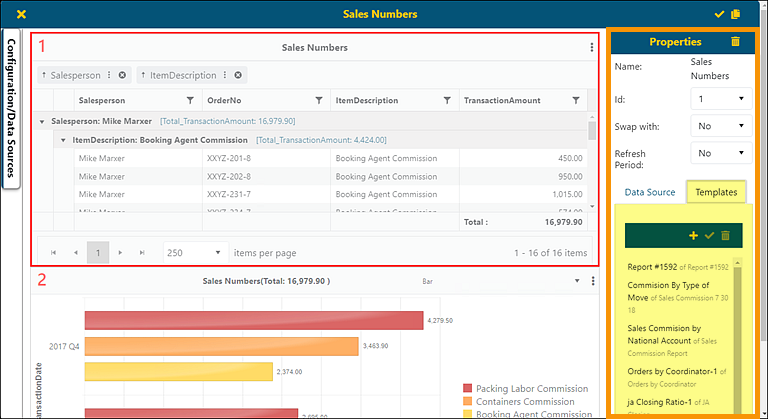
The Templates tab within BI Tool Properties is a library of templates (Figure 121) and it is also where templates are created, applied, and deleted. Templates is located in the BI Tool Properties section on the right side of Figure 121 (which is outlined in orange) and the Templates tab within Properties that is highlighted in yellow.
A template is a component that can be applied to a new or existing report that already has a Data Source and other Main Level Settings applied to that component. A template is created from an existing component of a report, whether it is an existing report or one just created. The benefit of using templates is that the Data Source and settings used on the template will be used on the new report so that they do not have to be rebuilt; however, the BI Tool Data Sources and settings can be edited when used.
When applying a template to an existing report, the template will be applied to the section outlined in red on the BI Tool Dashboard/Report Edit screen. In Figure 121, the outlined section is numbered 1 (upper left corner of the red outlined section.) The outlined section is the section “in use” and referred to by number within the BI Tool Properties within the field named “Id.” To add a template to new area, create a new “red outlined area” and the template will be applied there.
For more details and instructions on:
•How to add a template to the template library, see BI Tool Create a Template.
NOTE: There is a video within this topic.
•How to use templates to create another report or a dashboard, see BI Tool Use a Template.
NOTE: There is a video within this topic.
Figure 121: Templates tab on the Properties screen.
Details for this tab are in the table below:
|
Icon / Field |
Function |
|
|
Click this icon to add the component highlighted on the BI Tool Dashboard/Report Edit screen to the template listing on the Templates tab. |
|
|
Click this icon to add the component highlighted in the Templates tab to the area outlined in red on the BI Tool Dashboard/Report Edit screen. If there is a component already in the red outlined area, it will be overwritten. If this happens by mistake, exit out that screen without exiting by clicking the X in the upper left of the screen. |
|
|
Click this icon to delete the template from the Template Library. |
|
“Template Library” |
The Template Library is a list of templates that have been added by the user. When the BI Tool is first used, the Template Library will be blank. |
RELATED INFORMATION:


