
Click the video name to view the video:
Dashboard/Report Edit > Properties > Template tab
|
|
Click the video name to view the video:
|
This topic details how to add a template to the Templates tab library. Templates can be simple, such as just including settings within BI Tool Data Sources; however, templates can also be complex and include BI Tool Main Level Settings (and BI Tool Second Level Settings and BI Tool Third Level Settings, if used), BI Tool Columns Grouping Sorting and Summarize By, and BI Tool Components, etc. All settings can be modified after a template has been applied.
How to add a template to the template library from an existing report or when creating a new report:
1. From the BI Tool Dashboard/Report Edit screen, either choose an existing component of a report or create a new area to apply the template.
2. Click Templates to open the Templates tab.
3. Click the Add icon (+).
STEP 1: Click on a red outlined area.
Setup Area: BI Tool Dashboard/Report Edit screen
Click on a component area, such as section 1 shown in Figure 125, to make that the “active area.”
IMPORTANT: Using a template in an existing “active area” will overwrite the area with that template. To create a new area for the template, see further instructions below in this step.
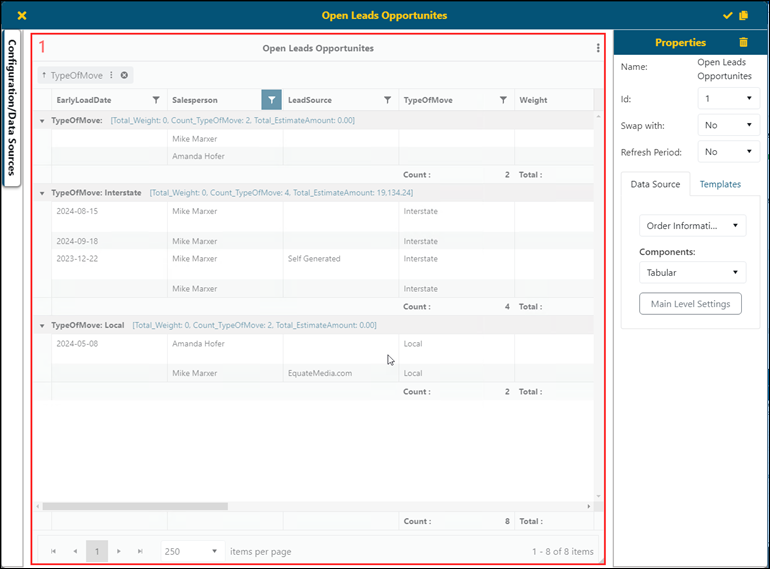
Figure 122: The component area is number 1. The area was clicked so it is outlined in red and is considered the "active area."
If you wish to add a template to a report in a new area:
a. Click the existing component section, area 1 in the Figure 122.
b. Click on the edge of the active area and drag it to make that active area smaller to create space (Figure 123). If the area is to be “side-by-side” with the existing area, drag the right or left side of that active area. In the case in the image below, the bottom edge was dragged up to create space at the bottom (the area with the blue grid.)
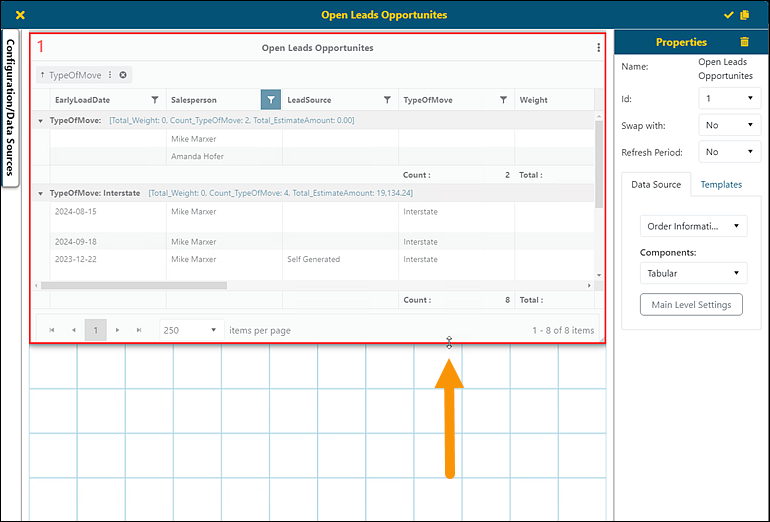
Figure 123: "Active area" is being reduced by dragging the bottom edge by that area up.
c. Create a new area by dragging your cursor over the area for the new component/template. When the cursor is released, the area covered by gray will now be outlined in red and will be the “active area.” In our example it is now labeled “2”.
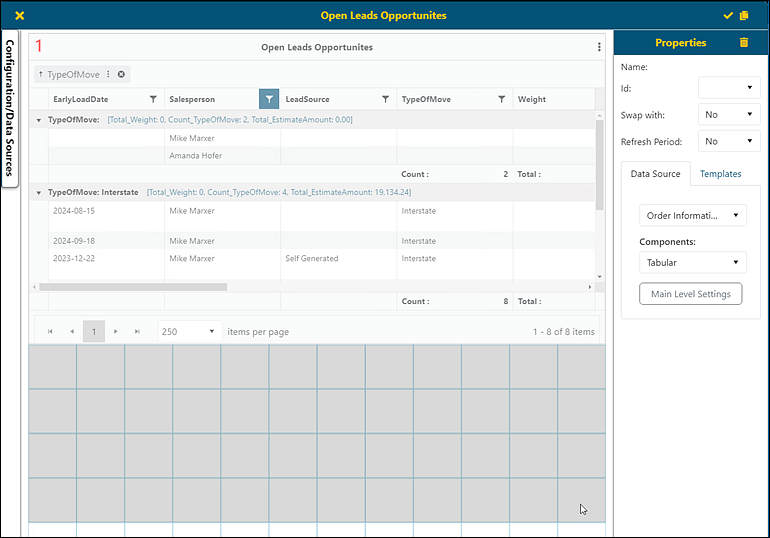
Figure 124: Cursor was dragged from top left corner to the lower right corner to create the greyed area.
d. The new area is outlined red and numbered 2. As this is the “active area”, this area is indicated by “Id: 2” within the Properties section and as shown with an orange arrow.
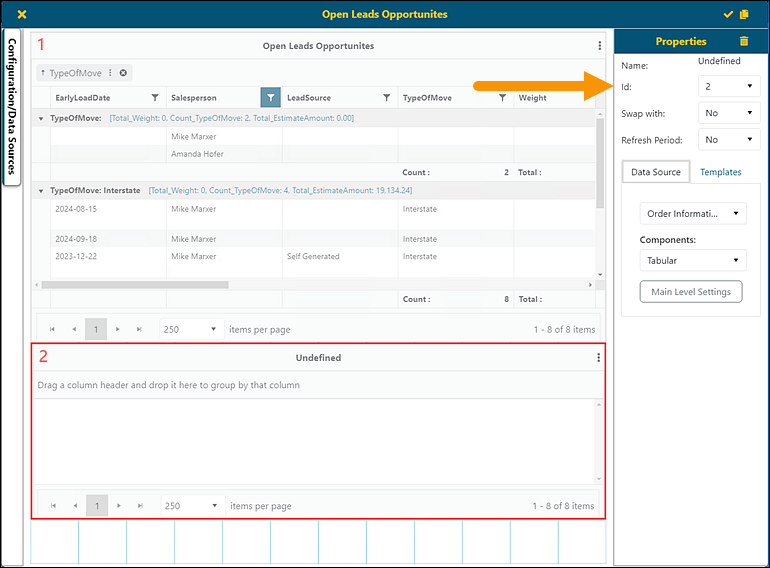
Figure 125: New area was created and now is listed within BI Tool Properties > Id as “2”.
STEP 2: Click the Templates tab and click on a template.
Setup Area: BI Tool Dashboard/Report Edit > BI Tool Properties
Note: The BI Tool Dashboard/Report Edit screen shows the report name. It does not say “Dashboard/Report Edit”.
From the Properties screen, which defaults to the Data Sources tab, click the “Templates” tab. Then click on the template name to used in the active area.
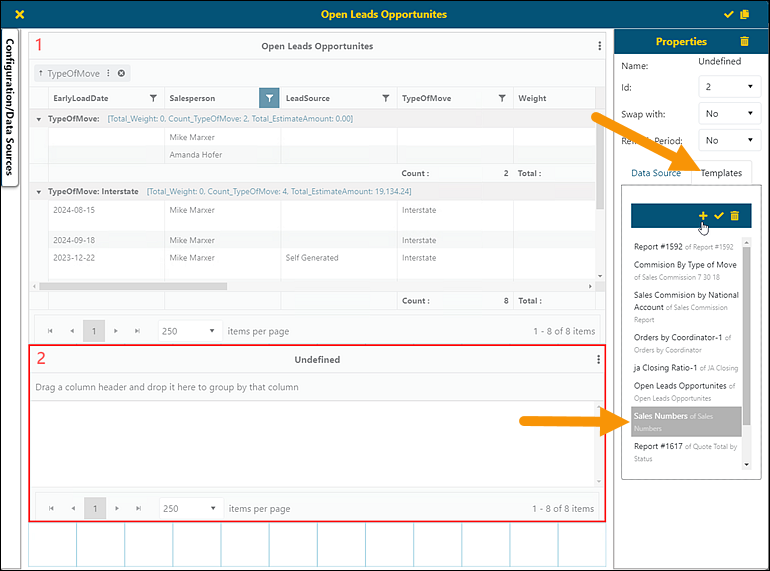
Figure 126: Templates tab and the template to be used are indicated with orange arrows.
STEP 3: Click the Add icon.
Clicking the Add icon will add the highlighted template to the active area/red outlined area.
RELATED INFORMATION: