Click the video name to view the video:
Dashboard/Report Edit > Properties > Template tab
NOTE: For information on how to add a template to a report, see BI Tool Use a Template.
|
|
Click the video name to view the video:
|
This topic details how to create a template to add to the Templates tab library. Templates can be simple, such as just including settings within BI Tool Data Sources; however, templates can also be complex and include BI Tool Main Level Settings (and BI Tool Second Level Settings and BI Tool Third Level Settings, if used), BI Tool Columns Grouping Sorting and Summarize By, and BI Tool Components, etc. All settings can be modified after a template has been applied.
How to add a template to the template library from an existing report or when creating a new report:
1. Click on a component to outline it in red and make it the “active area.”
2. Click the Add icon (+).
STEP 1: Click on a red outlined area.
Setup Area: BI Tool Dashboard/Report Edit screen
From the BI Tool Dashboard/Report Edit screen, click on an existing component of a report, such as section 2 shown in Figure 122, to make that the “active area.” The “active area” is outlined in red.
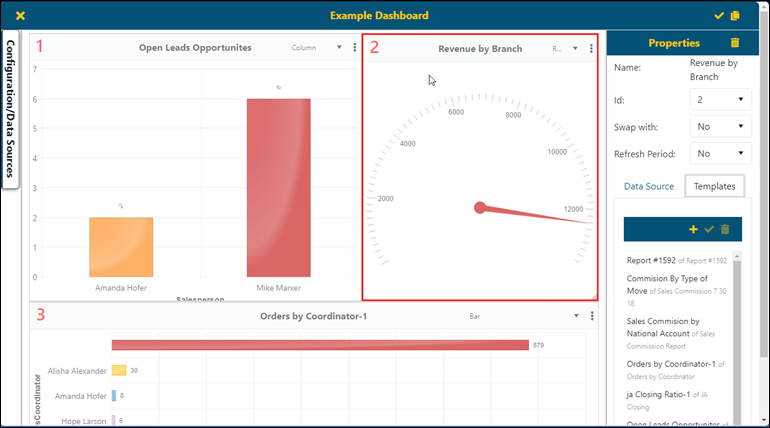
Figure 122: The component area is number 1. The area was clicked so it is outlined in red and is considered the "active area."
STEP 2: Click the Add icon.
Setup Area: BI Tool Dashboard/Report Edit > BI Tool Properties
From the BI Tool Properties screen, which indicated the “active area” with the Id field, click the “Templates” tab. Then click on the add icon indicated in the image below.
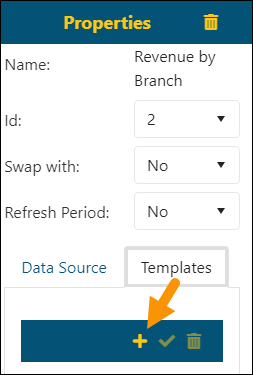
Figure 126: Templates tab and the template to be used are indicated with orange arrows.
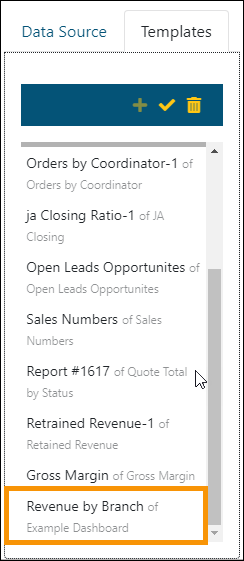
Once added, that component will now list as a template within the Templates tab library under the name shown at the top of that component, which is “Revenue by Branch” in Figure 122.