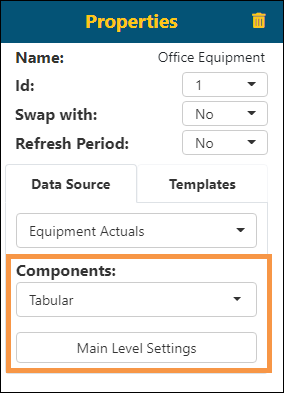
Dashboard/Edit Reports > Properties > Data Source tab > Components
Essentially a component is a section, which is outlined in red, on the BI Tool Dashboard/Report Edit screen that has one of the “Component Groups” (see table below) applied to that section. The Component Groups can be applied to the “red outlined section” from the BI Tool Properties screen, or by using a Template. A template is just a component that has certain filters, settings, and color already applied to that component. See BI Tool Templates for more details.
When choosing an option under Components, the dropdown options include the following options:
|
Component Group |
Options Available |
Topic (includes image of Component Type) |
|
Grid |
Tabular |
|
|
Matrix |
||
|
List |
Top List |
|
|
Web |
Web Link |
|
|
Gauge |
Linear H |
|
|
Linear V |
||
|
Radial |
||
|
Chart |
Area |
|
|
Bar |
||
|
Column |
||
|
Donut |
||
|
Funnel |
||
|
Line |
||
|
Pie |
||
|
Radar |
||
|
Stock Ticker |
Stock Ticker |
For all Component options except Stock Ticker and Web Link, a Data Source is listed and this Data Source is the one previously set within BI Tool Configuration/Data Sources. In the image below, the Component selected is Tabular and the Data Source is Equipment Actuals. BI Tool Main Level Settings is shown depending on the Component chosen.
Figure 93: Level Settings available vary according to Data Source(s)
OTHER COMPONENTS
RELATED INFORMATION:
BI Tool Configuration/Data Sources
BI Tool Dashboard/Report Placement
BI Tool Properties