Dashboard/Edit Reports > Properties > Components > Chart
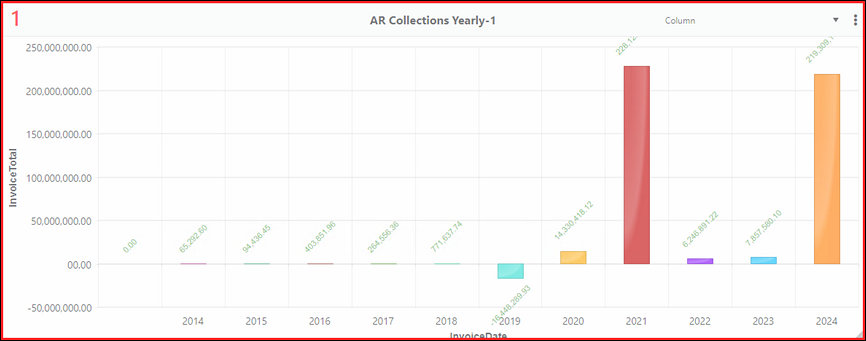
To create a chart such as the one below, choose Column from the Components dropdown. For details on using this option, see BI Tool Chart.
Figure 110: Example of Column type chart
The following image add a setting on the Column Chart Settings screen of Series Field, which has been set to WorkTicket, as shown in >.
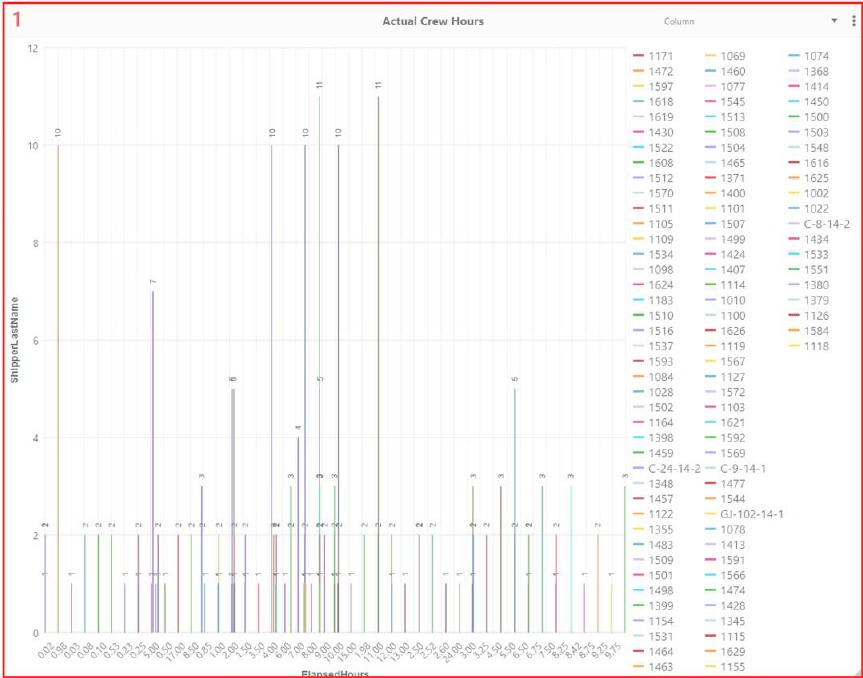
Figure 111: Example of Column Chart with Series Field set to WorkTicket
NOTE: The Column Chart (and Bar Chart) allow the use of more than one value in the Value Field. To insert more than one value, click the Value Field to select a value from the dropdown. When selected it will list within the Value Field. Click the Value Field again to add more values. See BI Tool Bar for an image depicting this functionality.
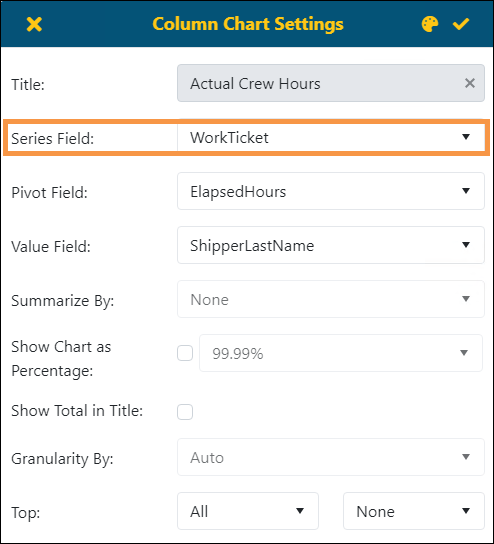
Figure 112: Series Field is set within this screen.