
MoversSuite > Revenue Entry > SIT/Recurring Billing tab > Recurring Billing section > Payment Setup tab
MoversSuite > Order Information > SIT/Recurring Billing tab > Recurring Billing section > Payment Setup tab
Use the AutoPay Setup (Recurring Billing) section to select a Payment Method from those established for the order to enable Automatic Payments (a type of Electronic Payments) or Online Payments for the billing record. The Payment Method Management screen is accessed on the AutoPay Setup tab, as well.
Automatic Payments are payments are also referred to as Electronic Payments. This type of payment is automatically charged when invoices are generated using the Payment Method indicated. For example, the Payment Method set, such as “Visa Credit Card” in Figure 10, is used to process Automatic Payments for that Billing Record.
To setup Automatic Payments for Recurring Billing:
NOTE: See Automatic Payments for complete step by step instructions that include more details and images.
1. Click the Edit button at the top of the screen.
2. Choose a Payment Method. When a Payment Method is selected, the system will process the invoice as an Automatic Payment. If the Payment Method is set to “None” and the Use Online Payment box is checked, the invoice will be processed as an Online Payment. An email address must be set within Payment Setup for this option.
3. Check “Email AutoPay Receipt.” This sends a receipt to the email address set within Payment Setup. Make sure an email address is set within Autopay tab >Payment Setup for this option.
4. Check “Use Online Payment.” Should the Payment Method fail, the system will automatically send an Online Payment link via email for the generated invoice. If your payment provider offers the option of “Keep Payment on File” (or other verbiage to this point) and your customer checks this option, the information they enter will become the new Payment Method and the process continues as an Automatic Payment. If your payment provider does not offer this option:
•The customer can complete the Online Payment link to pay that invoice. Subsequent invoices will be processed as an Online Payment.
•You can contact the customer to process another Capture New Payment Method to establish a Payment Method, which becomes an Automatic Payment.
5. Click Save at the top of the screen.
Figure 10: AutoPay Setup (Recurring Billing)
To setup Online Payments for Recurring Billing:
This method emails the Customer a secure Online Payment link whenever the invoice is generated.
1. Click the Edit button at the top of the screen.
2. Payment Method must be set to “None.”
3. Check “Use Online Payment.”
4. Make sure an email address is set within Autopay tab >Payment Setup for this option.
5. Click Save at the top of the screen.
There are numerous combinations of the options available within AutoPay Setup. There are a variety of option combinations listed as examples below and what process the combination yields. The explanations are indicated and show within “Invoice Delivery and AutoPay Status” section. Examples that reference printed and/or emailed invoices are referring to the “Print Invoice” or “Email Invoice” options set within the Billing Record tab within Payment Setup. Some examples of the options set and their message are:
NOTE: Payment Methods are set up using Capture New Payment Method, Credit Card/Bank Payment or Authorization, or Capture Credit Card Information.
Example 1 Setup:
|
Email Address set within Payment Setup: Yes |
Payment Method: None |
Email AutoPay Receipt: No |
Use Online Payment: Yes |

The Payment Method set to None. As the Use Online Payment option is set, the customer will be emailed an Online Payment hyperlink to the email address set within Payment Setup. No receipt will be emailed.
Example 2 Setup:
**This example is the best practice for setting up Automatic Payments.**
|
Email Address set within Payment Setup: Yes |
Payment Method: Yes |
Email AutoPay Receipt: Yes |
Use Online Payment: Yes |

Though not in the image, an email address has been set within the Payment Setup tab. There is a Payment Method set, which is “Visa.” The invoice will be paid automatically against that Payment Method. As the Email AutoPay Receipt is checked, auto-pay receipts will be emailed to email address set within Payment Setup. The “Use Online Payment” box is checked; therefore, should the Payment Method expire or otherwise fail, an Online Payment link will be automatically emailed. Depending on the payment processor, if the financial payment information is captured or attached to the Customer, then it will become the current Payment Method for Automatic Payments. Future invoices will be automatically paid using that Payment Method.
Example 3 Setup:
|
Email Address set within Payment Setup: No |
Payment Method: Yes |
Email AutoPay Receipt: Yes |
Use Online Payment: No |

Though not in the image, no email address has been set within the Payment Setup tab. There is a Payment Method set named “Visa.” The invoice will be paid automatically against the Payment Method shown in that field. Even though Email AutoPay Receipt is checked, auto-pay receipts will not be emailed as there isn’t an email address to which to send it. As the Use Online Payment box is not checked, should the Payment Method expire, no Online Payment link will be automatically emailed.
Example 4 Setup:
|
Email Address set within Payment Setup: No |
Payment Method: Yes |
Email AutoPay Receipt: No |
Use Online Payment: No |

Though not in the image, no email address has been set within the Payment Setup tab. There is a Payment Method set named “MasterCard Credit Card.” The invoice will be paid automatically against the Payment Method shown in that field. Email AutoPay Receipt is not checked so no auto-pay receipts will be emailed, though it wouldn’t be emailed in any case as there is no email address set. Further, as the Use Online Payment box is not checked, should the Payment Method expire, no Online Payment link will be automatically emailed.
The Payment Method Management screen is accessed through the yellow pencil icon. Some uses for this screen are:
•Mark a payment method as active and available or inactive.
•Set a nickname for the payment account (which is helpful to match the payment information to the appropriate billing).
•See who the payment processer Provider is for the card.
See Payment Method Management for more details on this screen, it’s information, and functionality.
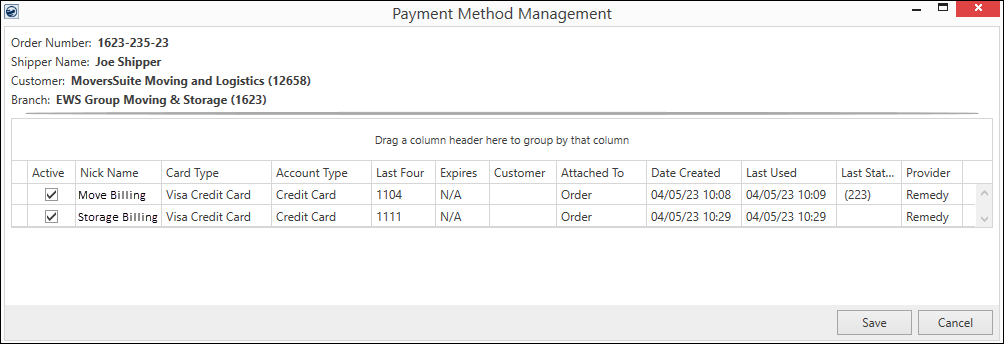
Figure 11: Payment Method Management screen
The following table describes the fields and functions available within the AutoPay Setup tab.
|
Field/Function |
Description |
|
Email Recurring Billing Invoice to:
|
Provide one or more email addresses to evoke automatic email functionality (up to 255 characters). An email is sent out automatically when a billing run generates. The email includes the invoice generated during the billing run for the order. Separate multiple email addresses using a comma or semi-colon. In addition to the invoice email, if the account is setup for Recurring Payments, then a second email is sent out to these recipients that includes the cash receipt generated from the billing run for the electronic payment. If the billing record is setup for Recurring Payments, then the field label includes “and AutoPay Cash Receipt” in the title. Otherwise, if “none” is selected for the Payment Method, then the field label reads, “Email Recurring Billing Invoice to:” only. |
|
Use this section to establish Recurring Payments for the billing items generated for this order record. When billing is run, the application automatically attempts to process payments for the amount of the open billing items. | |
|
Payment Method |
This dropdown lists all the payment methods on the order that have been captured. If no payment method is listed or if a new payment method is needed, use Capture New Payment Method button to capture the financial information. Use the dropdown to specify which payment method the application should use to automatically attempt to process Automatic Payments (or Electronic Payments) for the specified method. Methods available are those defined for the order through Capture New Payment Method (accessible through the AutoPay Setup (Recurring Billing) screen), Credit Card/Bank Payment or Authorization, and through the Online Payment site. When successfully processed, that financial information automatically is set within the Payment Method and is the method in use.
If no Payment Method is checked and the Use Online Payment box is checked, the system will process the Recurring Billing invoice as an Online Payment using the email address set within Payment Setup the Online Payment Link email. See the different option setups and what they do within this topic before this technical table. |
|
|
Check this option to send an email having a copy of the cash receipt to the email address specified within Payment Setup upon a successful auto payment.
NOTES: •With this flag checked, an email address is mandatory to be provided within the Payment Setup tab. •If auto payment is not setup and this flag is checked, no cash receipt email is generated. •Users who consider their Credit Card/Bank Statement enough for information may consider leaving this option unchecked. •This option is checked for all billing records by default.
|
|
|
Use Online Payment The Use Online Payments option is available when one or more emails are established for the record within the Email Recurring Billing Invoice to field. When this option is checked, the application sends an email containing a hyperlink to the Online Payment site, from which the customer can pay their invoice using a credit card or bank account. There is also an option to retain the payment method for future billing on site, as well. Refer to Electronic and Online Payments for more information. |
|
|
Payment Method Management Access the Payment Method Managementscreen through this button. From this screen you can mark a payment method as active and available or inactive, you can also set a nickname for the payment account, which is helpful to match the payment information to the appropriate billing. You must have appropriate access to the “Electronic Payment Management” module to access this functionality. Refer to Electronic and Online Payments for details. |
|
|
Capture New Payment Method Pressing this button opens the Capture New Payment Method screen, which is used to enter a new Payment Method for the recurring Billing Record in use. When the Capture New Payment Method screen is completed and the following Electronic Capture Processing Page screen is successfully completed, this information entered will list as an option under the Payment Method dropdown. See Capture New Payment Method for instructions on using this screen. |
|
|
This gives instructions as to what the options set within AutoPay Setup and the Billing Record tab (specifically Email Invoice and Print Invoice) will actually do. detail additional information that relates the options set within AutoPay Setup. |
RELATED TOPIC:
AutoPay Setup (Recurring Billing)




