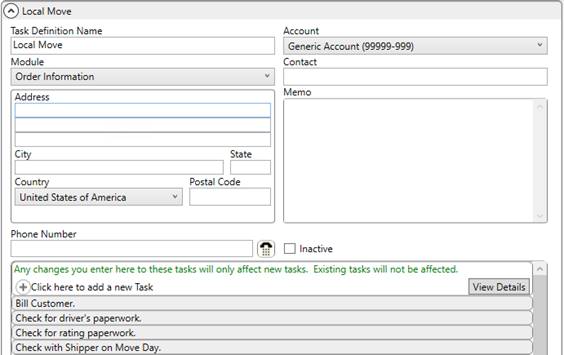
Use this section to enable the Tasks System. Basically, most setup is related to establishing task items within Tasks Setup and verifying that they link to appropriate personnel. Additional setup is needed to control certain aspects of task generation. The following list includes setup areas needed to establish a Tasks System followed by detailed information on each setup area:
Tasks Setup
Establish a template of to-do items for within the Tasks Setup. The Task Definition Name is considered a template of to-items and is assigned to an order through the Task Definition setting within the Name, Address, Phone tab and through Account Profile Setup. The Module determines whether the record is available through the Claims or through the Order Information module (Order Information applies to all non-Claims modules, including International Orders, Order Information, and Special Services).
The Account, Contact, Address, Phone number, and Memo fields are utilized by Customer Web Portal functionality and are not referenced otherwise.
Figure 15: Task Setup
Next, build a list of Task items. These are the individual to-do items that comprise the workflow of personnel. The application computes a due date for the item as the number of Due Days before or after (based on the Due Type) of the Dependency Date. In the example below (Figure 16), a task of Confirm Requested Services shows up within the Tasks and Workflow grids with a due date that is five days before the Load Date set on the order. The task is assigned to the OA Coordinator set on the order, as well.
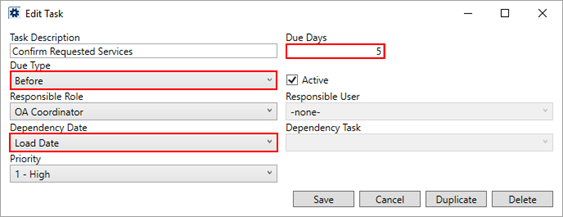
Figure 16: Task item example
You can also configure a task to be based on the completion of another task. In the following example (Figure 17), the same task item from the example above is now configured to create a due date that is one day after the date set for the Confirm order information task. The Dependency Task is a different task associated to the same Tasks Setup record that you have open.
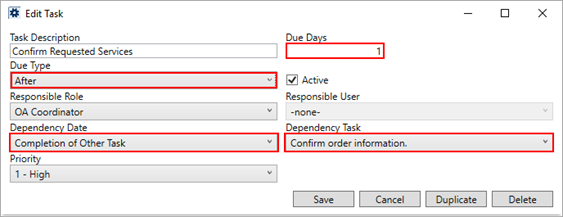
Figure 17: Example Task based on the completion of another task
The Dependency Date values available to you along with their corresponding field location in MoversSuite list within the Task Dependency Dates topic.
You also have options to determine who the person is that the task is assigned to you. You can assign the task to a specific role on the order by setting the Responsible Party. Refer to the Responsible Role description within Tasks Setup for details on where in the application these personnel are assigned.
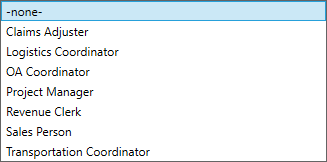
Figure 18: Responsible Role options
Alternatively, you can default a task to a specific person. You can set the Responsible User to a person that is automatically assigned to work the task. The list is comprised of all active employees within Personnel Setup.
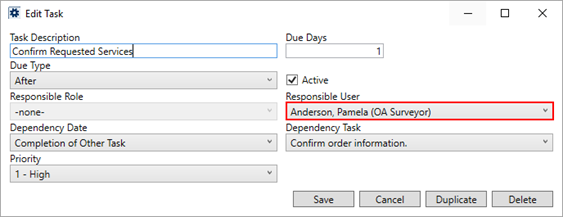
Figure 19: Responsible User example
Other options include the ability to hide a task by unchecking the Active flag and setting a Priority. The Priority allows someone working within the Tasks and Workflow grids to provide an addition order to the task list.
For a report summary of the task lists by role, you can view the Task List Report. This report displays the Task Description, which Account Profile the record is assigned to, the Dependency Date, and the Due Type. Group options allow you to view by Account Profile or by Responsible User.
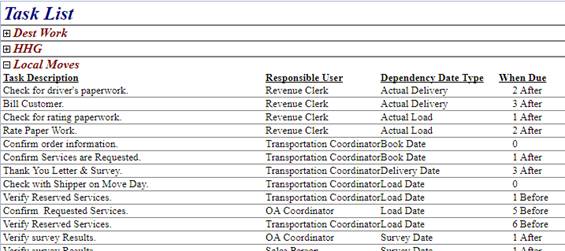
Figure 20: Task List Report grouped by Account Profile
Task Priority Setup
You can update the list of Priority options available to a task item within Tasks Setup by defining values within the Task Priority Setup. By default, three priority options are defined for you. They include the following:
1 - High
2 - Medium
3 - Low
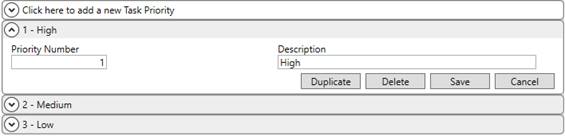
Figure 21: Task Priority Setup
You can update these defaults or added new ones as needed. The Priority Number provides a value in which can be sorted by within the Tasks and Workflow grids.
Link Tasks to Account Profiles
You can set the Task Definition and Task Group on the Order Defaults tab of an Account Profile Setup record.
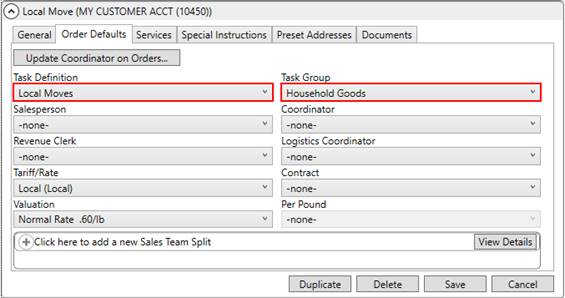
Figure 22: Order Defaults tab within Account Profile Setup
When a lead or order is assigned to the profile, the tasks settings are automatically set.
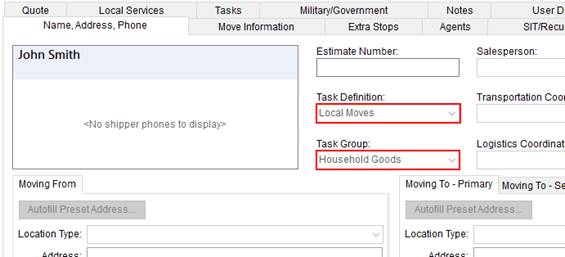
Figure 23: Name, Address, Phone tab
You can view the Task List Report to see a list of tasks by Responsible User assigned to specific Account Profile records.
Link Profiles to Order Status
When the status of an order changes, you can instruct the application to regenerate or clear all tasks as well.
Setting the Clear Move Dates flag within Order Status Setup regenerates the list of tasks when the order status is changed. If the Is Cancelled Status flag is also set, then the application removes (or clears) all Tasks items.

Figure 24: Order Status Setup example
Security Access to Tasks Functionality
Control user access to Tasks functionality through the Security Profile Setup and through the assigned branches within Personnel Setup.
Tasks functionality assignment is available through the Security Modules:
Full access to any of the above modules grants a person the ability to do the following within the corresponding module, provided the branch is one of the assigned branches for the person:
•Set the Task Definition and Task Group on the order
•Perform all functions within the Tasks and/or Workflow tabs
•View tasks for orders for which they have Read Only access
For example, if you wish someone to have full access to all Tasks functions for a branch within the Order Information module, then update their Security Profile Setup record to have the Branch with an Access Type of Full and verify that the Branch is also in their assigned branches within their Personnel Setup record.
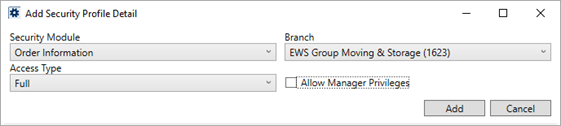
Figure 25: Add/Edit Security Profile Detail entry
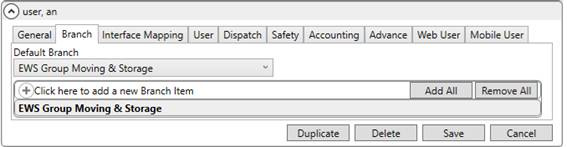
Figure 26: Branch tab within Personnel Setup
Read-only Tasks functionality is based on branch assignment. If you only want a person to view tasks on an order for a specific branch, then set the Access Type to Read Only within their Security Profile Setup record.