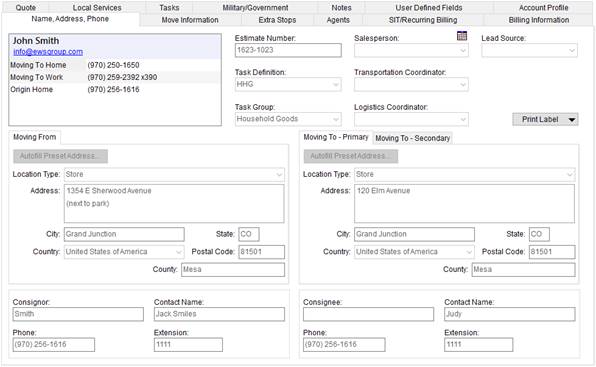
The Name, Address, Phone tab is the initial tab within Order Information and opens in edit mode when a new order or sales lead is created or when the Find is used to locate a record. Use this tab to provide the basic order information for the move request, including shipper name and contact information, salesperson, coordinators, and main address involved in the move.
Figure 25: Name, Address, Phone tab
Described in the table below are the fields and functions available through this tab.
|
Field/Function |
Description | |||||||||||||||||||||
|
See Order-Level Functions for details on fields and functions that display in the Information Bar. | ||||||||||||||||||||||
|
Shipper Contact Information |
| |||||||||||||||||||||
|
Last Name/Company Name |
Enter the last name or company name of the shipper (up to 26 characters). The name entered here is referenced throughout the application and displays on various reports and invoices.
| |||||||||||||||||||||
|
First Name/MI |
Enter the first name of the shipper (up to 16
characters). The first name is often combined with the LastName/Company
Name to create a shipper name.
| |||||||||||||||||||||
|
|
Enter the email address for the shipper (up to 120 characters). Once the record is saved, users can click on the email address set here and the application will evoke the system default mail utility (such as Microsoft Outlook) placing the email address set here as the message recipient.
| |||||||||||||||||||||
|
Phone Numbers |
Select a phone type and enter the corresponding phone number for each contact phone number provided for the shipper. Phone types are defined with Shipper Phone Type Setup and affect several imports including those from Atlas, SIRVA, and UniGroup.
Phone Numbers for most phone types affect Bookmarks data (see Order Information Bookmark Fields).
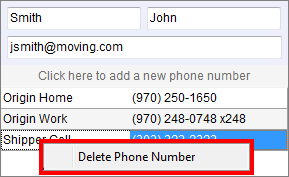
Use a right-click option to remove a phone number.
Figure 26: Right-click option to remove a phone number entry
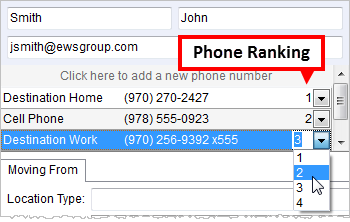
Users can rank phone numbers to give them a priority in the listing. Lowest numbers appear at the top of the listing and non-ranked numbers list after the ranked ones.
Figure 27: Phone number ranking
| |||||||||||||||||||||
|
|
| |||||||||||||||||||||
|
Estimate Number |
Estimate number assigned to the order (up to 32 characters). An estimate can be generated through the Sales Lead Information screen.
| |||||||||||||||||||||
|
Task Definition |
Select a template to be used to build a predefined list of action items based off of order-related data. The action items will appear within the Tasks tab and are defined within Tasks Setup. A Task Definition identifies a profile for user access to the Customer Web Portal. Refer to the Tasks System topic for more information.
| |||||||||||||||||||||
|
Task Group |
Select a subset of the Task Definition which aids in filtering search results and defining invoice variables for Special Services orders. Task groups are established within the Groups tab in Tasks Setup. Refer to the Tasks System topic for more information.
| |||||||||||||||||||||
|
Salesperson
|
Company salesperson responsible for generating the order.
Note: Sales people are personnel with a Status of ACTIVE and a Labor Type of Sales within Personnel Setup.
Salesperson Calendar See Email and Calendar Integration for details.
| |||||||||||||||||||||
|
Transportation Coordinator |
Move coordinator responsible for managing the order.
Note: Coordinators are personnel with a Status of “ACTIVE” and a Labor Type of “Coor” within Personnel Setup.
| |||||||||||||||||||||
|
Logistics Coordinator |
Person responsible for managing the logistics for the order.
Note: Coordinators are personnel with a Status of “ACTIVE” and a Labor Type of “Coor” within Personnel Setup.
| |||||||||||||||||||||
|
Lead Source |
Select the source that led to the lead creation for this order.
| |||||||||||||||||||||
|
|
Print Label (Alt+P) Generates a label for the opened order and displays it within a Report Viewer window. The document generated through this function is defined with a Report Type of Reporting Services Report and a System ID of HLAB. Refer to Reports and Hauling Label Report for more information. | |||||||||||||||||||||
|
Moving From |
Origin address | |||||||||||||||||||||
|
|
Autofill Preset Address Populate the address of this section with an address linked to the Account Profile assigned to the order (through the Account Profile tab). Pressing this button opens the Autofill Preset Address dialog where you can select the address. Once a selection is made, address and Consignor fields update based on the selection. | |||||||||||||||||||||
|
Location Type |
Select a description of origin location. Location Type is also referenced in Extra Stops and Segments and is used to link a physical location to an interface code as established in the Address Location Type Setup.
| |||||||||||||||||||||
|
Address |
Address of the physical location for the origin of the move (up to three lines each up to 256 characters).
| |||||||||||||||||||||
|
City |
Origin city (up to 26 characters).
| |||||||||||||||||||||
|
State |
Origin state (up to 2 characters).
| |||||||||||||||||||||
|
Country |
Select the origin country from the available list.
| |||||||||||||||||||||
|
Postal Code |
Origin zip code (up to 10 characters).
| |||||||||||||||||||||
|
County |
Origin country code or name (up to 32 characters). This field affects several imports including those from Atlas, SIRVA, and UniGroup.
| |||||||||||||||||||||
|
Moving To – Primary/Secondary | ||||||||||||||||||||||
|
Primary and Secondary |
Enter address information in Moving To – Primary and/or Moving To – Secondary. If a primary and secondary address is needed, then the Moving To - Secondary address will automatically become the final destination of the move and the default address for all the paperwork regarding the shipment. In such cases, the primary address is often referred to for temporary storage. | |||||||||||||||||||||
|
|
Autofill Preset Address Populate the address of this section with an address linked to the Account Profile assigned to the order (through the Account Profile tab). Pressing this button opens the Autofill Preset Address dialog where you can select the address. Once a selection is made, address and Consignee fields update based on the selection. | |||||||||||||||||||||
|
Location Type |
Select a description of Destination location. Location Type is also referenced in Extra Stops and Segments and is used to link a physical location to an interface code as established in the Address Location Type Setup.
| |||||||||||||||||||||
|
Address |
Address of the physical location for the destination of the move (up to three lines each up to 256 characters).
| |||||||||||||||||||||
|
City |
Destination city (up to 26 characters).
| |||||||||||||||||||||
|
State |
Destination state (up to 2 characters).
| |||||||||||||||||||||
|
Country |
Select the destination country from the available list.
| |||||||||||||||||||||
|
Postal Code |
Destination zip code (up to 10 characters).
| |||||||||||||||||||||
|
County |
Destination country code or name (up to 32 characters). This field affects several imports including those from Atlas, SIRVA, and UniGroup.
| |||||||||||||||||||||
|
Consignor |
| |||||||||||||||||||||
|
Utilize the Autofill Preset Address option (described under Moving From) to populate this information from a preset assigned to the Account Profile of the order. | ||||||||||||||||||||||
|
Consignor |
Enter the name of the company responsible for transportation or storage at the origin location (up to 50 characters).
| |||||||||||||||||||||
|
Contact Name |
Enter the name of the contact person representing the order for the consignor (up to 50 characters).
| |||||||||||||||||||||
|
Contact Phone |
Enter the phone number of the contact person for the
consignor. Press the phone icon (
| |||||||||||||||||||||
|
Extension |
Enter the phone number extension for the consignor contact (up to 10 digits).
| |||||||||||||||||||||
|
Consignee |
| |||||||||||||||||||||
|
Utilize the Autofill Preset Address option (described under Moving To - Primary or Moving To - Secondary) to populate this information from a preset assigned to the Account Profile of the order. | ||||||||||||||||||||||
|
Consignee |
Enter the name of the company responsible for transportation or storage at the destination location (up to 50 characters).
| |||||||||||||||||||||
|
Contact Name |
Enter the name of the contact person representing the order for the consignee (up to 50 characters).
| |||||||||||||||||||||
|
Contact Phone |
Enter the phone number of the contact person for the
consignee. Press the phone icon (
| |||||||||||||||||||||
|
Extension |
Enter the phone number extension for the consignee contact (up to 10 digits).
| |||||||||||||||||||||
RELATED TOPIC:
 to access