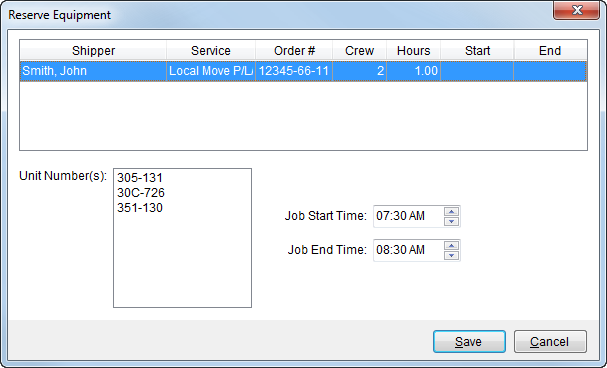
The Reserve Equipment screen allows a user to assign selected resources to one or more services. A user can also set the starting and ending time of usage. Access the Reserve Equipment screen through the Assign Equipment function in the Dispatch Center.
Figure 33: Reserve Equipment screen
The following table describes the fields and functions available within this screen.
|
Field |
Description |
|
Shipper |
Displays the formatted shipper name combined from the Last Name/Company Name and First Name fields from the Name, Address, Phone tab. |
|
Service |
This column displays the name of service. |
|
Order # |
Displays the MoversSuite Order Number associated to the service.
Note: “[A]” displays next to the Order Number when the order has been archived. See Order Archive for more information.
|
|
Crew |
Displays the number of crew member(s) assigned to the service. |
|
Hours |
Displays the total man hours estimated or requested to perform the service. |
|
Start |
This column displays the estimated job starting time as set through the Set Service Time screen. |
|
End |
This column displays the estimated job ending time as set through the Set Service Time screen. |
|
Unit Number(s) |
This section displays the identification number(s) of the equipment resource that are reserved for the specified time and service. |
|
Job Start Time |
Modify the estimated starting time of the service by
entering a time in MM:SS format or by clicking one of the hour, minute, or
AM/PM values and pressing the up and down arrow ( |
|
Job End Time |
Modify the estimated ending time of the service by
entering a time in MM:SS format or by clicking one of the hour, minute, or
AM/PM values and pressing the up and down arrow ( |
|
|
Save (Alt+S) Saves changes made to the record and assigns the selected equipment resources to the service(s). |
|
|
Cancel (Alt+C) Discards any changes made and closes the screen without assigning the equipment resources. |
 ) to adjust. See
