Revenue for an O&I Move will be processed under each sub-order. As services are processed and work tickets generated under the sub-orders so will be revenue and invoice creation.
This section describes a method of entering revenue and generating invoices for a local O&I Move. Reports discussed in the Office & Industrial Move Reports section will allow a user to track the progress of revenue generation and invoicing.
Revenue from a local O&I Move service
The process described below illustrates a revenue entry procedure for local services and assumes the user has requested a Local Service, crew assignments, and work ticket(s) generated.
1. In MoversSuite,
2. Open the Revenue Entry interface,
3. Use the Find feature to retrieve a sub-order,
4. Access the Order Information (Revenue Entry) tab,
5. Press Edit to make changes,
6. Select data values for required fields, such as Revenue Clerk, Commodity, Authority, Tariff/Rate, etc.,
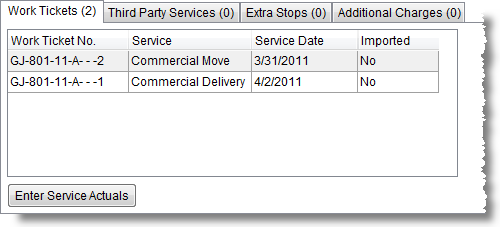
7. View the Work Tickets tab and verify the services,
Figure 52: Enter Actuals - Select Service dialog
8. Select a service from within the data grid,
9. Press Enter Service Actuals button to access the Release Work Ticket dialog will appear,
10. Press Update Crew and the Update Crew and Equipment dialog will appear,
11. Set the Start and End time fields and make other changes, as needed,
12. Press Add to make the crew time available in Revenue Entry,
13. Repeat Steps 10 through 12 to update Equipment, if needed,
14. Press Done when data entry is complete. This will close the Release Work Ticket dialog. These transactions will now be available to be imported as Revenue Items,
15. Open the Transactions tab,
16. Press the Import Revenue button and the Import Actuals dialog will appear,
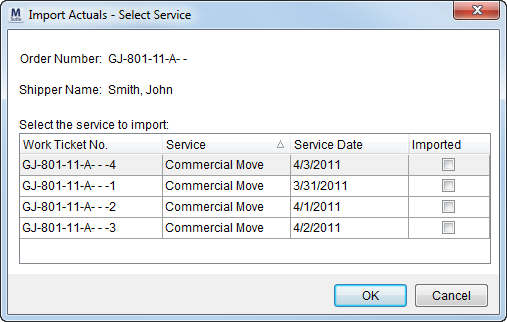
Figure 53: Import Revenue dialog
17. Click on any record within the grid,
18. Press OK and the dialog will close and the Transactions grid will display the records imported.
Local services items imported into the Transactions grid can be edited or deleted. When these items are ready to be invoiced a user can generate invoices for the transactions, as described in the process below.
Items manually entered in Revenue Entry should reference the work ticket number assigned to the service.
Invoicing for a local O&I Move service
A user can follow the procedure below to generate an invoice for transactions generated under a sub-order of an O&I Move.
1. In MoversSuite,
2. Open the Revenue Entry interface,
3. Use the Find feature to retrieve a sub-order that has imported revenue items available within the Transactions grid,
4. Open the Summary tab,
5. Click on the Invoice button and the Invoice Management dialog will appear,
6. Select New Complete to define an initial invoice or New Supplemental button do define invoice items to be billed incrementally and either the New Complete Invoice interface or the New Supplemental Invoice interface will appear,
7. Press Generate Invoice to proceed with the invoice creation process. The invoice will be available for viewing and printing through the Invoice Management dialog.
A user can repeat this process for other sub-order entries as needed.
RELATED TOPICS: