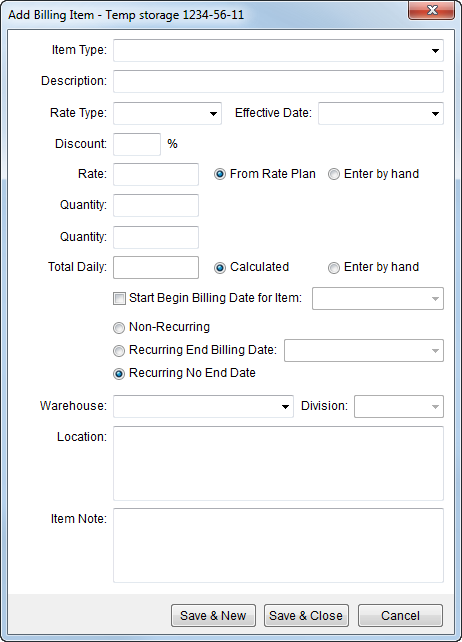
Use the Add Billing Item screen to add and update a particular charge associated to a billing record. This screen is available through the Add and Edit option in Billing Record.
Figure 6: Add Billing Item screen
The following table describes the fields and functions available within Add Billing Item.
|
Field/Function |
Description |
|
Item Type |
Select a value from the list defined within Storage Item Type Setup. This setting determines the Item Code used to process billing charges. |
|
Item Description |
The description provided with the selected Item Type will display in this field. Users can modify this description, which is what displays on invoices (up to 128 characters). |
|
Rate Type |
Select a type from the list defined within Rate Type Setup used to determine how transactions are calculated and how they appear on the invoice. Additionally, special logics exists for “100-Weight” and “Miles” types. These two types retrieve order data to assist in computing the rate. Refer to Rate Type Setup for details. The Rate Type affects other rating data on this item, including Effective Date, Rate, Quantity field(s), and Total Daily. Setting the Rate Type may trigger Advanced Rating Systems as well. See Rating Systems for an overview and setup options. |
|
Effective Date |
Users can set the date used to retrieve specific rate tiers from the Rate Plan Setup based on effective date ranges set for a particular rate. This option is available when From Rate Plan is set. |
|
Discount |
Enter a percentage value to reduce the rate. The computed rate will display within the Discounted Rate field (appears when a Discount is entered). This option is available when From Rate Plan is set. |
|
Rate |
Enter the percentage applied to compute the total amount of the item. The application will set the rate based on Rate Plan Setup when From Rate Plan is set, depending on the Item Type and the Rate Plan pulled from selected Rate Table. Refer to Rating Systems for more information. Users can manually enter a rate amount by selecting Enter by hand. |
|
Quantity field(s) |
Based on the selected Rate Type, these fields will dynamically display and labeled. The application multiplies the quantity field or fields together along with the Rate to compute the Total Monthly or Total Daily amount. See Rate Type Setup for details. |
|
Total Monthly or Total Daily |
Displays the computed charge based on the previously set rating data when Calculated (default setting) is set. Users can manually enter a charge by selecting Enter by Hand. Note: The label displays Monthly or Daily depending on the Billing Type set for the Billing Record. |
|
Starting Begin Billing Date for Item |
Select this option and enter an alternate beginning date for this item, otherwise the application will start billing based on the Begin Billing Date for the Billing Record. |
|
Recurrence |
This setting controls the duration for which this billing item will be included when computing the total charge of the billing record. Users will need to select one of the following: Non-Recurring This is onetime charge and will only be included in a single billing run for the specified period (Begin Billing Date or Last Bill Date through to the Next Bill Date). Recurring End Billing Date Include this item in all billing runs up to the specified date entered in the accompanied field. Recurring No End Date This billing item will be an ongoing charge included in all billing runs (default). |
|
Warehouse |
The Warehouse determines the branch used when generating revenue transactions; the selected branch will receive the revenue while the branch of the order will carry the receivable. See Warehouse Setup for more information. |
|
Division |
This setting determines which division used to report charges under. Refer to Divisions subject for more information. |
|
Location |
Enter a description of the specific location within the warehouse where items are stored (up to 512 characters). |
|
Item Note |
Enter a memo detailing any accounting information needed by those processing revenue. The data entered for the memo will appear as an accounting note in Transactions. |
|
|
Save & New (Alt+V) This option saves changes to the new or existing record and clears the screen for a user to enter a new record. |
|
|
Save & Close (Alt+S) This option saves changes to the new or existing record and closes the screen. |
|
|
Cancel (Alt+C) This option discards any changes made to a new or existing record and closes the screen. |


