Field
Description
Avalara Account Number
Enter the service number for your company provided by Avalara (up to 32 characters).
Avalara License Key
Enter the license key for your company provided by Avalara (up to 32 characters).
Avalara URL
Enter the fully-qualified URL to access your company account on the Avalara system (up to 64 characters), e.g. “https://company.avalara.net.”

Test Connection
This function checks the connection to the Avalara system using the entered account, key, and URL. Once evoked, a dialog appears displaying the progress of the validation along with the results.
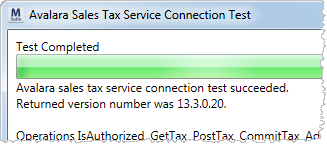
Figure 27: Avalara Sales Tax Service Connection Test dialog
Default Sales Tax Code
Optionally select a default Tax Code to be set when tax is generated (from the list defined within Avalara Tax Code Setup).
If no default is selected, then the system will assign the Tax Code based on the Item Code mappings defined within Avalara Tax Code Setup).
Sales Tax Item Code
Select the Item Code (Item Code Setup) to generate Sales Tax revenue under. When tax is generated on items, the revenue will show within the Transactions tab under appropriate grouping (assigned Revenue Group).
Sales Tax is Activated
Check this flag to activate Sales Tax Integration functionality on your system. Unchecking this option turns off the functionality for the entire system.
Autocalculate as Invoice is Built
Check this option to instruct the application to automatically compute the Sales Tax amount within New Complete Invoice.
If this option is unchecked, the user will to need to compute the tax manually through the Calculate button, which appears next to the Sales Tax field.
Send Invoices For Exempt Customers
Check this option to instruct MoversSuite to send invoices for tax-exempt customers to Avalara. This option should only be checked if using Avalara for tax reporting. Setting this option sends invoices for tax exempt customers to Avalara for reporting purposes only; no sales tax is calculated.
When this option is checked, the New Complete Invoice screen displays “Tax Exempt” near the customer invoice.
Note: Contents of the Tax Exempt 1 field in Microsoft Dynamics GP for the customer is sent along with the invoice (set in the Avalara ExemptionNo field).
Automatic Address Validation
Check this flag to instruct the application to validate the invoice addresses for each revenue item prior to displaying the New Complete Invoice screen.
Address errors encountered display in the Sales Tax Address Validation dialog. Only United States addresses are validated; Avalara does not calculate sales tax on foreign addresses.
If this flag is not set, then the application validates the address when calculating and sending the sales tax with Avalara (when the New Complete Invoice screen is already open).
Authority Item Details
Authority Item
Base Sales Tax generation on the authority of the order.
For taxes to be computed, the authority must match what is listed in this section. If no match is found, then Sales Tax functionality will not be available.
See Authority Setup for details on the Authority field and the options available here.