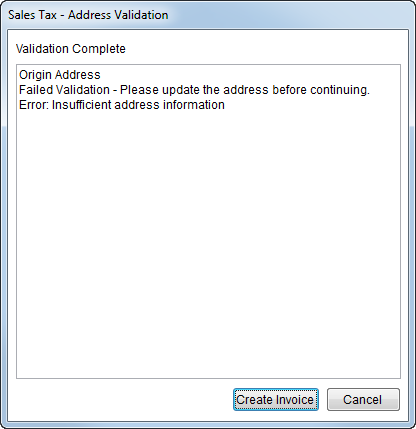
The Sales Tax Address Validation dialog appears when an address linked to a revenue item (through the Point of Service field setting within Add Revenue Item or Add Revenue Group) is invalid or is not set.
This dialog appears when the Automatic Address Validation flag is set (within Avalara Interface Setup) and provides the user the option to continue with creating the invoice within New Complete Invoice or to cancel the request.
|
Note |
|
Sales tax data, including the address, is not transmitted to Avalara until Generate Invoice is pressed. Only United States addresses are validated; Avalara does not calculate sales tax on foreign addresses. |
Figure 26: Sales Tax Address Validation dialog
The following table describes the fields and functions that display within this dialog.
|
Note |
|
The Automatic Address Validation flag must be set within Avalara Interface Setup in order to view this dialog. |
|
Field/Function |
Description |
|
Validation Complete |
This message indicates that the application has processed all address associated to revenue items being invoiced for the order. All incorrect addresses are listed within the text box below the “Validation Complete” message. For each invalid address, the application lists the type, e.g. “Origin Address”, and provides a reason why the address was deemed invalid by Avalara. Refer to the Point of Service field setting (New Complete Invoice) to identify the address referenced within this dialog. |
|
|
Create Invoice Press this button to continue to the New Complete Invoice screen without correcting the incorrect addresses. |
|
|
Cancel Press this button to cancel invoice creation. |
RELATED TOPICS:
Refer the Automatic Address Validation flag setting in Avalara Interface Setup
See the Sales Tax field description within New Complete Invoice

