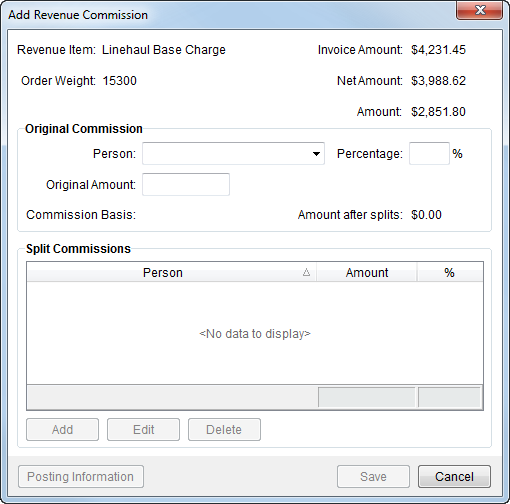
The Add Revenue Commission screen allows a user to define a commission to a commissionable employee and split the commission with company personnel associated to a commission plan and vendor. The commission must be associated to an existing revenue item and a user can access the screen through the through the Add Item > Commission menu in Transactions.
Figure 39: Add Revenue Commission screen
The following table describes the fields and functions available within this screen.
|
Field/Function |
Description |
|
Revenue Item |
This field displays the description of the Item Code of the revenue item set within Add Revenue Item. |
|
Invoice Amount |
This field displays the Invoice Amount for the item. The application will base the commission on this amount when the Commission Basis is Invoice Amount. |
|
Order Weight |
The Hauled Weight of the order as set within Move Information displays in this field. Refer to Commission Plan Setup for more information. |
|
Net Amount |
The Reduced Invoice Amount of the item displays in this field. The application will base the commission on this amount when the Commission Basis is Net Amount. |
|
Amount |
The Revenue Amount of the item displays in this field. The application will base the commission on this amount when the Commission Basis is Revenue Amount. |
|
Original Commission |
|
|
Person |
Select a person from the available list that will receive the commission. Only Commissionable Employees will display in the drop-down menu. |
|
Percentage |
This field displays the percentage assigned to the Person through their commission plan. Users can modify the percentage amount; when doing so, a user will receive a prompt to confirm the request, “Are you sure you want to change the current commission plan for this person? All Split Commissions will be adjusted based on their current percentages…” Press Yes to continue with the change or No to discard the change in Percentage. Enter the percentage value ranging from 0 to 100 using hundredths (.00) if needed, e.g. “37.25.”
Note: The Accounting Note will appear upon modification of the Percentage.
|
|
Original Amount |
This field displays the computed amount of the commission for the Person based on the set Percentage. Users can manually adjust the Original Amount; when doing so, the user will be prompted confirm the request (see Percentage field for request description); the Percentage and Commission Basis fields are removed from the screen as well.
Note: A prompt will appear to confirm a request to continue if the Original Amount exceeds the revenue amount of the item.
The Accounting Note will appear upon modification of the Original Amount. |
|
Commission Basis |
The Commission Basis assigned to the employee through their Commission Plan displays in this field. This field describes what amount to compute the commission percentage on for the selected Person. This field will be one of the following as outlined in the Commission Plan Setup: Invoice Amount, Net Amount, or (Revenue) Amount. |
|
Amount after splits |
The computed commission amount to the Person after deducting all (if any) splits associated displays in this field. This field is the dollar amount the Person will receive for the original portion of the commission. |
|
Split Commissions |
|
|
Person |
This column displays the Person listed to receive a split commission. |
|
Amount |
The dollar amount associated to the split commission record will display in this column.
Note: A total of all split commissions appears at the bottom of the data grid.
|
|
Percentage (%) |
The percentage of the split commission amount is of the Original Amount displays in this column.
Note: A total percentage of all split commissions of the Original Amount appears at the bottom of the data grid.
|
|
|
Add This function opens the Add Split Commission dialog allowing the user to define a split of the original commission amount. |
|
|
Edit This function opens the Add Split Commission dialog in edit mode allowing the user to update a split of the original commission or view Posting Information. |
|
|
Delete This function removes the selected split record without prompting the user to confirm the request. |
|
|
|
|
|
Posting Information This option opens the Posting Information dialog allowing the user to view key data for a posted item. The Posting Information button is available for posted items only. See Dynamics GP Order Inquiry for more data on posted items. |
|
|
Save Users can press Save to add or update the commission record. |
|
|
Cancel Selecting Cancel will discard any changes made. |
RELATED TOPICS:




