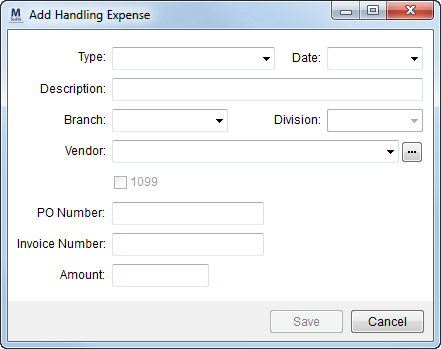
Use the Add Handling Expense screen if money was paid by the company to one of its affiliates for handling a part or all of the claim for the company. Access this screen through the Expenses tab in Handling Revenue/Expenses.
Figure 12: Add Handling Expense screen
The following table lists the fields and functions within this screen.
|
Field/Function |
Description |
|
Type |
Select type from the list of values defined in Claim Handling Type Setup to link the record to an Item Code. |
|
Date |
Select a handling date for the item. See Date Fields for entry options. |
|
Description |
Enter a text description of the item (up to 128 characters). |
|
Branch |
Select a posting branch from the list of those defined in Branch Setup. |
|
Division |
Select a division to post transactions under from the available list. See Divisions for more information. |
|
Vendor |
Select a transaction vendor from the drop-down menu or through the Vendor Find.
Note: Maintain vendors data through Microsoft Dynamics GP.
|
|
|
1099 Flag Select this flag to report this transaction as a 1099. |
|
PO Number |
Enter the purchase order number for the expense item (up to 50 characters). |
|
Invoice Number |
Associate the invoice number of the transaction through this field (up to 30 characters). |
|
Amount |
Enter a dollar amount for the handling expense item. |
|
|
Save (Alt+S) Press Save to add the transaction item forhandling expense. |
|
|
Cancel (Alt+C) This function discards changes made. |


