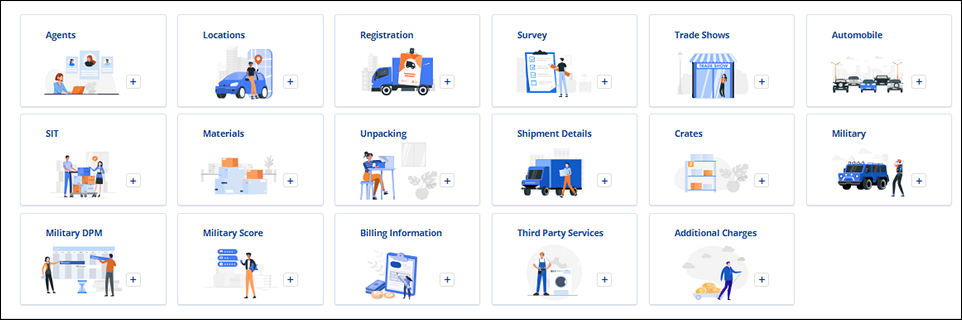
“Tiles” can be found in either of these two locations:
•Move Information > New Section. For details on the use of any of the tiles within this section, see MSWeb New Section.
•Local Services > Additional Details. For details on the use of any of the tiles within this section, see MSWeb Additional Details.
Additionally, to look up information on any tile directly, just add MSWeb as a pre-fix to the tile name. For example, for Agents, search MSWeb Agents.
Figure 171: Examples of Service Tiles
Only tiles that have not already been used show within the New Section (Figure 172) and the Additional Details sections. As tiles are used, tiles disappear. When used, the tile’s name and info then list within collapsible sections. In Figure 172. “Packing” has been added and has its own section; therefore, the “Packing” tile no longer is shown within the New Section..
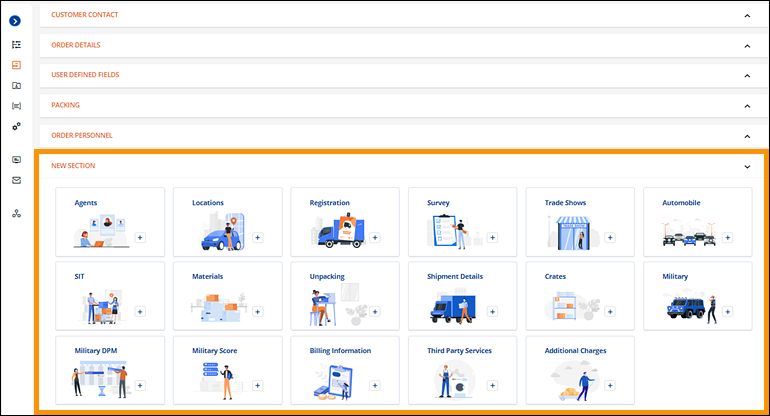
Figure 172: Cards can be expanded to view details
Information added within Move Information > New Section will list within Move Information. Information added within Local Services > Additional Details will list within the Local Services. Further, information added using Materials, Packing, Unpacking, and Crates within Move Information will be available within Local Services through the Import from Orders functionality. For example, Packing quantities entered within Move Information > Packing tile will be available within Local Services when the Material tiles is used from within Additional Details. See MSWeb Import from Orders for more details.
Information added after clicking on a tile can be edited within its section. In the example shown in Figure 173, the Packing section is edited by clicking the “Update” button. This opens the Select Packing screen where any or all quantities can be updated. Click Save to save the changes.
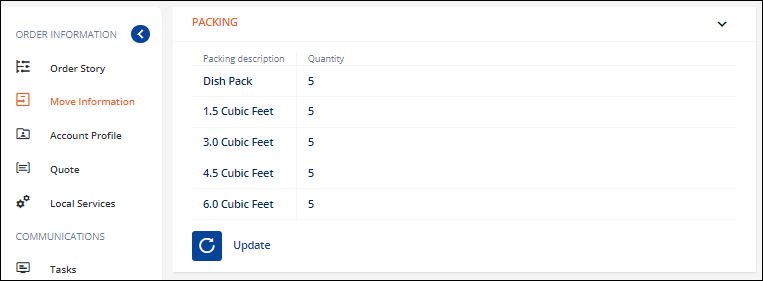
Figure 173: Edit Packing by clicking "Update."
RELATED INFORMATION: