
RELEASE DATE: April 9, 2024
Versions Include: EnterpriseBI: 25.1.1.1228
Jonas Browser: 25.1.1.345
Webservers: 25.1.1.427
Though released by Enterprise BI in April, MoversSuite has been testing the updates. Updates with a Reference Number are cases suggested by EWS for improvements.
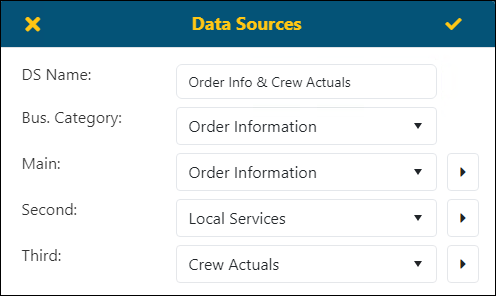
Data Sources: Export Second or Third level Data
Data set within BI Tool Data Sources within the Second or Third levels are exportable within Export PDF (formatted). Previously, data in these levels were pushed into the Main Category in Reports.
REFERENCE NUMBER: MOV-6508

Data Sources: Filter by Calculated columns
This improvement offers greater flexibility and precision in organizing and analyzing your data, allowing for more tailored reporting and decision-making. From within BI Tool Columns, a calculation set within BI Tool Data Sources > BI Tool Calculations is now available as a Column option.
To use, from BI Tool Properties, click Main Level to add a filter to the report.
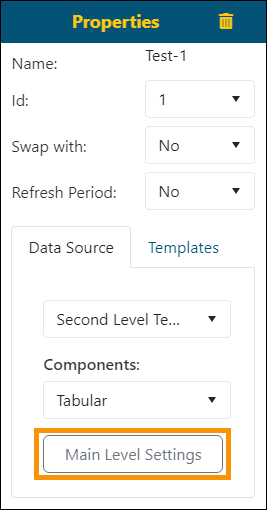
Figure 155: BI Tool Properties
Then, from the Columns tab (BI Tool Columns) choose the calculation set within the Data Source. In this example, the calculation is “Ratio.” In Figure 156, Ratio has been entered within the search and the box under “Visible” checked to use that as a filter. Save the changes and save again on the edit screen.
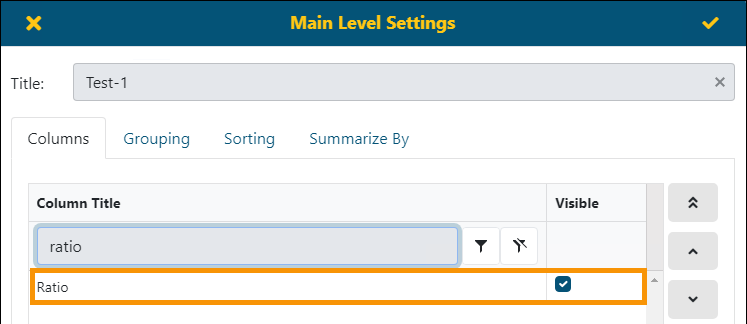
Figure 156: "Ratio" is added as a filter within the Columns tab.
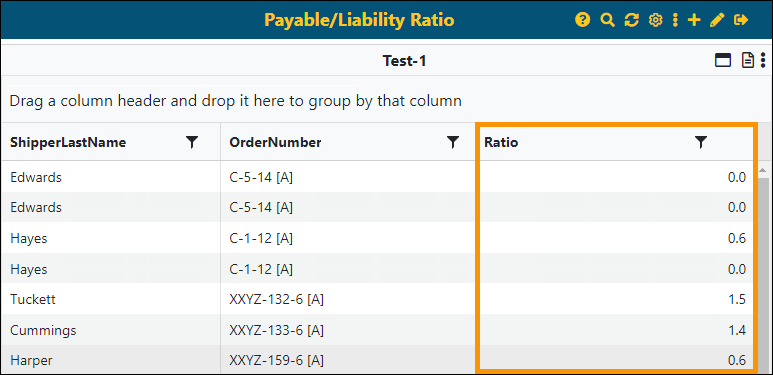
Now, when the report is generated, the Ratio calculation is a column within the report.
REFERENCE NUMBER: MOV-7425
Dates can now be used within Calculations.
Dates calculations are now permitted within BI Tool Calculations. Compute the number of days between two dates, such as [ClaimCreated] and [CloseDate]. When saving a calculation using dates, there may be an error stating that Integers must be used. In that case, change the Display Format at the bottom of the screen to Integer. This calculation can be used as a filter to make it a column in the report. From BI Tool Column, set that calculation as “Visible” to make it a column header in that report.
NOTE: When adding dates using Insert Fields, when a date is selected “julianday” will be added to the date in the Formula.
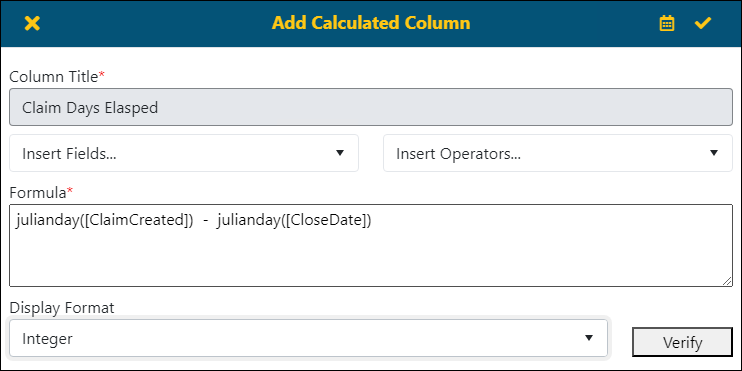
Figure 157: Using Dates within Calculations
RELATED INFORMATION:
BI Tool Calculations
BI Tool Columns
Reports: Multiple values can be applied to the Bar Chart and the Column Chart options.
Add more than one value in a Bar Chart or Column Chart. Multi-value capabilities in a chart allows a users to display categories with multiple data points, similar to Excel. Now you can sum different metrics using this added functionality in these charts.
From BI Tool Properties, select either Bar or Column under Components. Then select either Bar Chart Settings or Column Chart Settings, depending on option chosen.
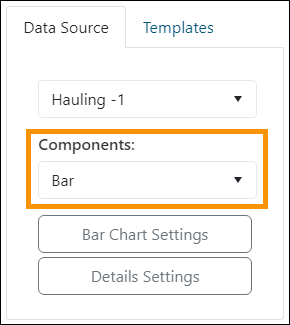
Click on the Value Field, which will open a dropdown menu. Select an option. To continue adding values, click on the field again to open the menu and select an option.
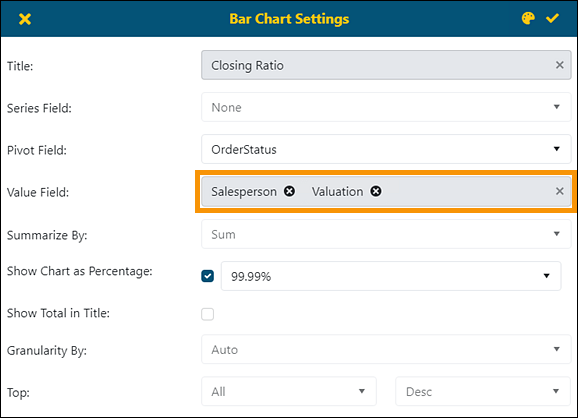
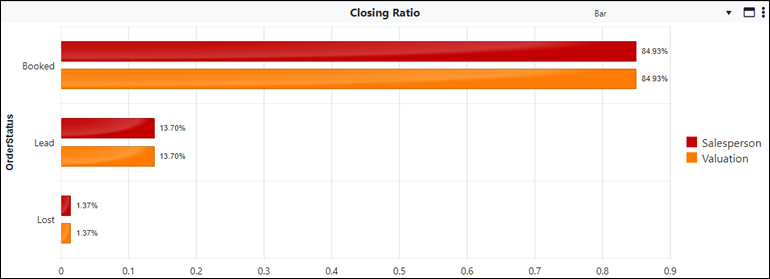
When saved, the Bar Chart will show the two values set, Salesperson and Valuation, based on the Order Status, which is the Pivot Field setting.

Reports: The toggle used to set a Default record is now working properly.
Before the fix, when trying to set another report as the Default, the Default toggle on the current default report was not working. Now, the toggle can be clicked to unselect that report as a default.
To unselect a report as the default:
Step 1: After choosing the edit icon from the Homepage for the report, unselect the Default toggle.
Step 2: Click the checkmark to save that setting within Configuration/Data Sources.
Step 3: Click the checkmark on the report. See Figure 158 for each step. Not clicking the checkmark on Step 3 and instead clicking the X to exit will not retain that setting on the report.
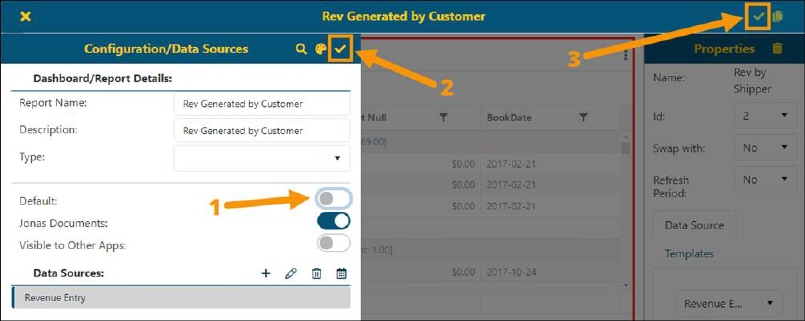
Figure 158: Click the toggle and checkmarks in this order.
Exports: Summarization (Min,Max,Avg) Should Not Be Displayed in Exported Formatted PDF
This was an issue where "Min," "Max," and "Avg" values appeared in formatted PDF exports. These values are now properly excluded.
Reports: Matrix and Pivot Grid were not respecting Date Range filter
Resolved an issue where Matrix and Pivot Grid components failed to apply the Date Range filter accurately. Date Range is set within. Users can now rely on these components to display data correctly according to specified date parameters.
RELATED INFORMATION:
BI Tool Components
BI Tool Data Sources
BI Tool Date Range
Data Sources: The delete button now works properly when deleting Calculations.
Within Data Sources > Calculations, highlight the calculation to be deleted and then click the delete icon (Figure 159). Be sure to click the checkmark in the upper right of the screen, the checkmark on the Data Sources screen, and the last checkmark above Properties on the Report Edit screen to save.
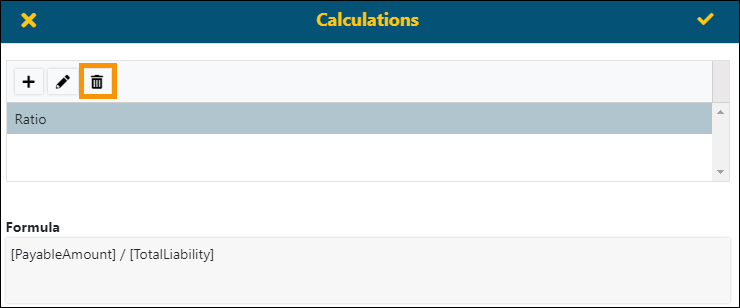
Figure 159: Delete icon within Calculations
This Confirmation does appear to ensure you wish to continue with the deletion.
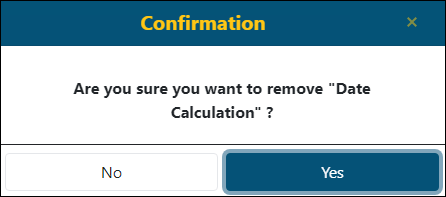
Clicking Yes on the Confirmation does immediately remove the calculation from the Calculation screen; however, the deletion is not saved until the checkmark is clicked on the Data Sources screen, the checkmark is clicked on the Configuration/Data Sources screen, and the finally click the checkmark on the Report/Edit screen, named Payable/Liability Ratio in the example in Figure 160.
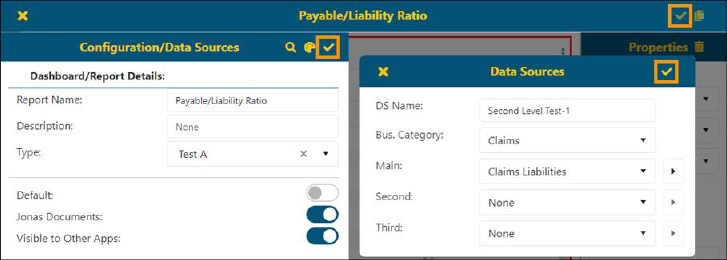
Figure 160: Be sure to click the three checkmarks indicated in this image to save the deletion.