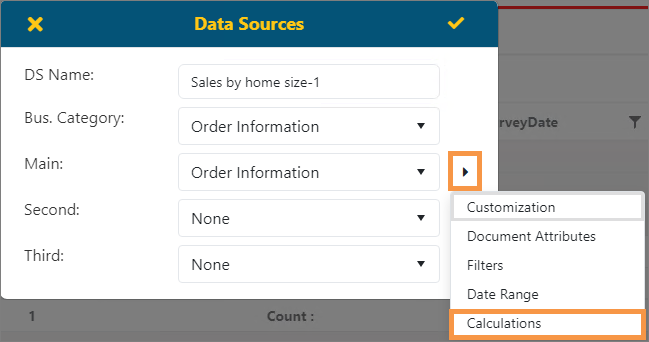
The Calculations screen is an option from the Data Sources screen (see BI Tool Data Sources). Of note, the functionality of this screen applies to the BI Tool Data Sources and Defaults Administration screen, as well, when the Calculations icon is selected.
Figure 87: Data Sources > click menu button to access Calculations.
Clicking Calculations opens the Add Calculated Column screen. This screen is also available for some Component options on the Properties screen (See BI Tool Properties).
To enter a calculation:
1. Click the + to add a new calculation.
2. Enter a title for the calculation.
3. Determine what the calculation is and the fields needed for the calculation. The Formula is entered right to left.
4. Click Insert Fields dropdown to select a field. The selected field will show within formula.
5. Click Insert Operators… to select an arithmetic function. Users can manually type in a formula if they know the field names and functions. SQL functions and operators are allowed in a formula, which is dependent on your SQL server version.
In the example below:
Payable Amount was selected within Insert Fields…
/ was selected from Insert Operators….
Total Liability was selected within Insert Fields…
6. Choose Display Format.
7. Click Verify to confirm the formula is valid, which includes the spelling of fields, the use of operators, etc.
8. Click the checkmark in the upper right corner of the Add Calculated Column screen to save.
9. Click the checkmark on the Calculations screen, too.
10. Lastly, click the checkmark on the Data Source screen, too.
11. Once created, the field will be available to select as a column for display in the report within BI Tool Columns.
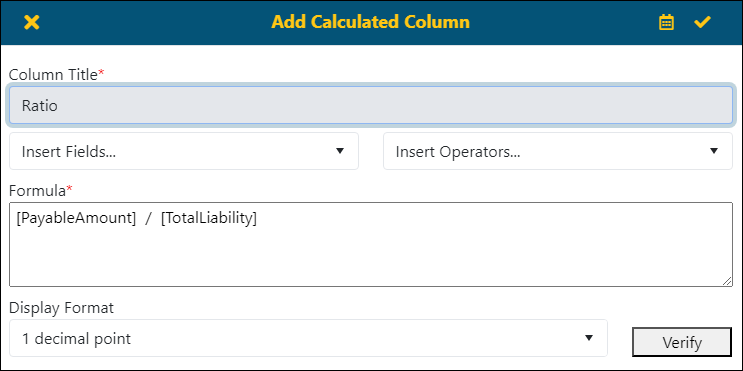
Figure 88: Calculations screen
The Edit (Pencil) button will let users edit a selected row. Remove(X) will remove a selected row.
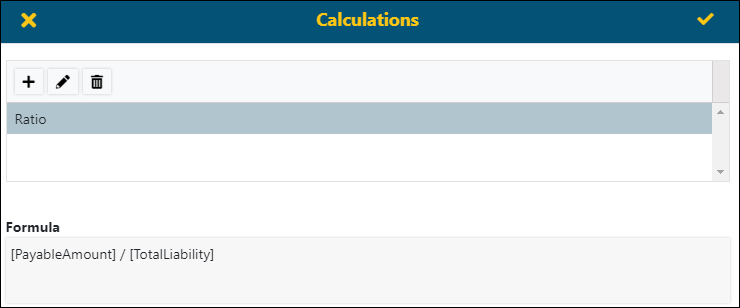
Use the Delete Icon to remove a Calculation. Click on a Calculation Name to highlight the name and then click the Delete icon. Click the checkmark to save the deletion. Be sure to continue to check the checkmarks on all screens, including the Data Sources screen to save.