BI Tool > Settings > Administrator > Users > User
NOTE: You will only need to do this for existing reports. New reports made after a user has been granted permissions for a Category will automatically apply to new reports in that category.
In addition to granting access to specific categories, Admin users can view and define a user’s access to reports within that business category. Technically, assigning permissions to a report is actually achieved by assigning permissions to the Data Sources of those reports. Permissions can be set on the granular level to make each user’s access quite specific to their use.
To view or edit a user’s Data Source permissions:
1. From User Administration icon in the header (see BI Tool User Administration), click on a user to select and highlight that user.
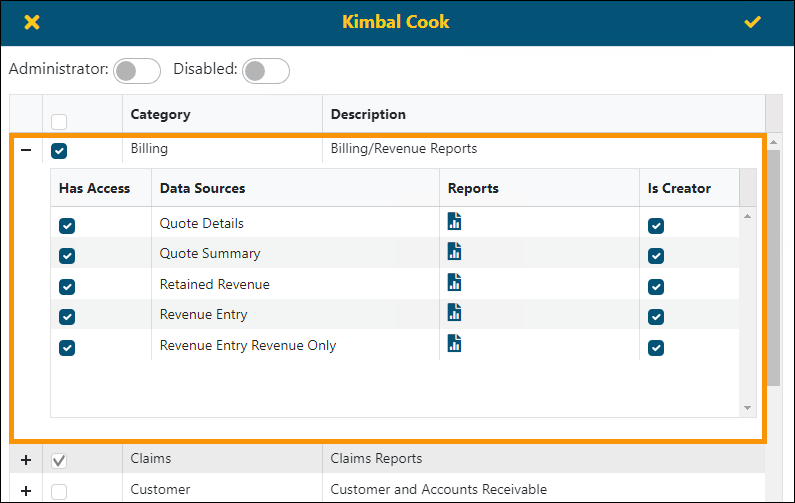
2. Click on the edit icon (the pencil) in the upper right corner of the User Administration screen. This opens the permissions screen for that user (Figure 29).
3. Click the + icon to open a Category and view that user’s settings the Data Source permissions set in that Categore.
Figure 29: The Billing Category is expanded by clicking the + icon. Once expanded, click – to collapse the Category details.
Notice the following icons which are indicators of permissions set for that Category:
|
Icon |
Description |
|
Note: “Permissions” refers to “Has Access” and “Is Creator” settings. | |
|
|
There are no permissions allowed for any Data Source within that Category, including both “Has Access” or “Is Creator” permissions/ |
|
|
There are some permissions allowed for a Data Source or Data Sources within that Category. It could be any combinations of “Has Access” and/or “Is Creator” permission(s). |
|
|
All permissions are allowed for all Data Sources within that Category. All “Has Access” and/or “Is Creator” permissions are granted. |
Click the Reports icon  to view a list of any reports
that use the corresponding Data Source. Click the X in the upper left of the
user’s profile to exit out from the Reports list.
to view a list of any reports
that use the corresponding Data Source. Click the X in the upper left of the
user’s profile to exit out from the Reports list.
To assign permissions to access all Categories and all Data Sources within those Categories:
Click the indicated box in the header. See BI Tool Assigning Access to Business Categories. When the “Has Access” box in the header is not checked, this means that permissions are based on a Category by Category and/or View by View basis.

Figure 30: Main level "Has Access" icon is checked.
To update or edit permissions by Categories:
See BI Tool Assigning Access to Business Categories.
To update or edit permissions by Data Sources:
1. From BI Tool > Settings > Administrator > Users > user profile, click + to open a Category.
2. Click the “Has Access” box to grant permission to view reports created from that specific Data Source.
3. Click the “Is Creator” box to grant editing access for reports created from that specific Data Source. In Figure 31, only some “Is Creator” permissions are allowed.
NOTE: The “Is Creator” permissions allows that user to edit and override settings, filters and parameters set for report using that Category or specific Reports. Changes can be made to the BI Tool Configuration/Data Sources used for those reports. If changes are made and saved, those settings will be in use by all users with permissions for that report. If “Is Creator” is not checked, those users will have read-only access and will not be allowed to use filters or edit the report within BI Tool Configuration/Data Sources. Those users can still use column sort and filter functions on a report.
4.
Optionally, if all options are to be checked in a category, clicking the
checkbox to the left of the Category Name changes the checkbox to this icon  and automatically checks all
“Has Access” and “Is Creator” permissions within that category, as shown in Figure 32.
and automatically checks all
“Has Access” and “Is Creator” permissions within that category, as shown in Figure 32.
5. Review the options within this dropdown to make sure these are the privileges that should be assigned to this user. Uncheck or check “Has Access” or “Is Creator” as needed.
6. Click the checkmark in the upper right corner of the screen to save edits or click the “x” in the upper left corner to exit without saving changes.
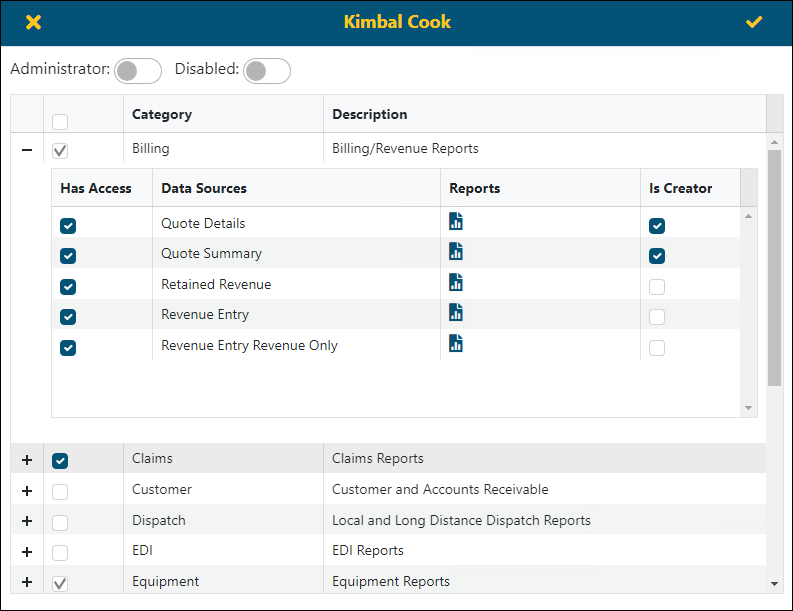
Figure 31: Access can be assigned to reports individually with a category
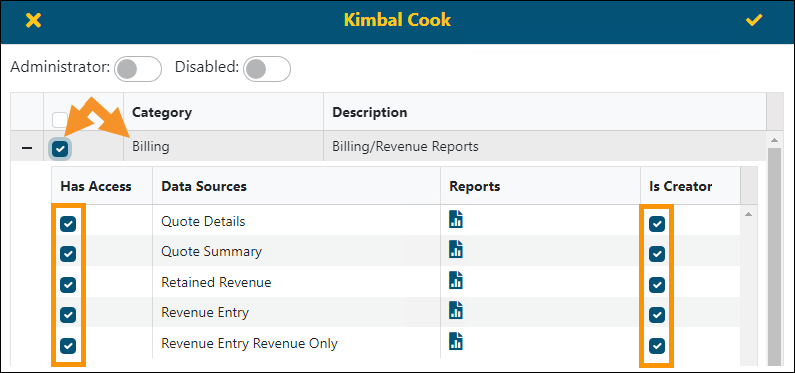
Figure 32: Clicking the box indicated with the arrow for a Category will check all options in that Category for that user.
If the “Has Access” box is greyed out on the Category Name level, this means that the user does not have permission to access that category. See BI Tool Assigning Access to Business Categories.
RELATED INFORMATION:
BI Tool Configuration/Data Sources


